
Preamble
Properly deleting a user requires to unsubscribe them first from the groups to which they have been enrolled.
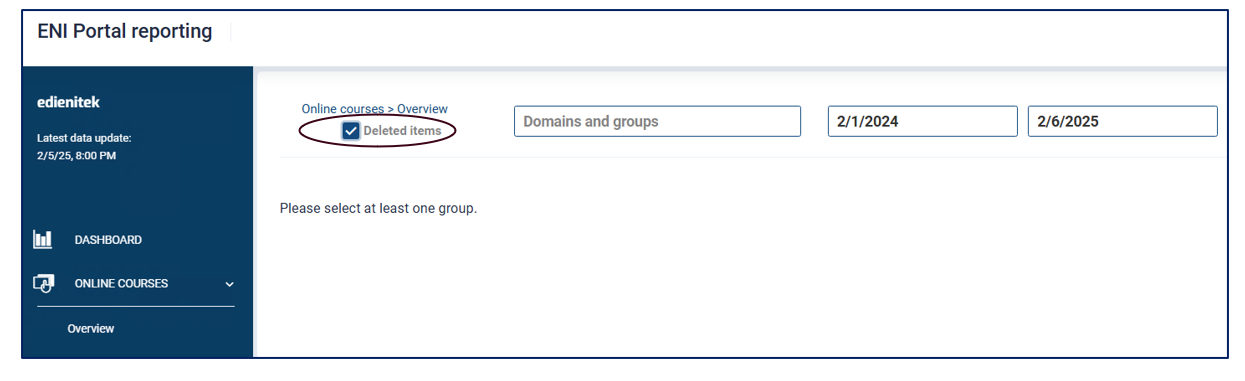
Once deleted, the user will only be visible in the reporting space by ticking the box that allows "deleted items" to be viewed in the various reports available.
To date, the buttons to Restore or Reactivate a user account will have the same effect when accessed by Super Administrators or Standard Administrators. We are currently working on the management of administrator rights to differentiate the operations behind these two buttons.
Deleting a user account via the user properties
- Select your user using the top search bar or by clicking on the domain they are enrolled in and accessing the List of users.
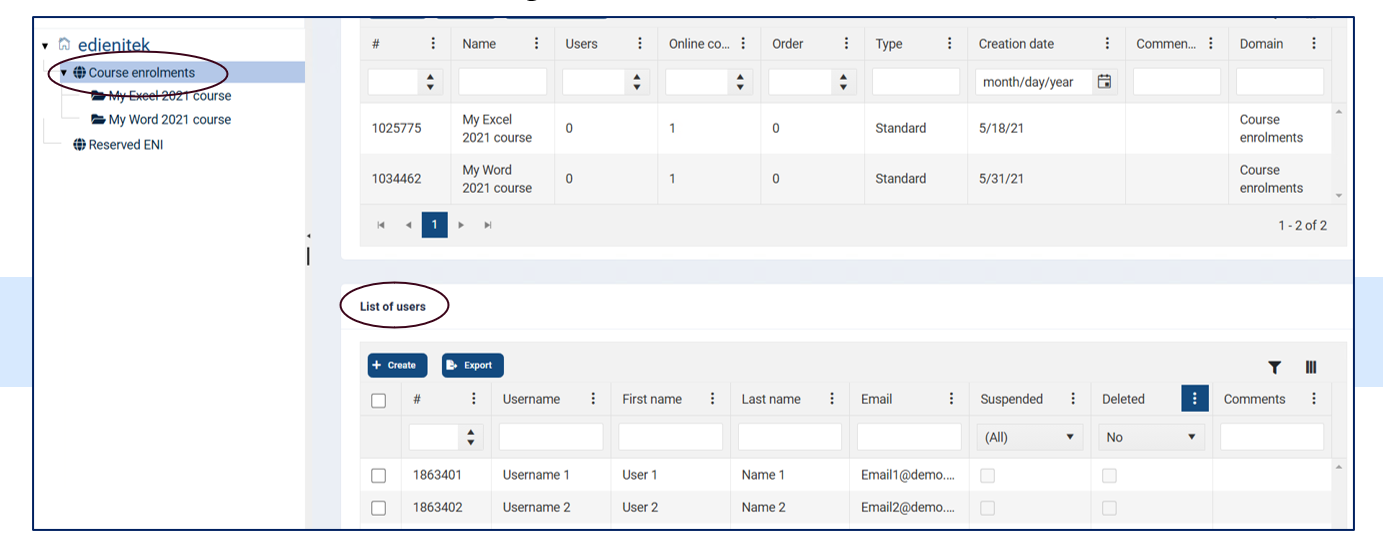
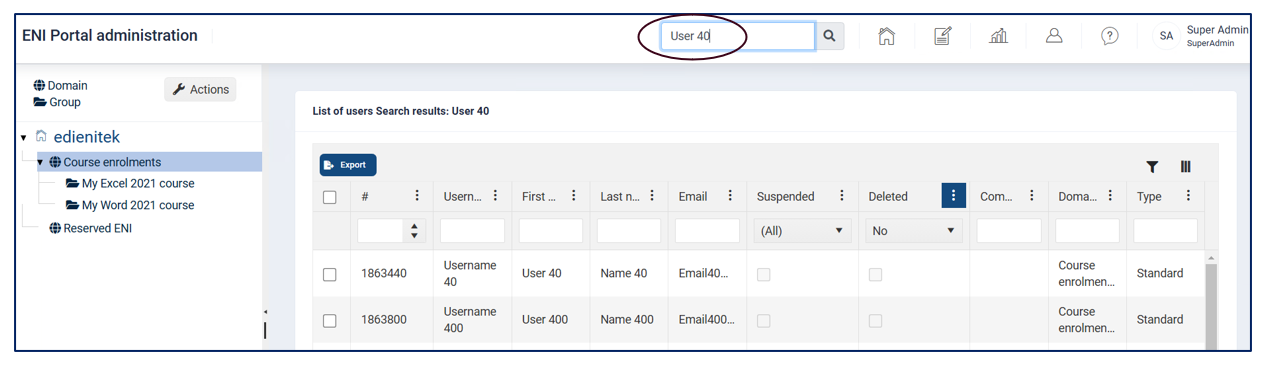
- Select the user to delete and click on Properties

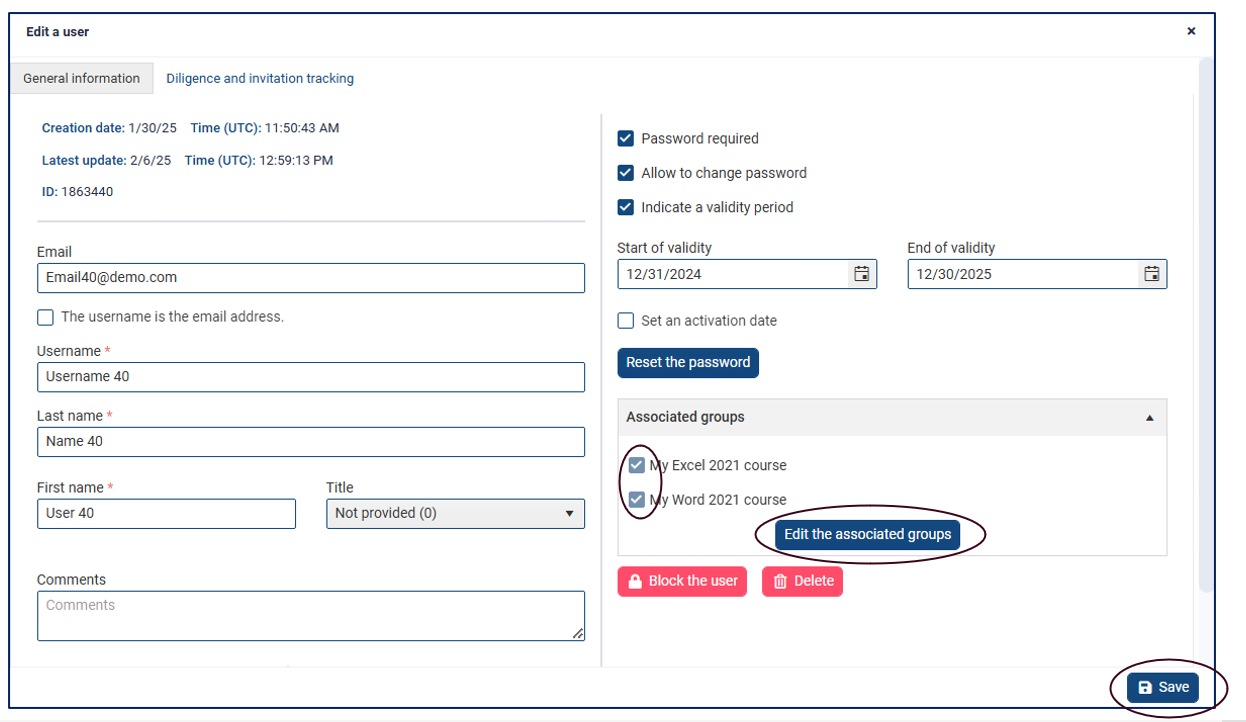
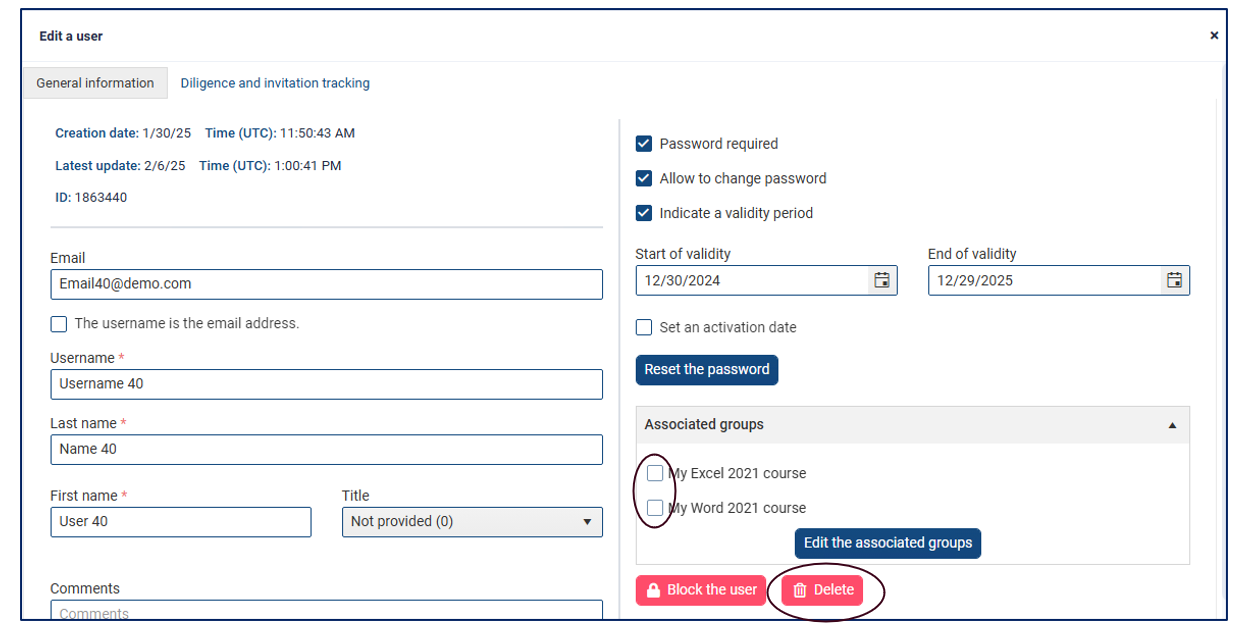
At the bottom right of the user properties, click on the Edit the associated groups and untick the groups in which the user was enrolled, then click on the Save button.
Then click on the Delete button to cleanly delete your user from your database.
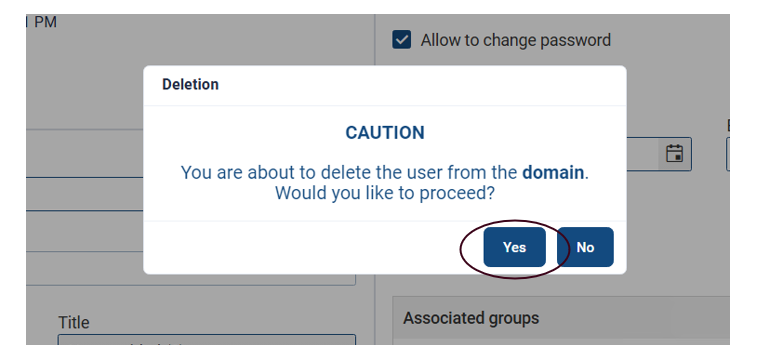
A popup window will be displayed to confirm or reject the operation. To proceed with the deletion, click Yes.
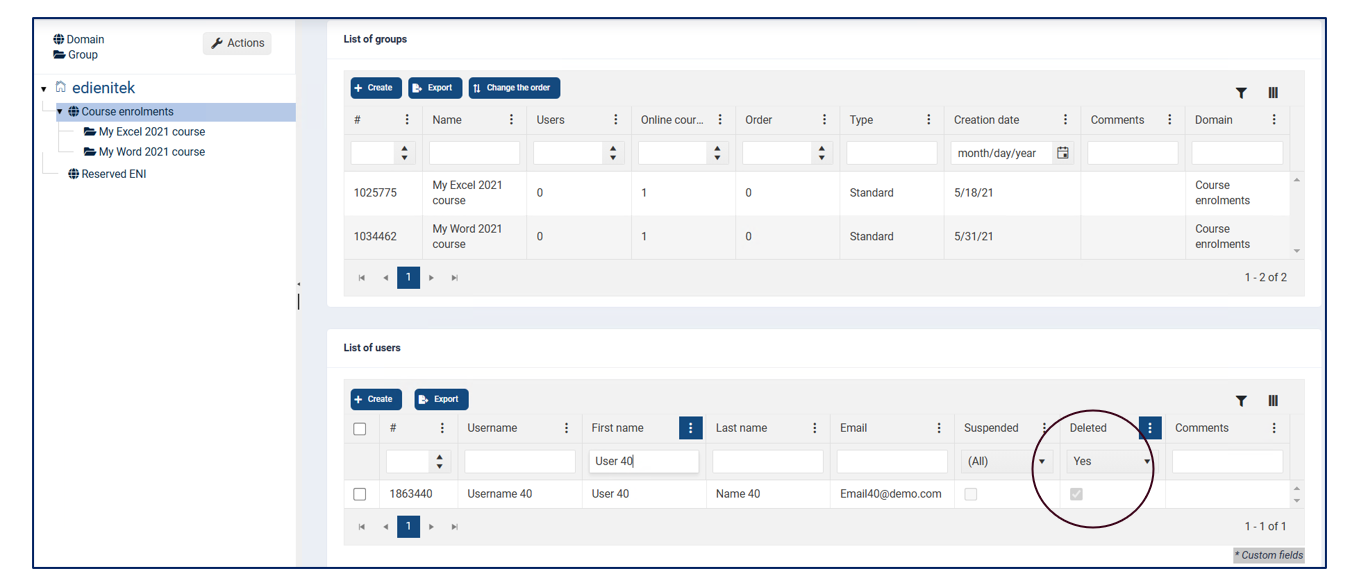
The user account has now been deleted. The user will no longer have access to the ENI portal.
Deleting multiple user accounts
Removing users from their groups
- Remove users to be deleted from all the groups in which they have been enrolled.
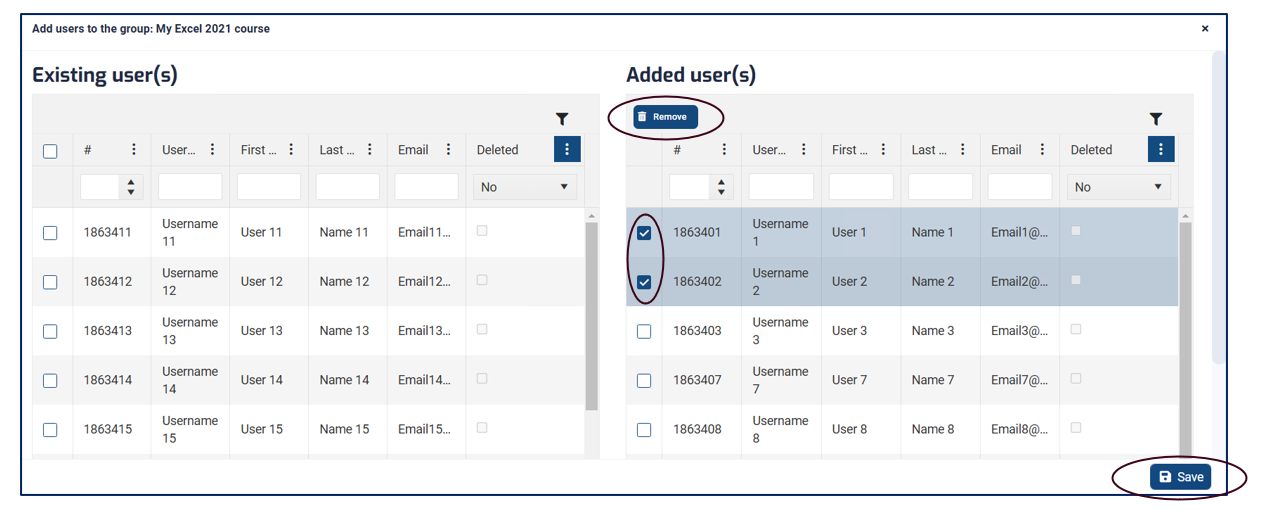
- Select a group and click on Enrol users
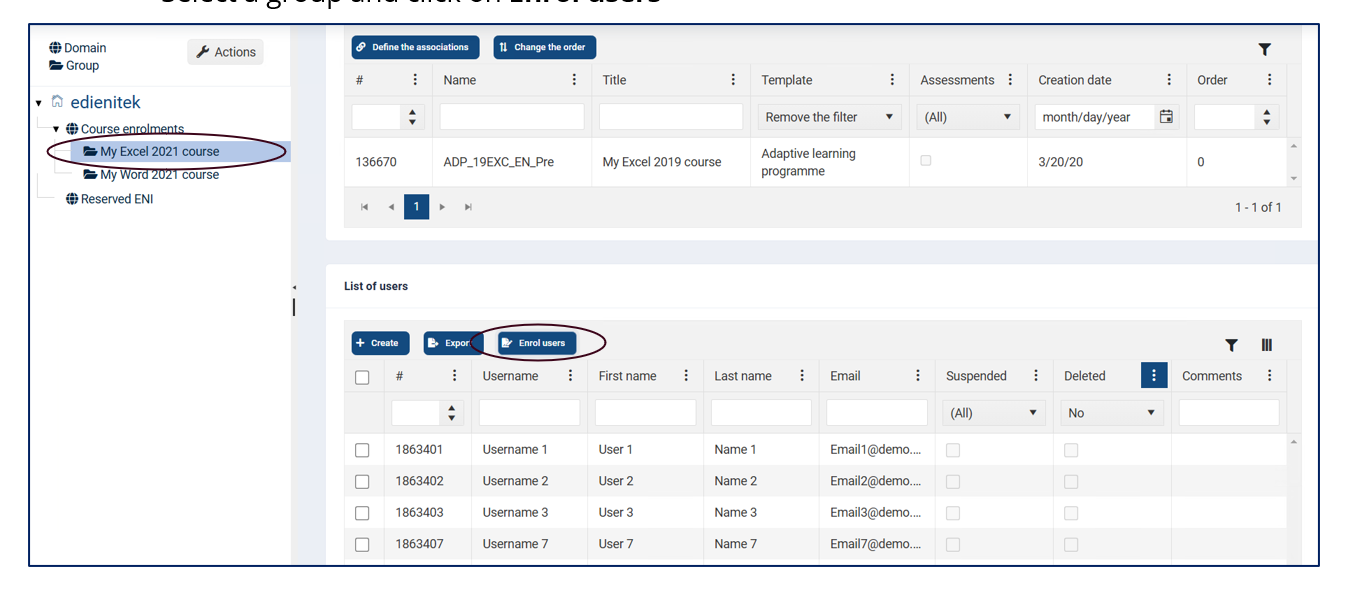
In the right-hand window, tick the users you wish to remove for deletion.
NB: It is possible to select multiple users at once by clicking along the line of the first user to remove and holding down the 'shift' key on your keyboard, then selecting the line of the last user to remove and clicking right next to the tick box.
Click Remove and then Save.
Deleting users from their domain
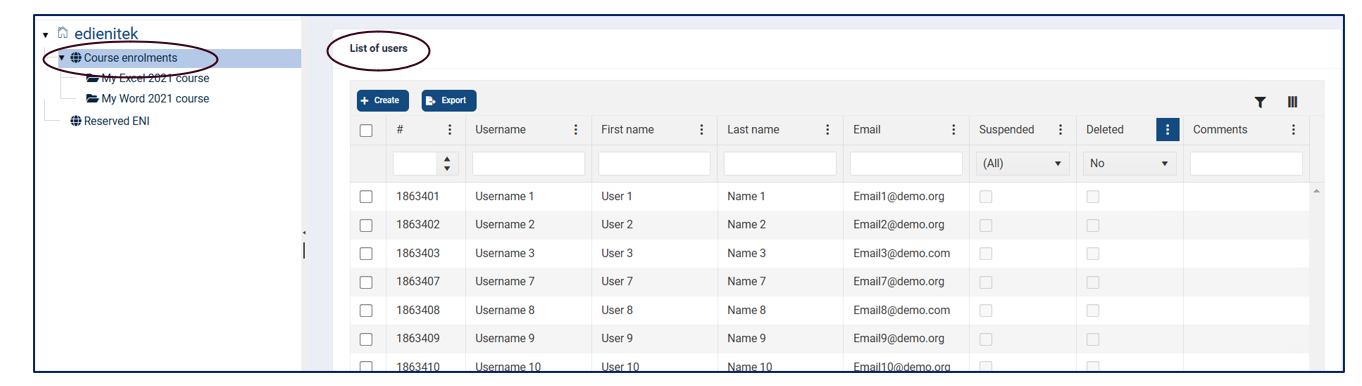
- Select the domain in which the users to delete are enrolled and scroll down to the List of users table.
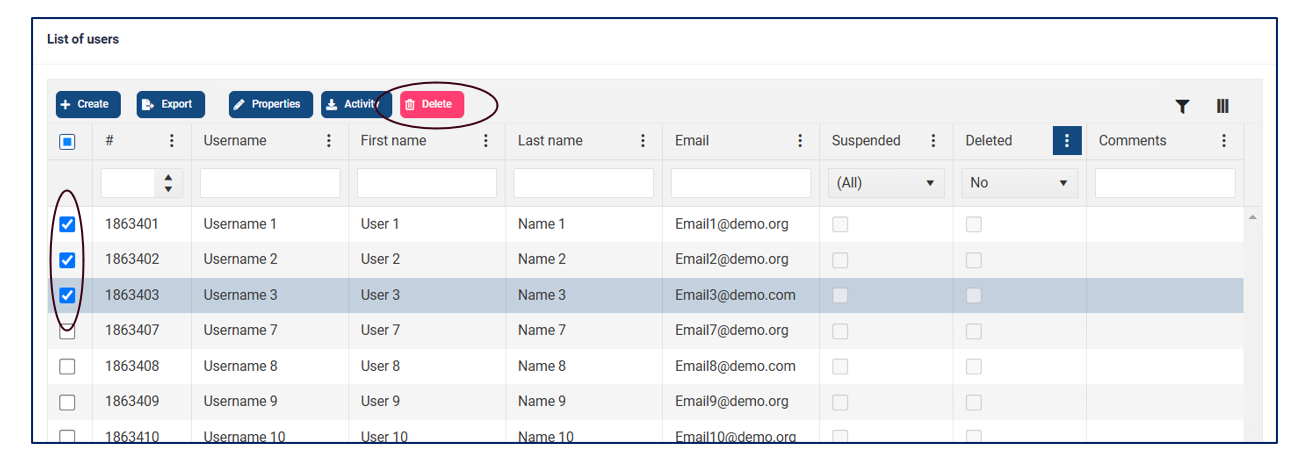
Select the users to delete and click on Delete
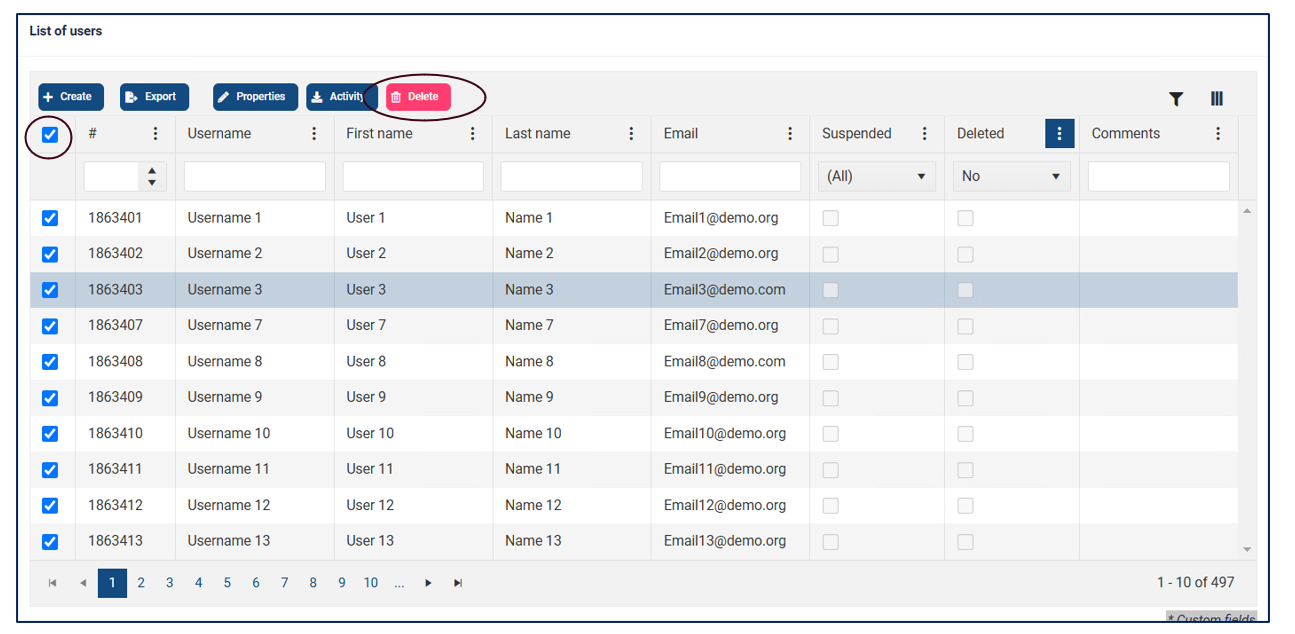
A tick box at the top left corner of the table also allows you to select all the users in the domain with a single click.
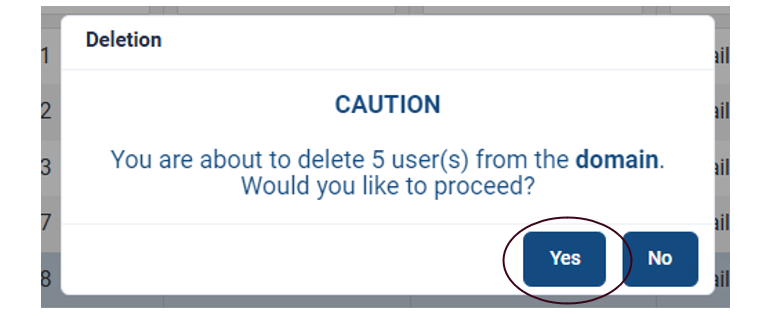
A popup window will be displayed to confirm or reject the operation. To proceed with the deletion, click Yes.
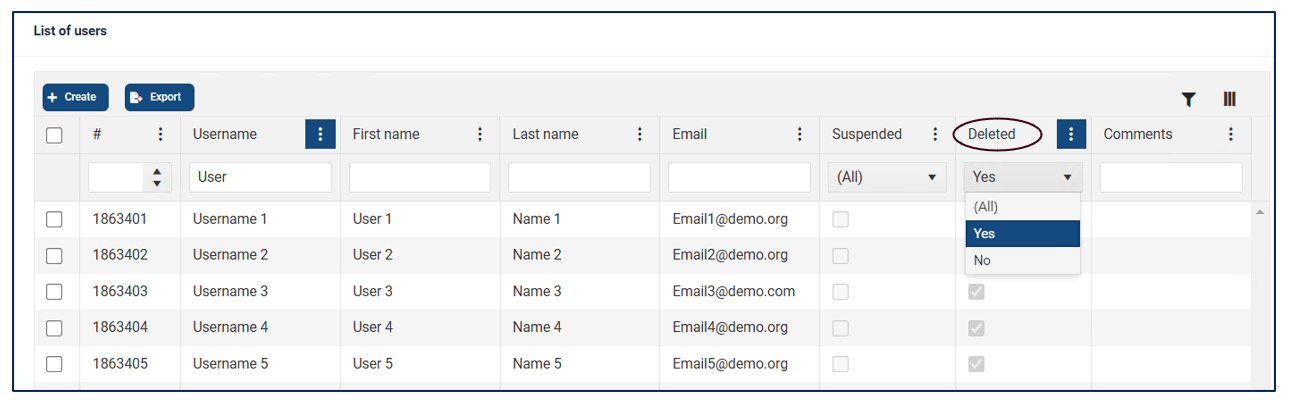
Unless the domain is subsequently deleted, user accounts will remain visible by going to the domain to which they belonged and consulting the List of users table.
In the "Deleted" column, filter the items by selecting "Yes".
Reactivating a user account
- Select the domain in which the deleted user was enrolled and scroll down to the List of users table
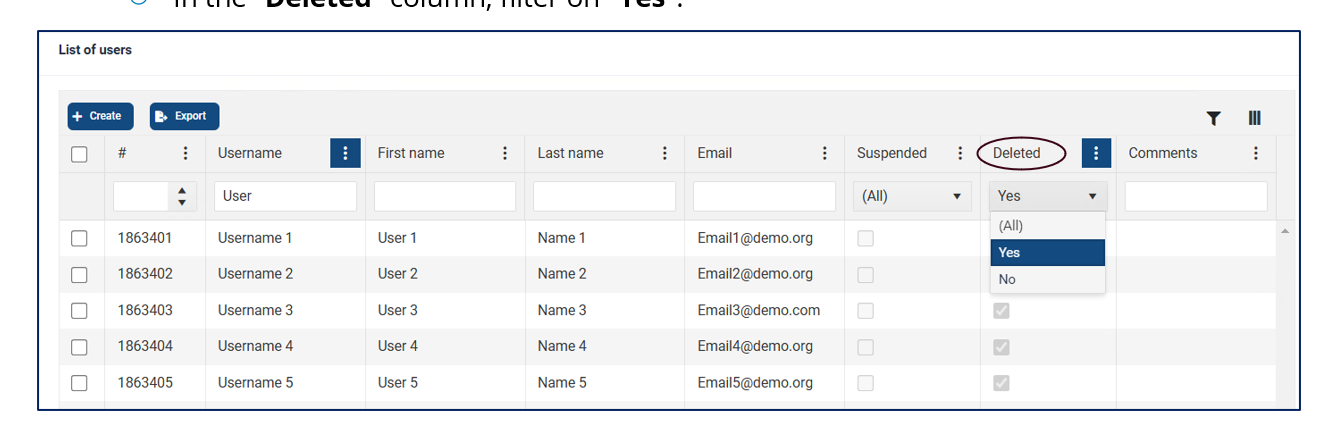
- In the "Deleted" column, filter on "Yes".
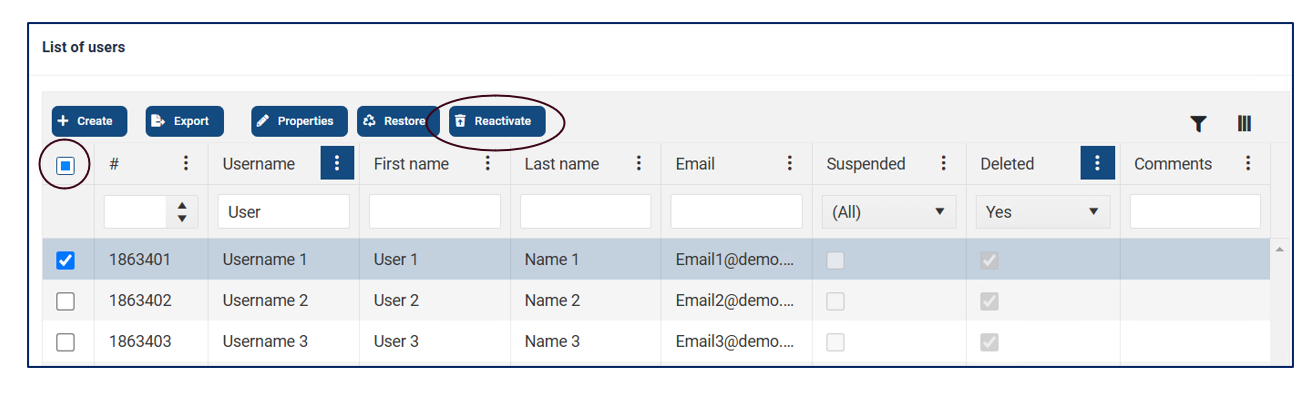
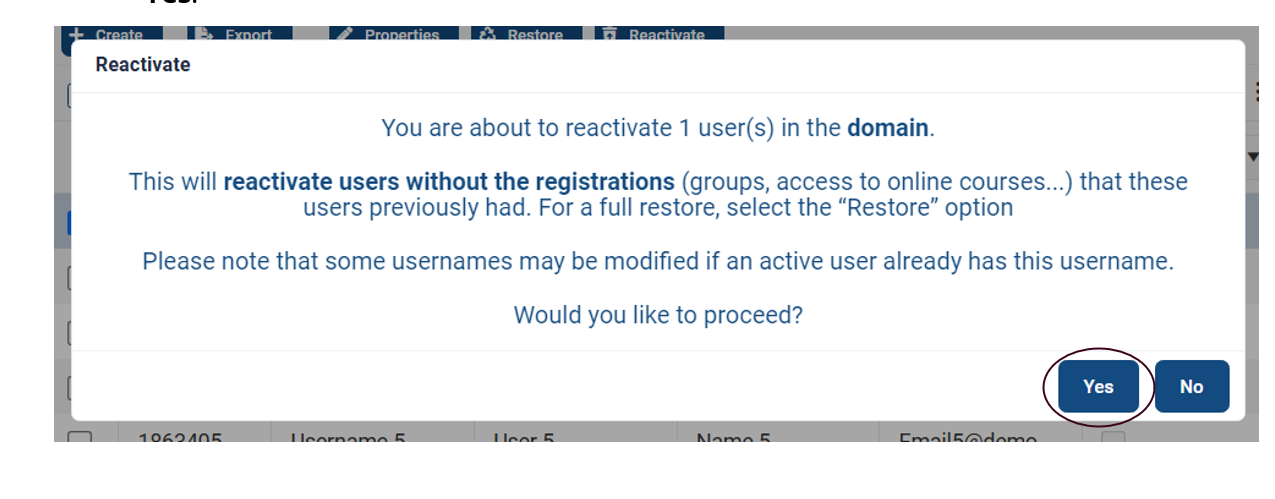
Select the user to reactivate and click on Reactivate;
Multiple selection is also possible, if desired, using the tick at the top left of the table.
A popup window will be displayed to confirm or reject the operation. To proceed, click Yes.
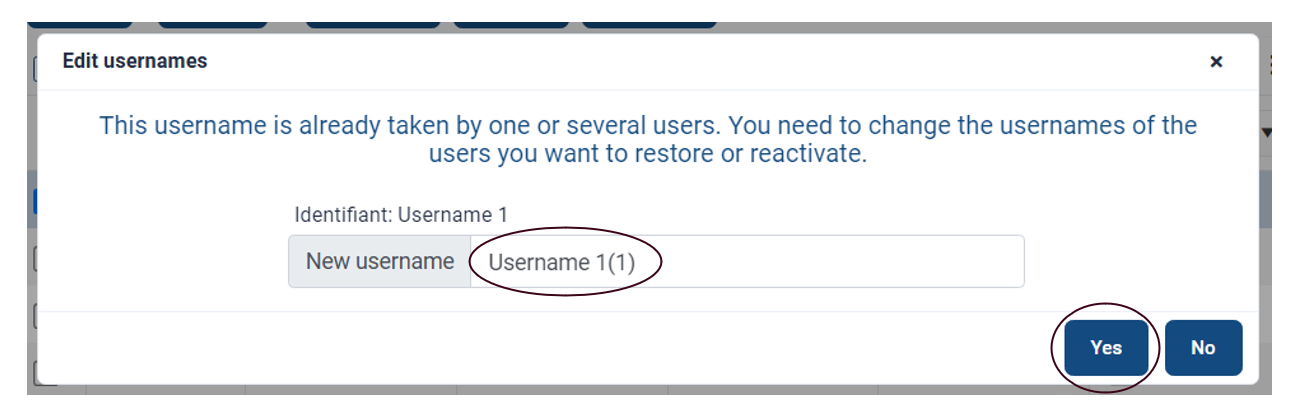
If the user you wish to reactivate has the same username as that of another active user, a pop-up window will suggest a new default username. You can be change it if necessary, by typing the username of your choice in the field provided.
Once you have entered the new identifier, click Yes to confirm the operation.
If you have selected multiple accounts to reactivate and more than 5 of them are already taken by active users, you will not be able to proceed and shall have to make the necessary changes on an account-by-account basis.