
1 - Creating a user
It is possible to create a user either within a domain or directly within a group.
A user can only be enrolled in a single domain but may be enrolled in several groups within the same domain.
Creating a user in a domain
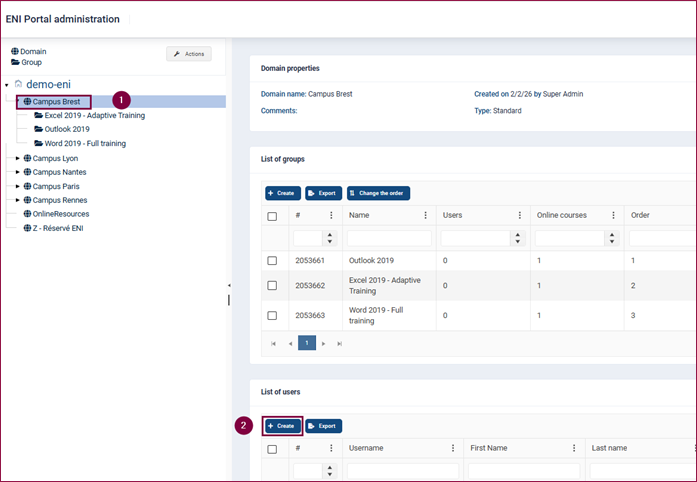
To create a user in a Domain, select the Domain and then, in the list of users, click the Create button.
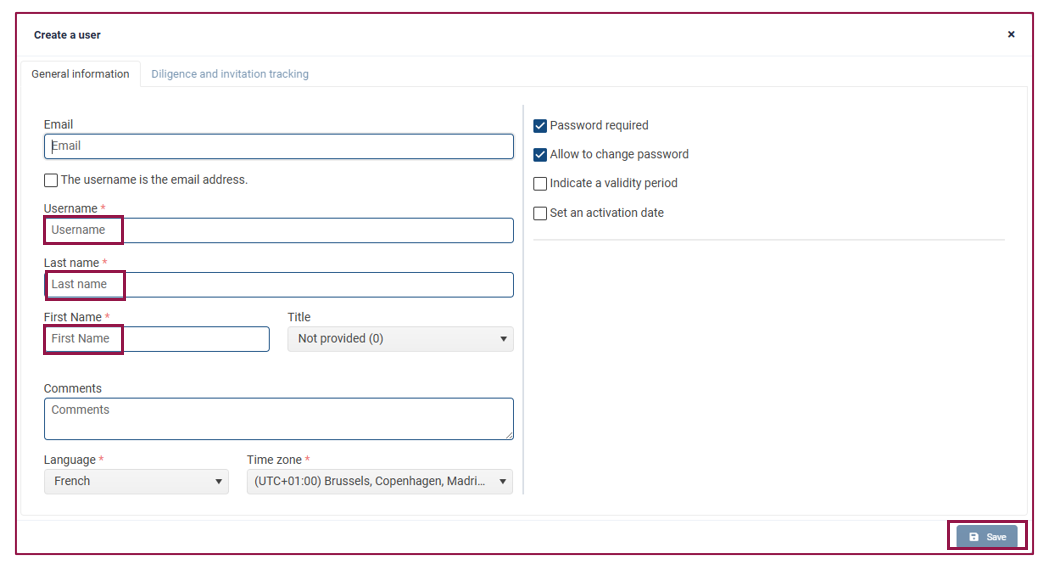
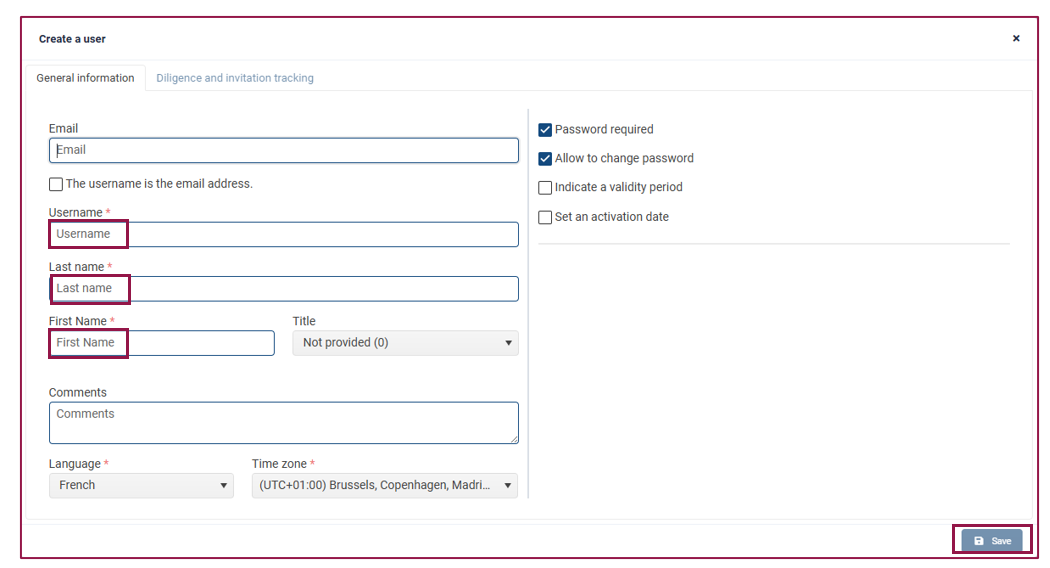
Fill in the required fields and then click Save:
A green pop-up will confirm that the creation was successful.
You will be automatically redirected to the Associated Groups tab so that you can associate a training group to the user. Once you have ticked the relevant box(es), click Save.
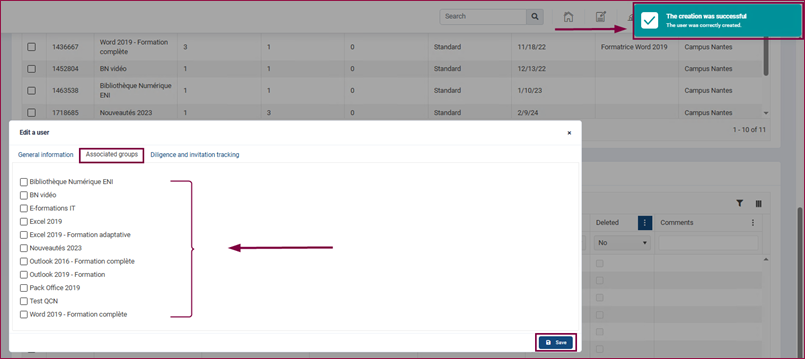
If you do not wish to associate a training course to them at this time, close the window directly by clicking the cross in the top right-hand corner. The user will not receive an invitation email (even if the service is enabled) until they have been associated to a group.
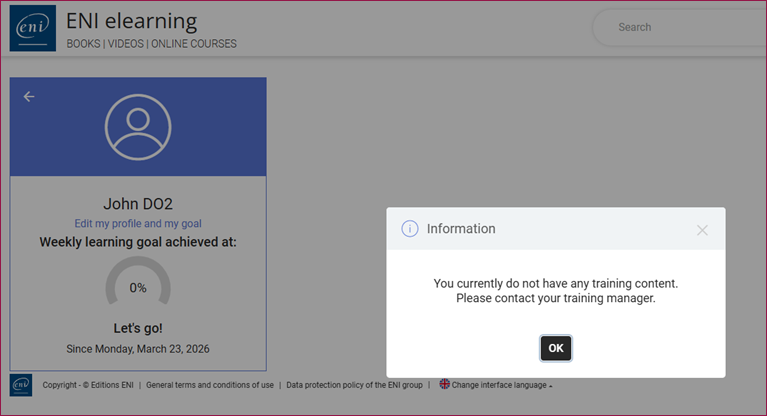
If they log in to their user portal, a message will inform them that no training content is currently available.
Creating a user within a group
You can choose to create the user directly within the group to which the training course they are required to attend is associated.
Go to the Group section and click on Create.
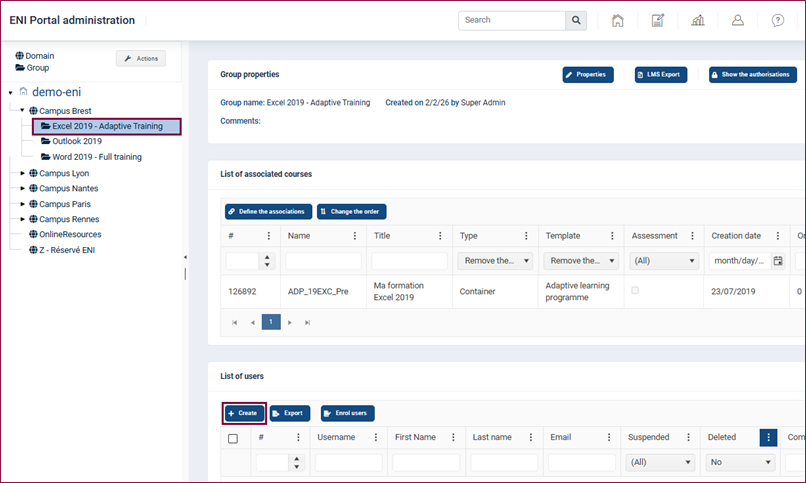
Fill in the required fields and then click Save:
A pop-up will inform you that the creation was successful.
The group is automatically associated to the user you have created; you can now Save.
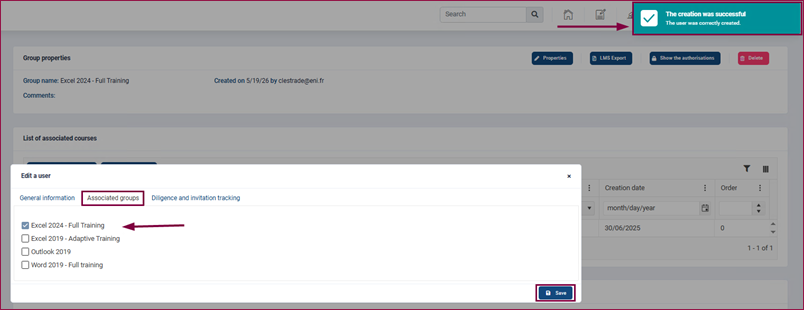
If, however, you wish to associate other groups to this user, tick the additional boxes before clicking ‘Save’.
2 - Enrolling existing users to a new group
When you create a new group, you can quickly enrol users who already exist in the Domain.
To do this, navigate to the Group and click the Enrol users button.
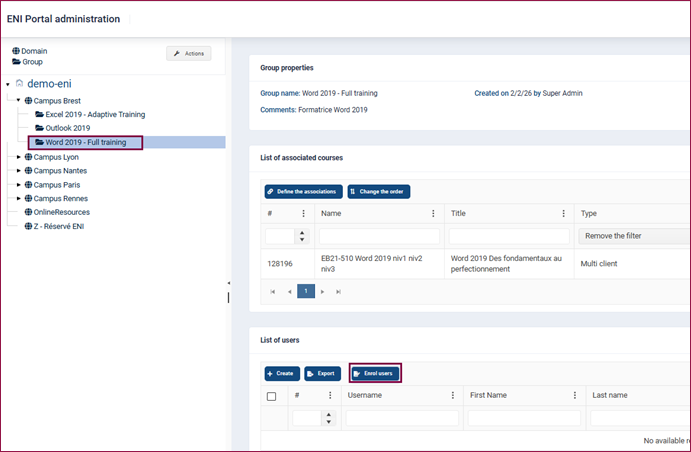
Select all the users to be enrolled on the left-hand side by ticking the boxes, then click Add to the group.
Then click Save.
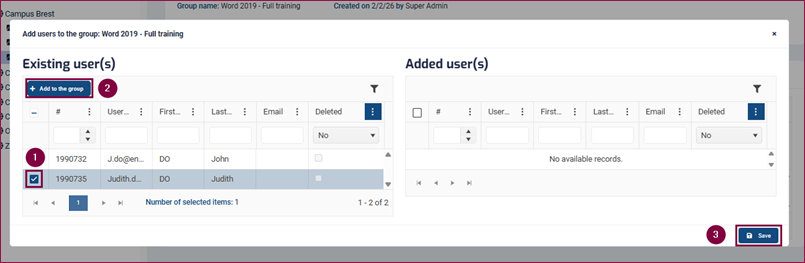
Please note that only users from the Domain are listed. It is not possible to add users from another Domain.
3 - Enrolling users via file import
To enroll or create a large number of users, you can do so by importing a .csv file. Please follow the link below for step-by-step tutorial.
You will learn how to create and edit users in bulk, following detailed instructions on preparing the file.
Access the tutorial: The user import service: Editions ENI