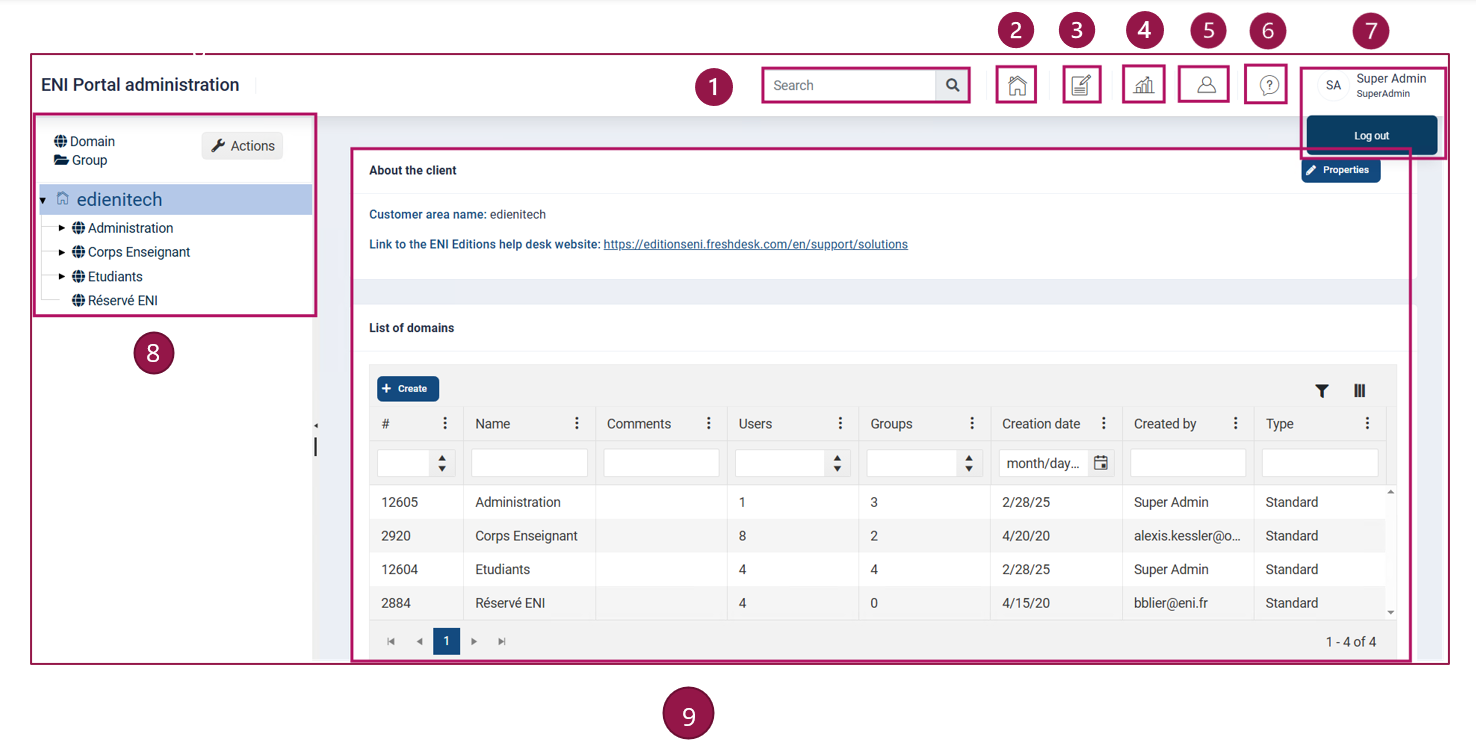
In this article, we present the top banner and its various tools:
 Search zone tool
 Home tool
 LMS export tool
 Reporting space tool
 User import tool
- Fill in the Search field to carry out a search on the list of users and also on the list of groups or domains that you have set up.
- Activating the Home tool returns you to the home page of your admin console.
- Activate the LMS Export tool to batch-generate the SCORM files you wish to use.
- Activate the Reporting Space tool to view the consumption and time spent by your users.
- When creating users, use the Import users tool to quickly and easily create a list of accounts in your portal. When you import, you create the accounts and you can associate them with the available groups. Note that you can also use this import to update existing accounts.
- The Help tool launches the full help video for using the admin console.
- The Logout button is used to quit the admin console.
- The navigation panel is used to scroll through the tree structure of your portal.
- The central panel shows the essential elements of what is selected in the navigation panel.
In this example, your portal has four areas:
- An area for Administration accounts.
- An area for Teacher Corps accounts.
- A domain for Student accounts.
- A domain for ENI Reserved accounts (do not use).