Preamble
If you want to clean up your organization tree in the admin platform, you will need to dissociate all the links for the group r domain you want to delete.
If you want to delete a domain, you must first delete all the groups in it.
Deleting a group
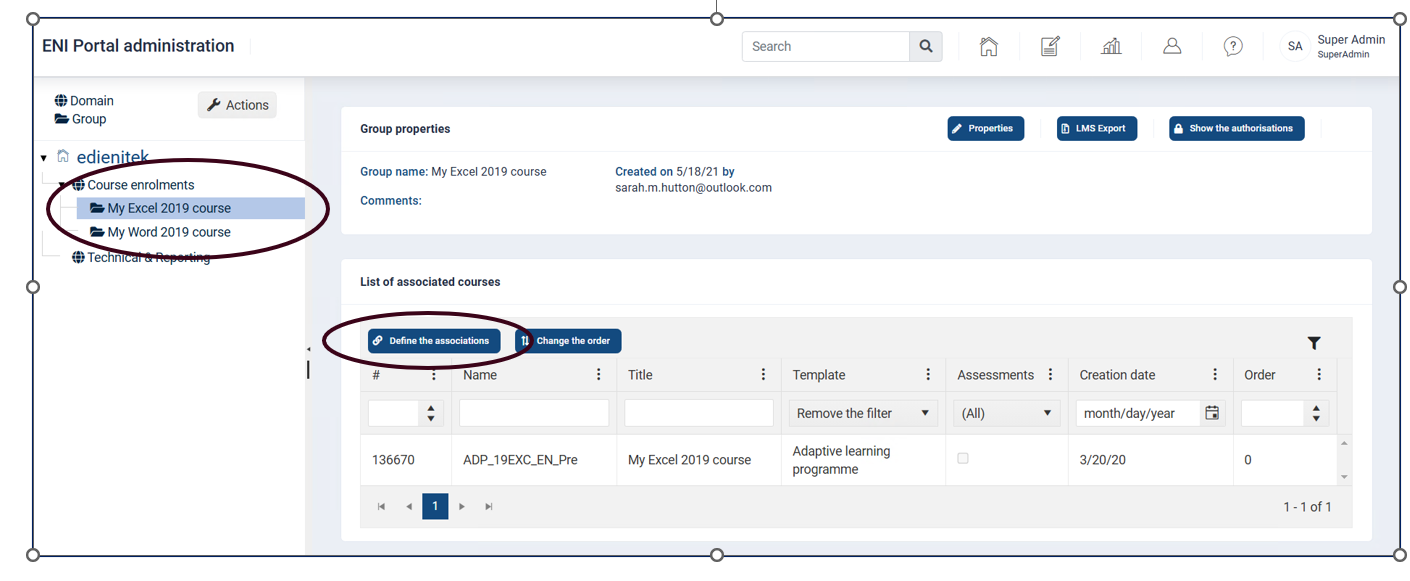
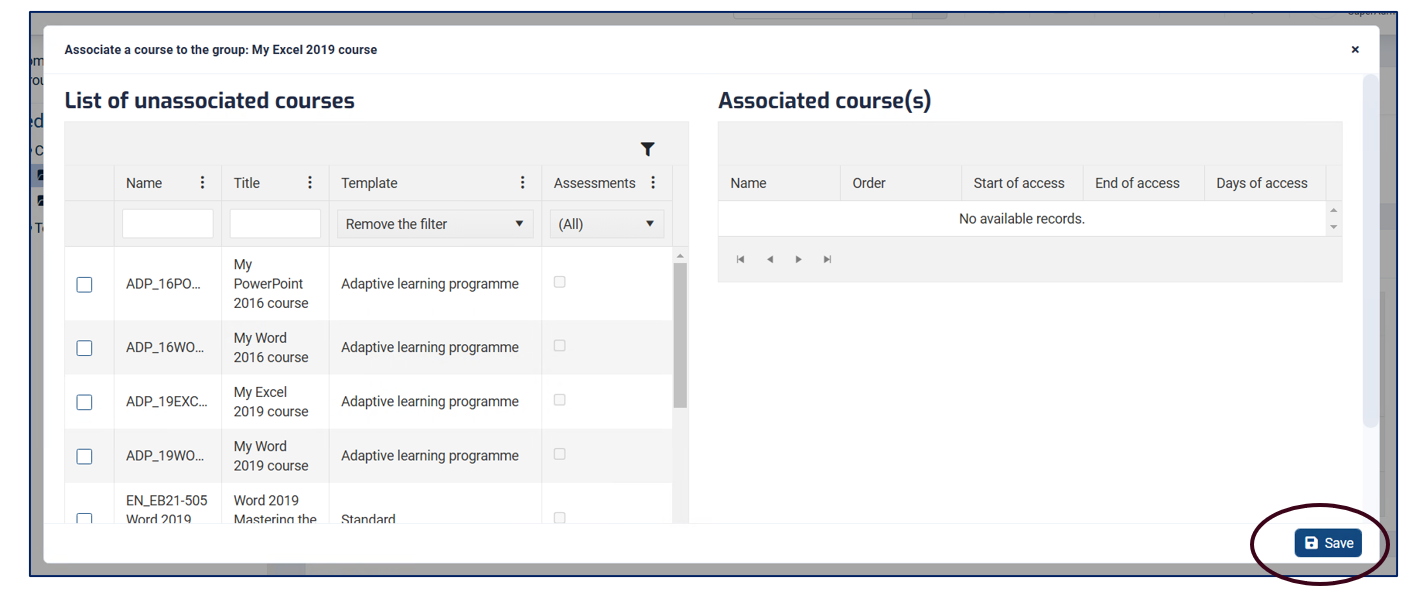
Select the group in the navigation panel and click on the "Define associations" button to dissociate the course(s) associated to this group.
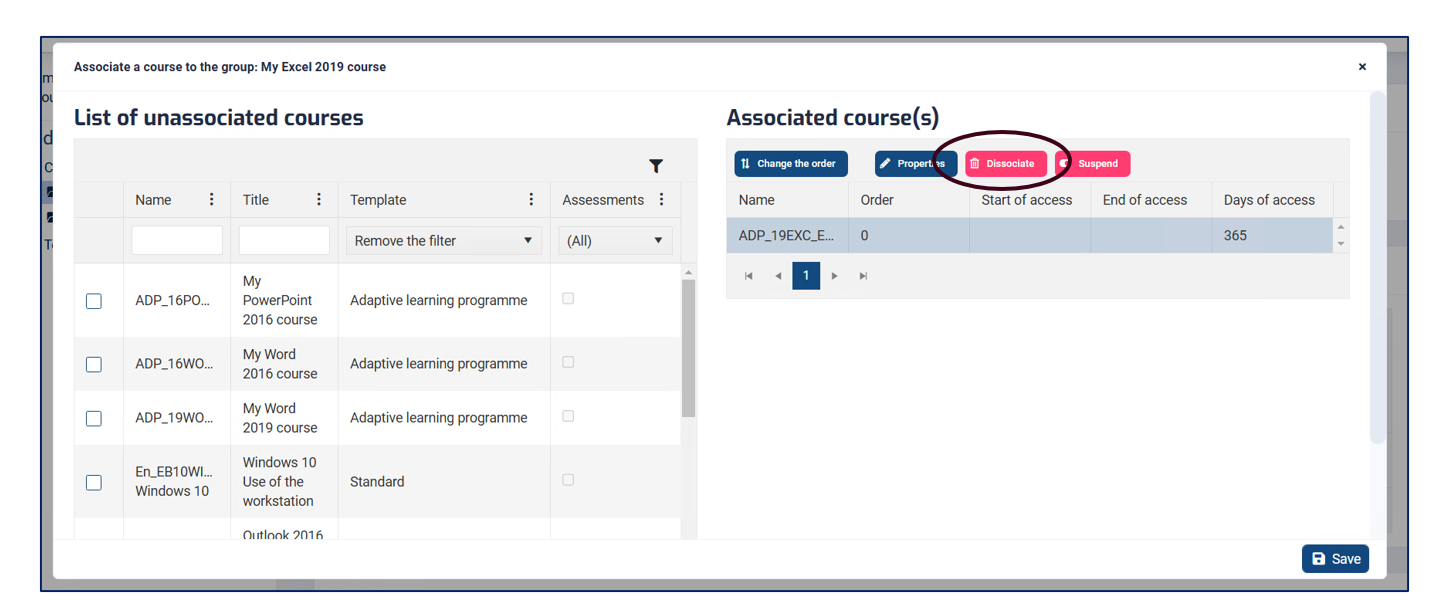
In the right-hand section "Associated course(s)", select the course to be dissociated, then click on the "Dissociate" button.
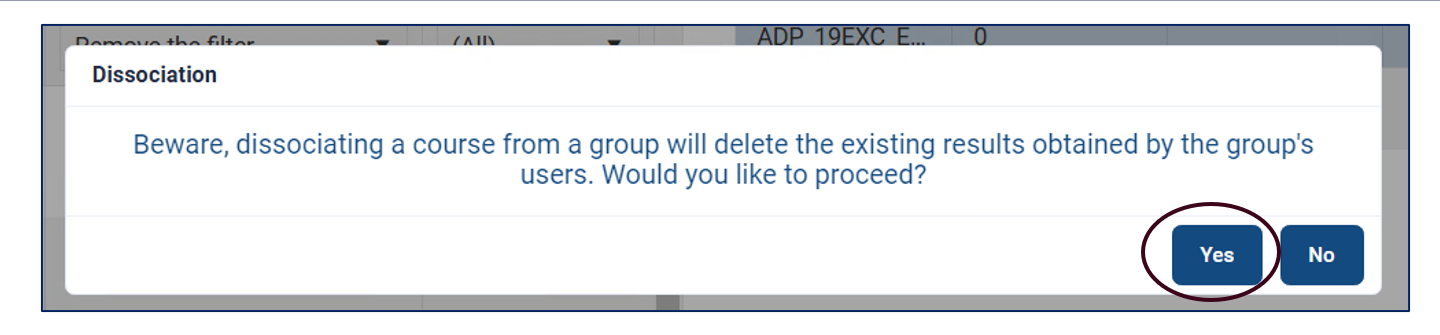
If you want to delete the group, click "Yes".
Once the group is empty, click on "Save".
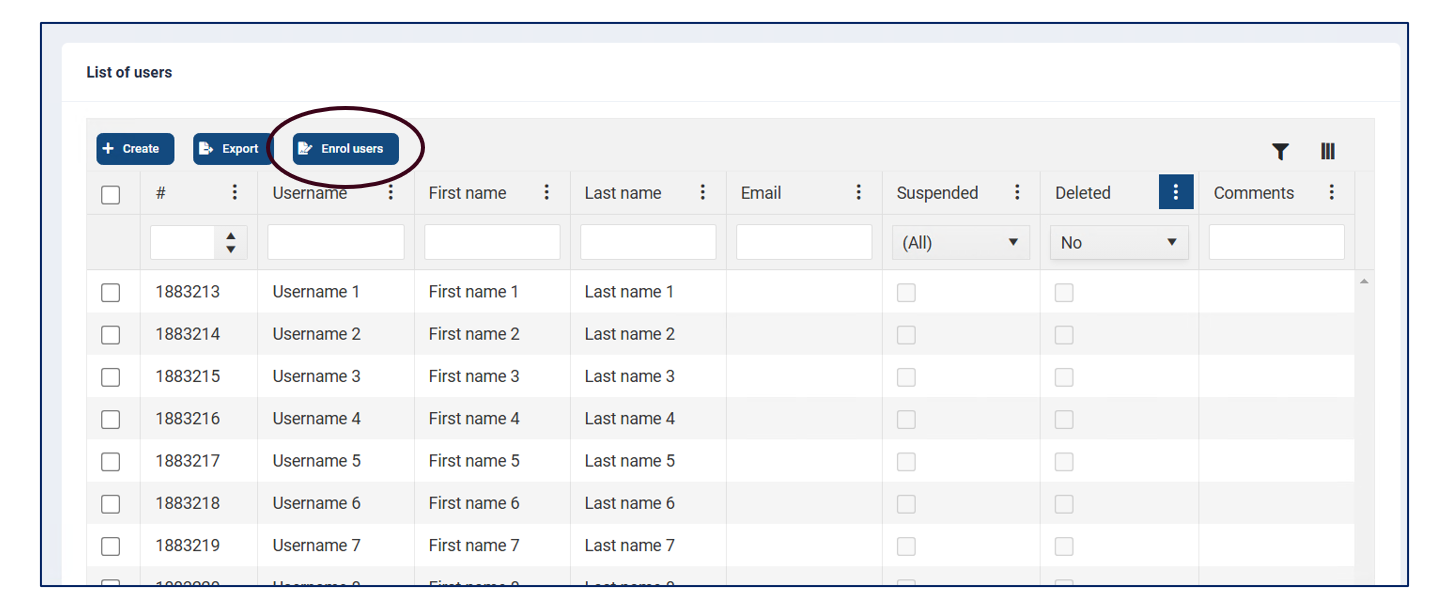
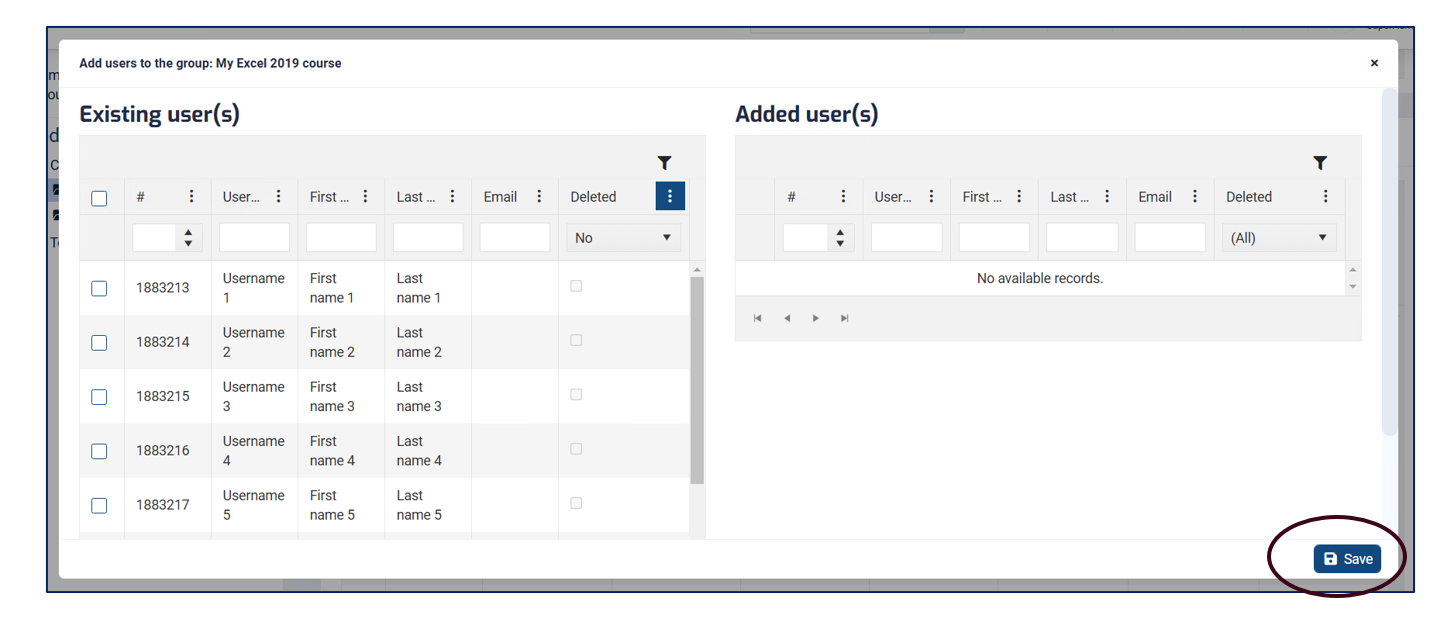
Then remove the users registered in this group using the "Enrol users" button.
Please note that a filter is applied by default to show only users who have not been deleted. Make sure you select the filter to display all registrations, including users who have been deleted without first being removed from their groups.
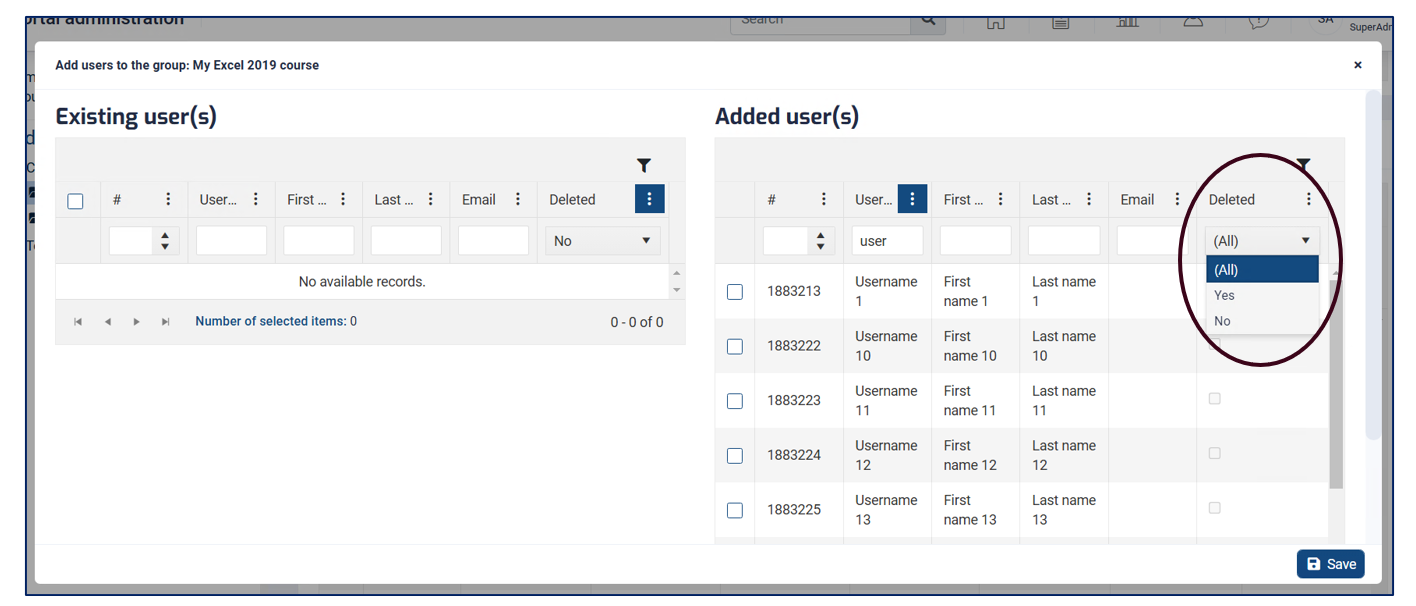
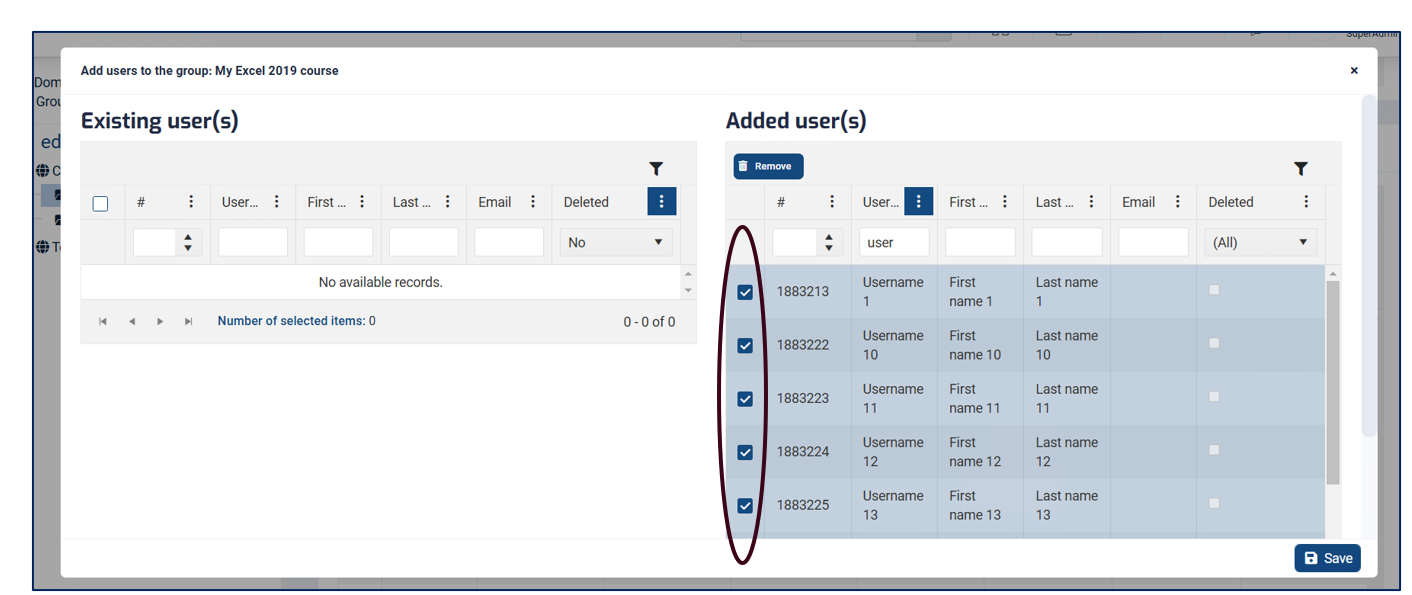
Select the users you wish to remove and click “Remove”. Then click on “Save”
With all the links in your group now undone, reposition yourself on the group and a "Delete" button will be available to finalise the deletion of your group.

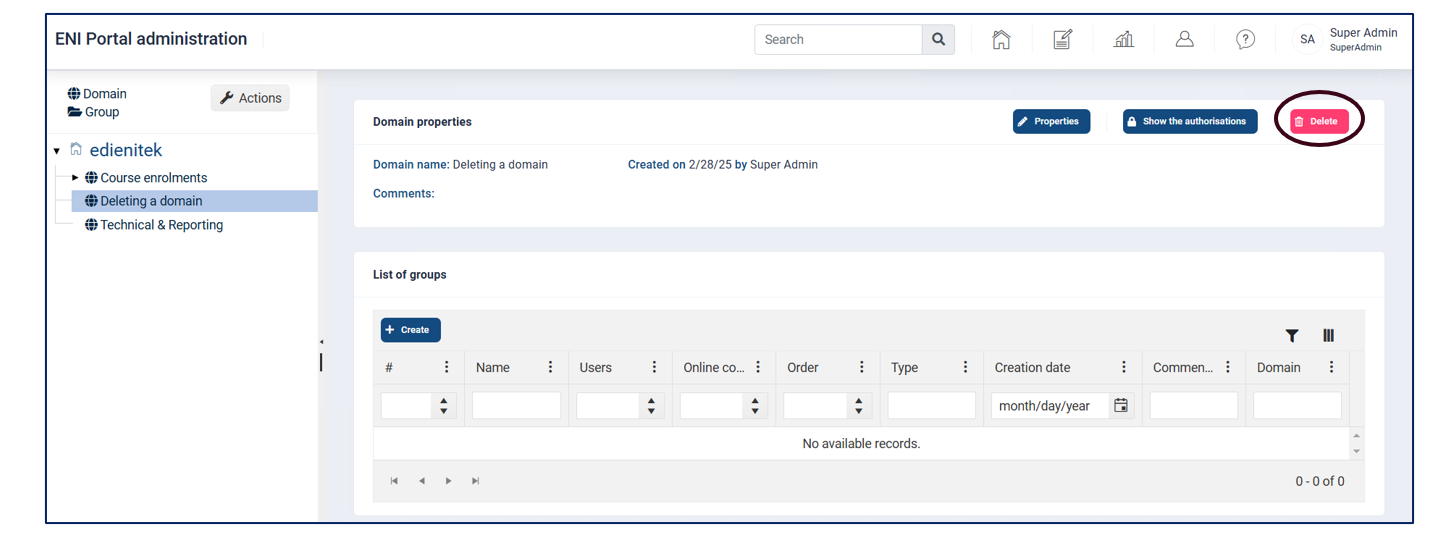
Deleting a domain
Once all the groups have been deleted, you can then delete the domain to which these groups belonged.
Click on "Delete" in the top right-hand corner of your domain.