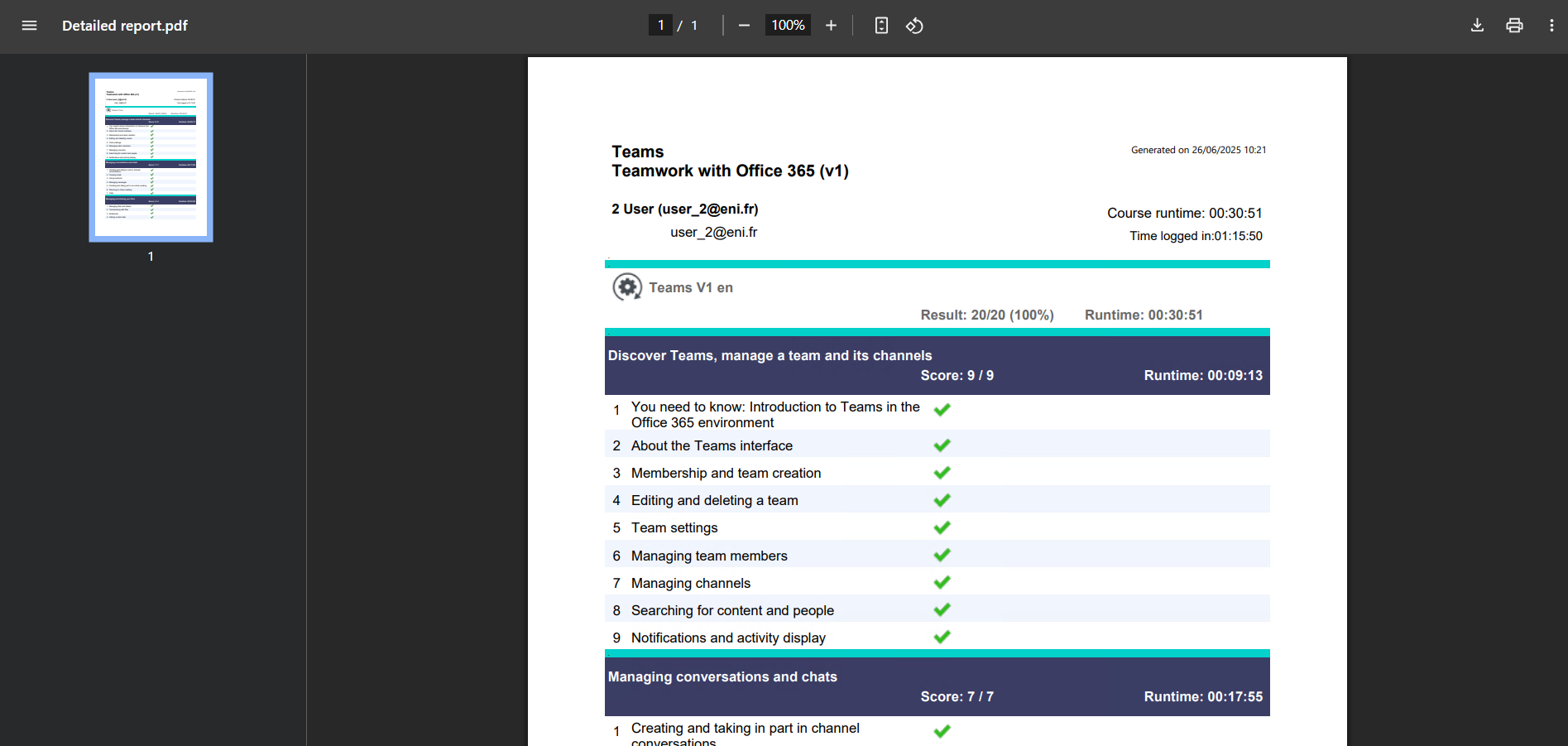
As an administrator, you can edit an activity report for your users via the administration console. If you wish, this activity report can also be made available to your users on their own portal within their e-learning course.
Downloading the activity report from the user portal:
From the e-learning home page:
- Click on the My activity button: details of the modules will appear with the progress and exercises completed.
- Click on the ‘Export to PDF’ symbol at the bottom left. The activity report is downloaded in PDF format and available in your Downloads folder.
Downloading the activity report from the admin console:
From the home page of your admin console:
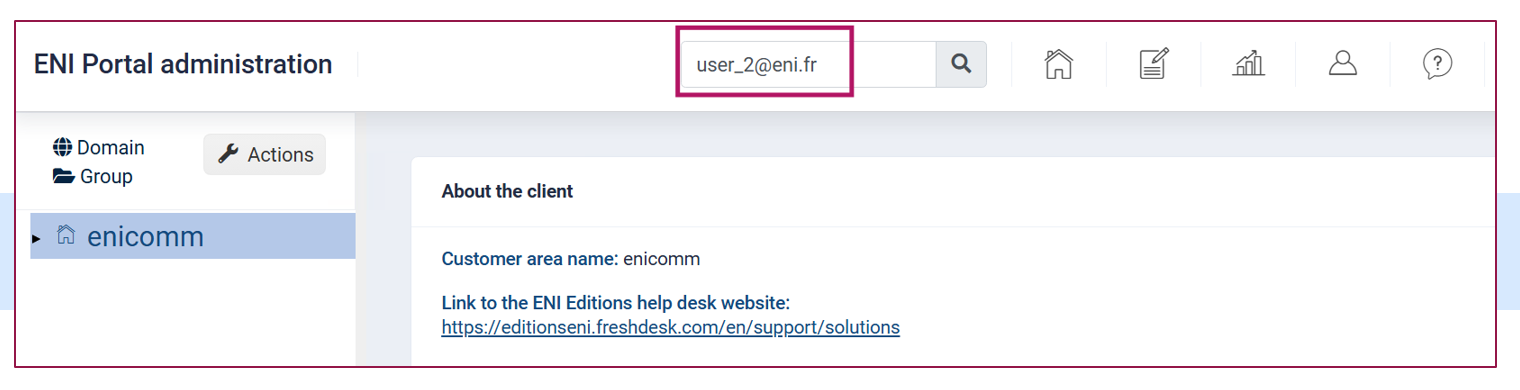
1. In the Search box, enter the user's surname and/or first name or email address/login.
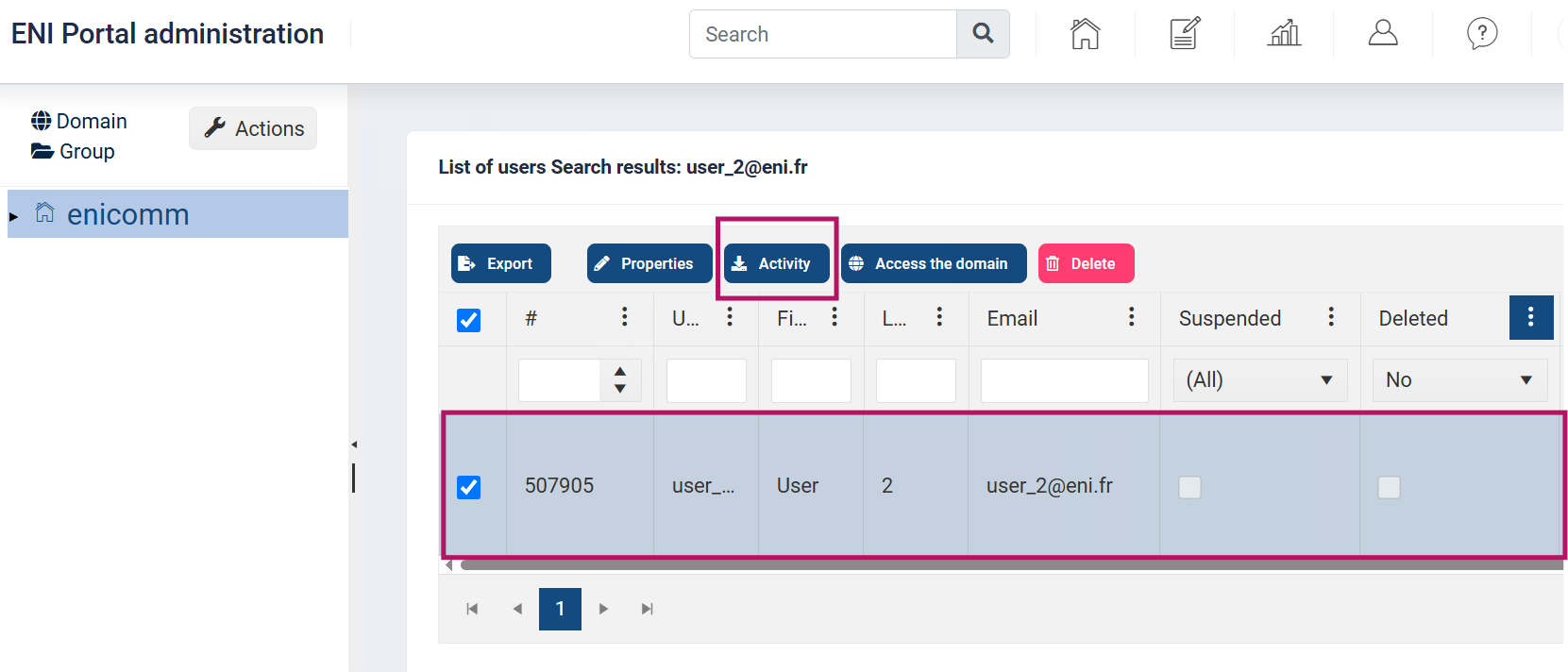
2. Select the user's line, then click on the Activity button.
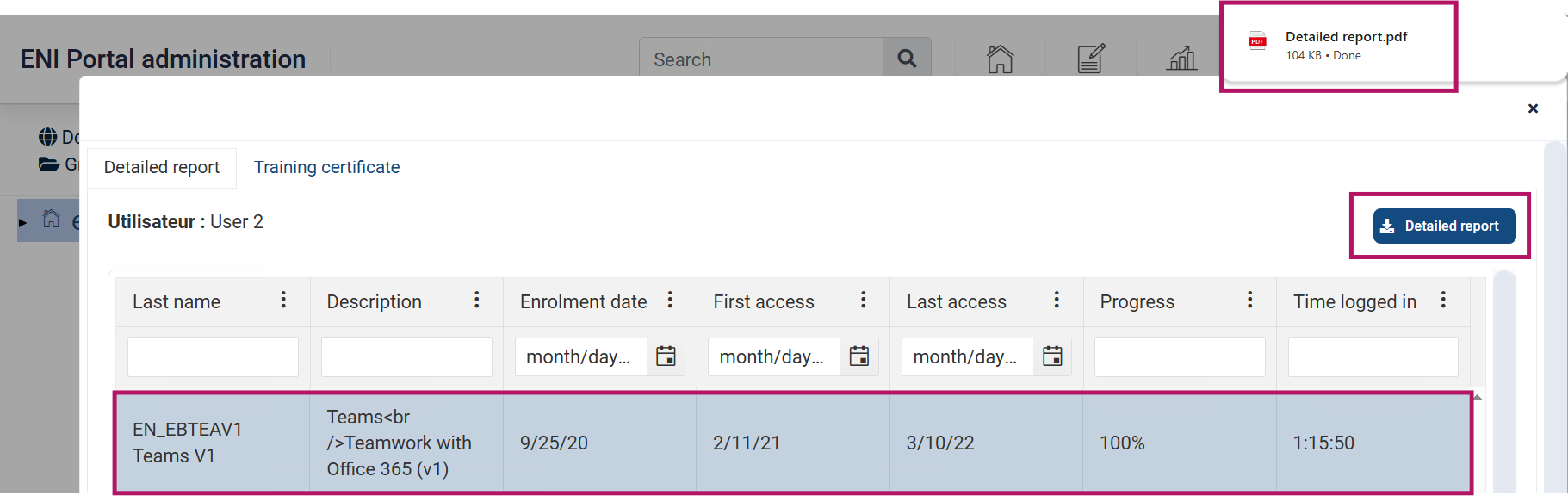
- Select the line corresponding to the course for which you wish to download the activity report.
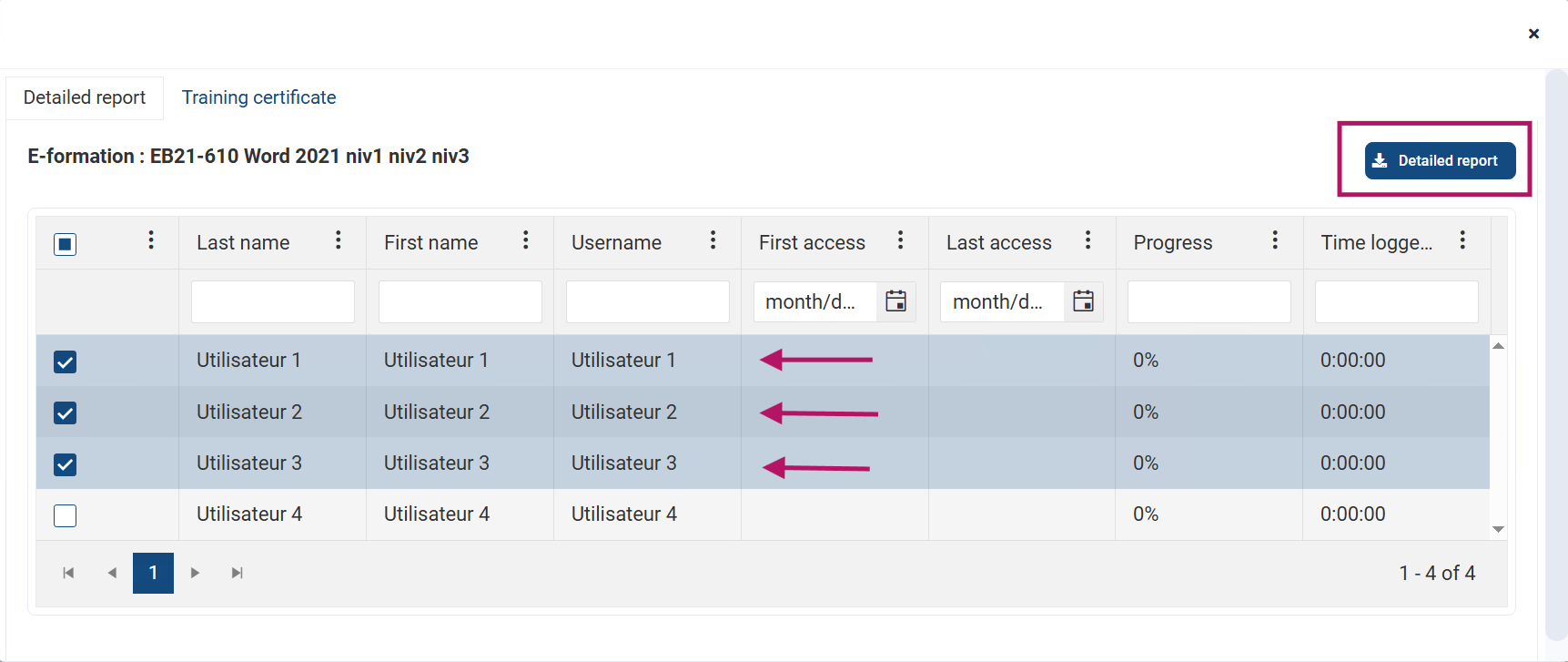
- Click on the Detailed report button.
- Retrieve the exported report in PDF format from your Downloads folder.
Download several activity reports from a group:
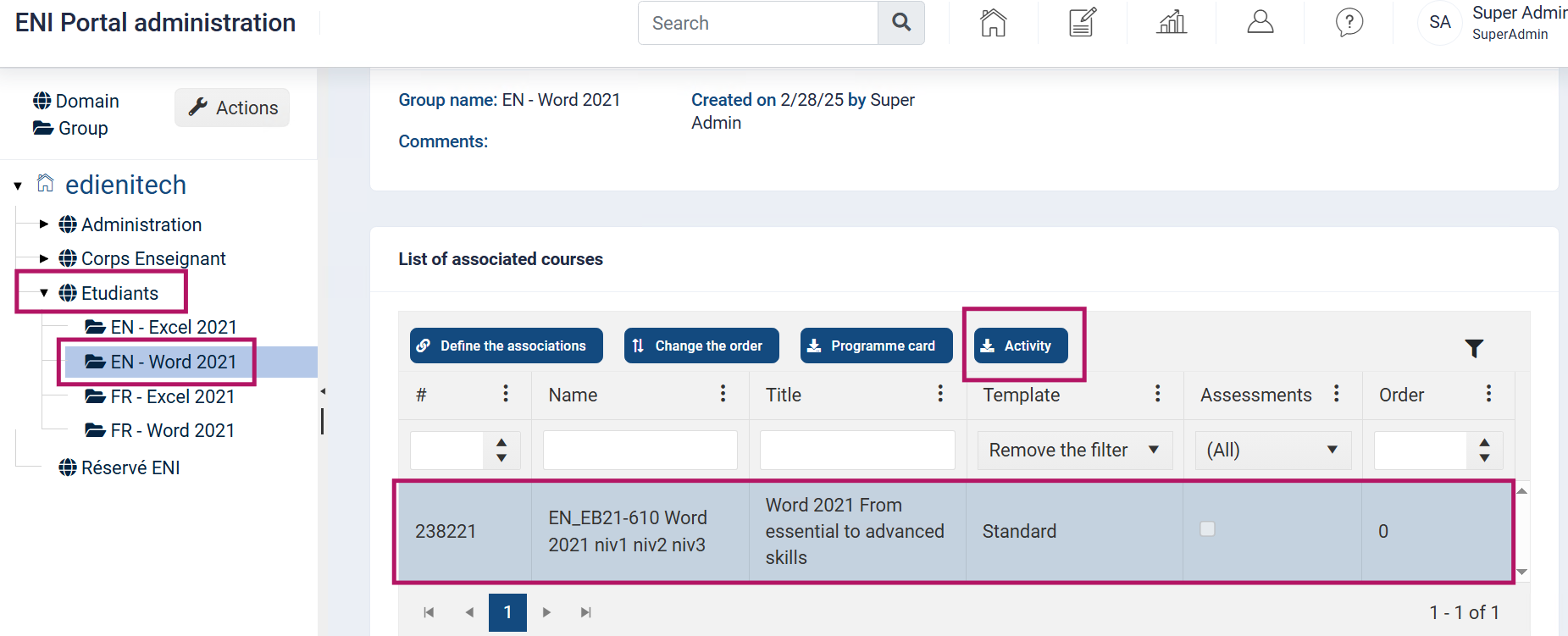
- Activate the relevant group.
- Select the course line and click on the Activity button.
- Tick the user(s) for whom you wish to download the activity report.
- A detailed report per user is then downloaded in a zipped file.
Example of an activity report: