
Different types of administrator account can be created to suit different needs and with different rights. This makes it possible to limit and/or share access according to profiles, for example for teachers or trainers.
- Activate the name of your portal, which is represented in the navigation panel by a house, or activate the pictogram in the top banner.
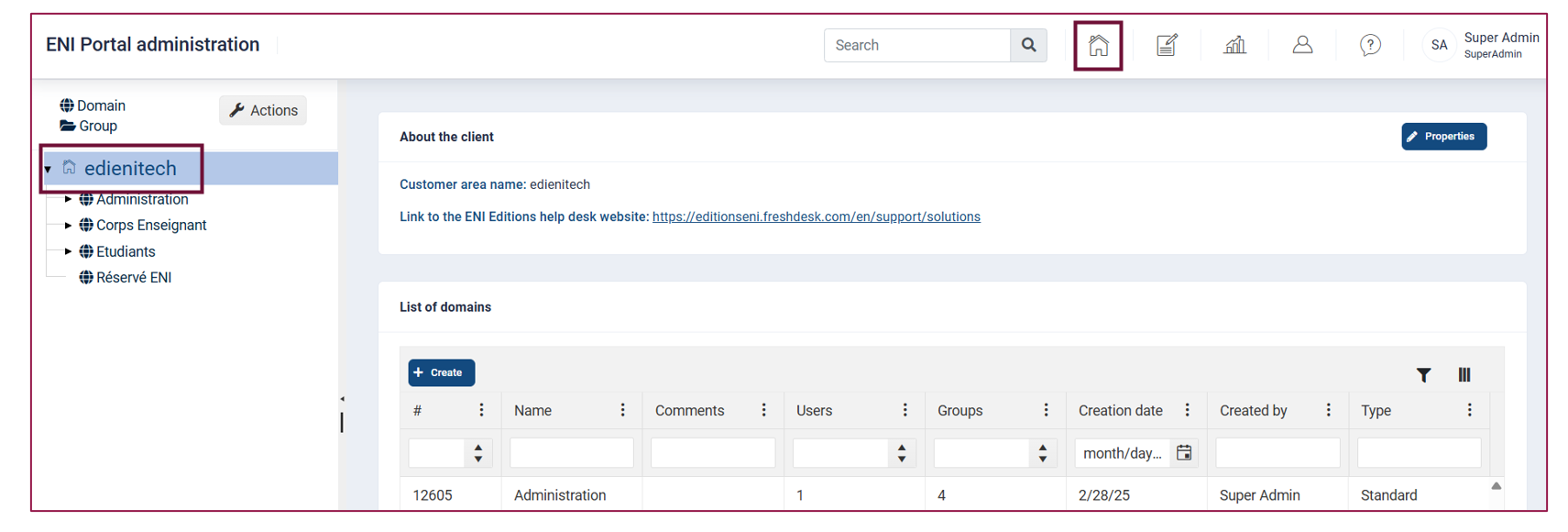
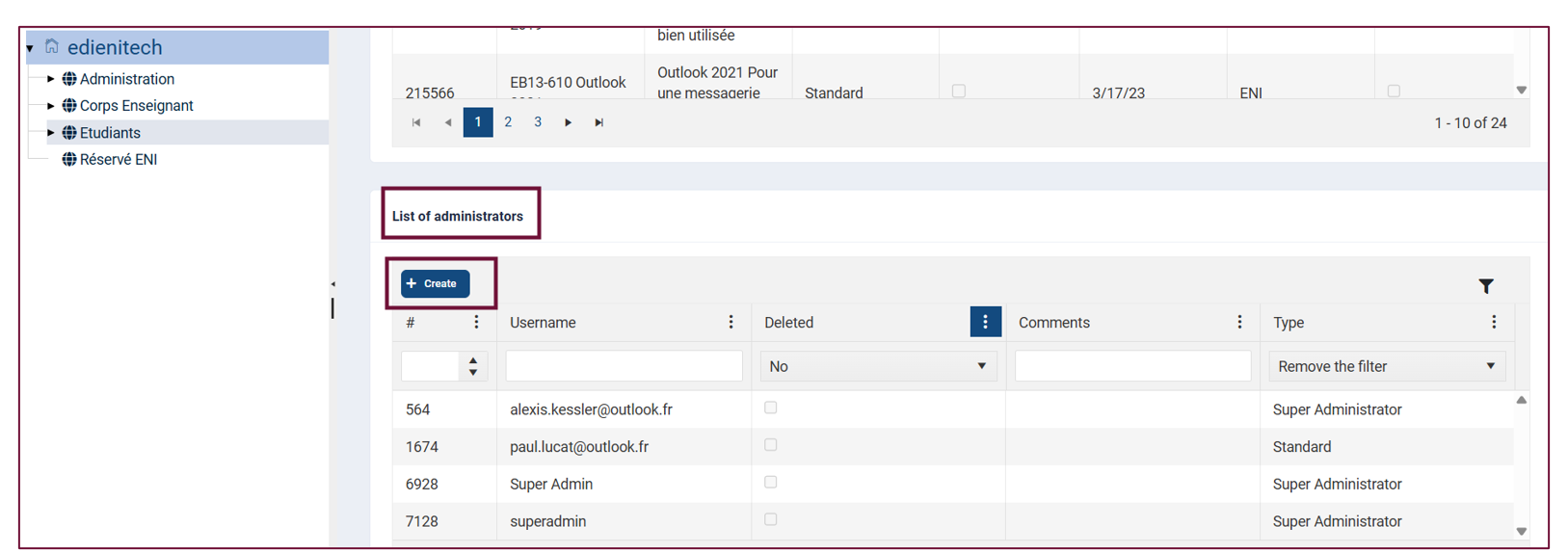
In the central pane, under the List of Domains at the bottom of the page, go to the List of administrators.
- To create a new administrator, activate the Create button.
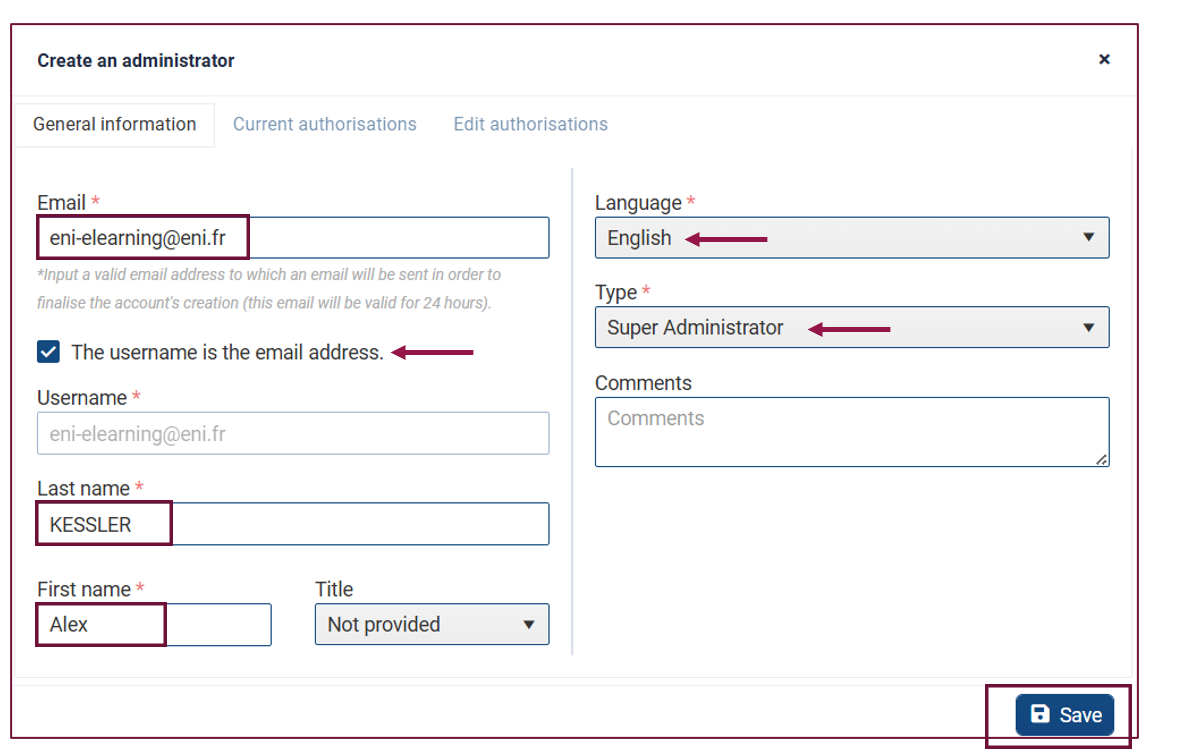
Fill in the mandatory fields marked with an asterisk * :
- Email (valid)
- Username
- First name
- Language
- Type (Standard or Super Administrator)
- Activate the Save button.
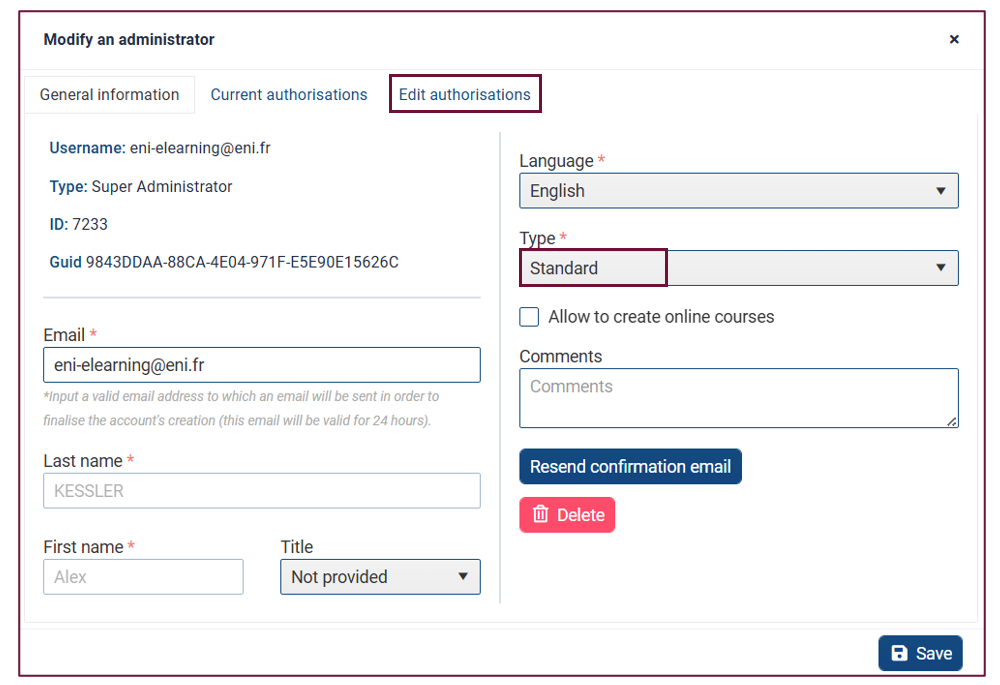
The Super Administrator type has the right to create, modify and delete.
The Standard type has several levels of rights:
- No access: The administrator cannot view or modify the group or domain.
- Read only: The administrator can view but not modify the group or domain.
- Modification authorised: The administrator can view and modify the group or domain. or this level of rights, you also have the option of checking User management (registration/unregistration). This option should not normally be used if you are using an LMS platform.
- To select the desired level of rights, activate the Modify permissions button, then activate the domains and groups in which the Standard administrator should have a role, and then select the level of rights.
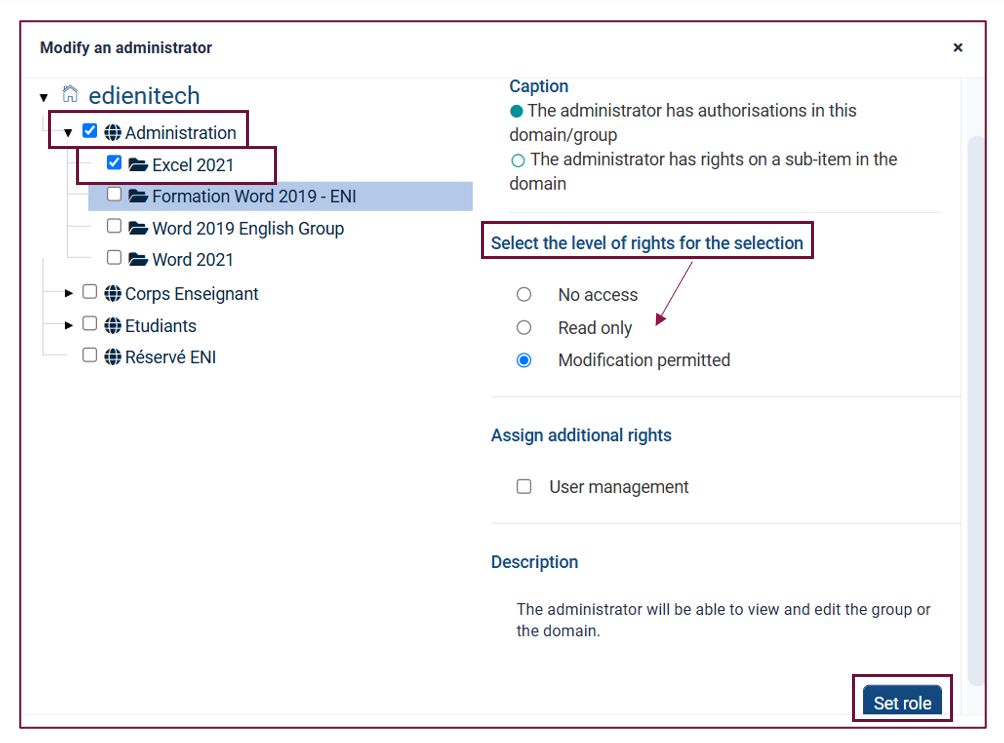
Activate the Set role button to confirm your choice.
Close the dialog box using the cross at the top right.