
Be careful!!
Customised e-learning that has been associated with a group and then started cannot be modified and must be recreated in its entirety. This is why we strongly advise you to structure your e-learning course in terms of content and organisation before creating it on the administration platform.
Customising an e-learning course
From the Home page of your admin platform
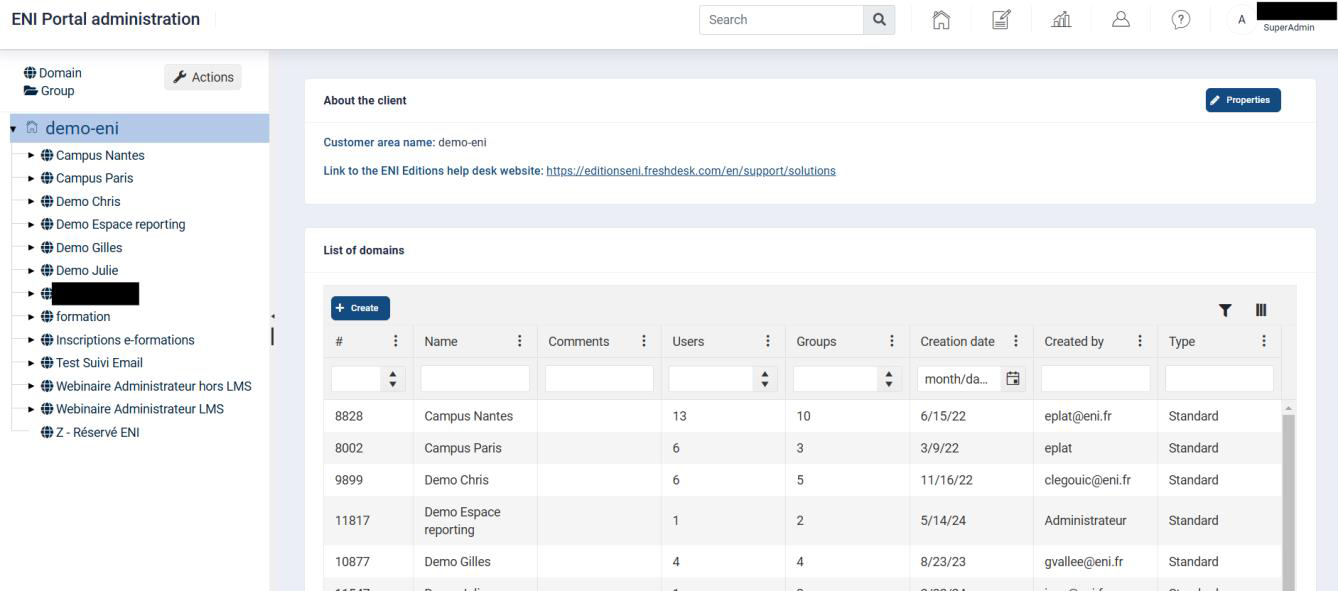
Go to List of courses, where you will see all the courses available in your portfolio.
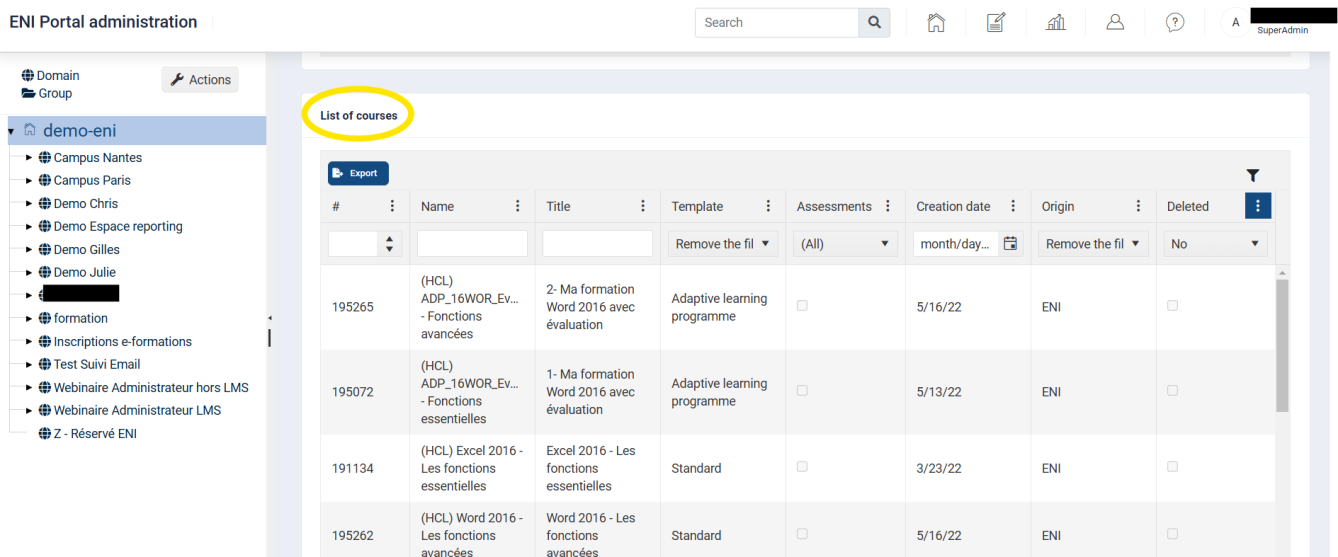
As the customisation of courses is based on a technique of deletion rather than addition, it is important to start with the most complete course.
ENI's complete original training courses have a name with the reference EBXX-X10 and the title "XXX From fundamentals to advanced training").
Select the course you want to customise, then click on the Duplicate button.
• Adaptive e-learning courses cannot be duplicated. These e-learning courses start with the reference "ADP". They are specifically developed with an assessment, in real time in the software, prior to Word, Excel or PowerPoint training (2010 - 2021), to determine the learner's level and then automatically and instantaneously allocate the training modules best suited to their level.
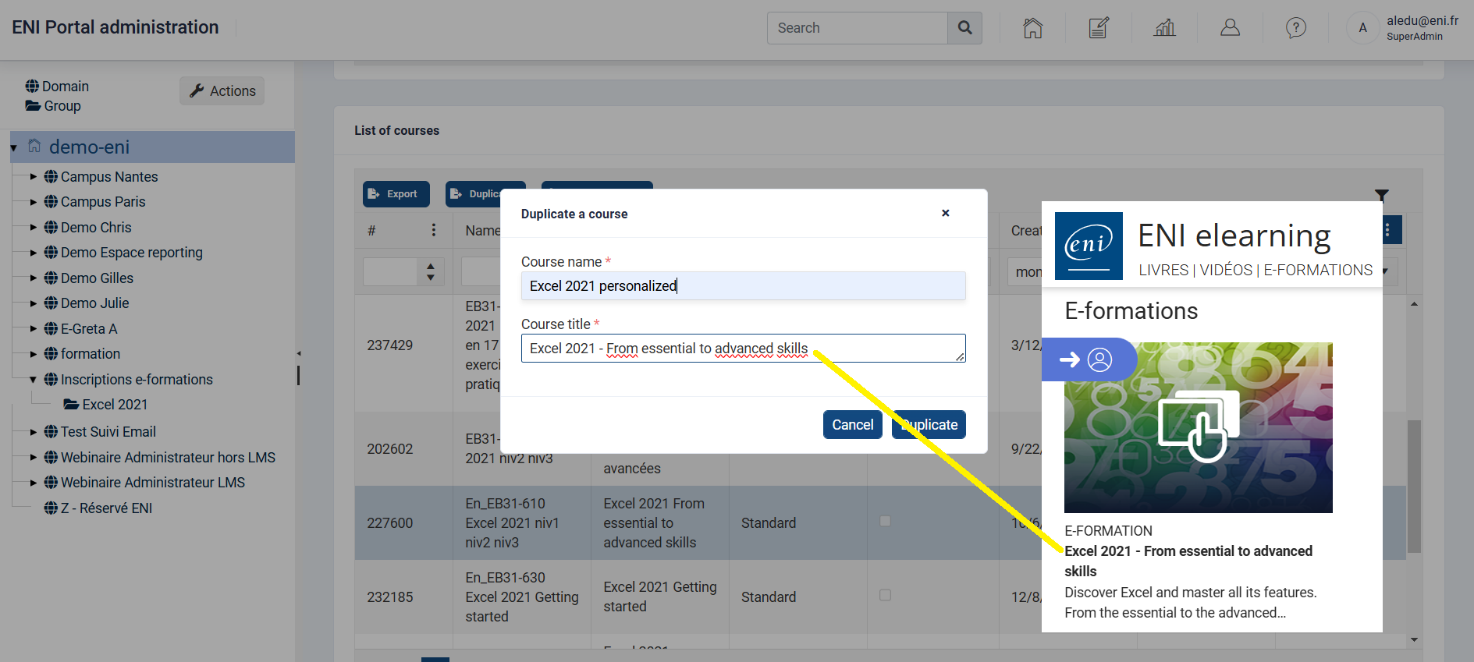
• A window will appear asking you to rename your e-learning course.
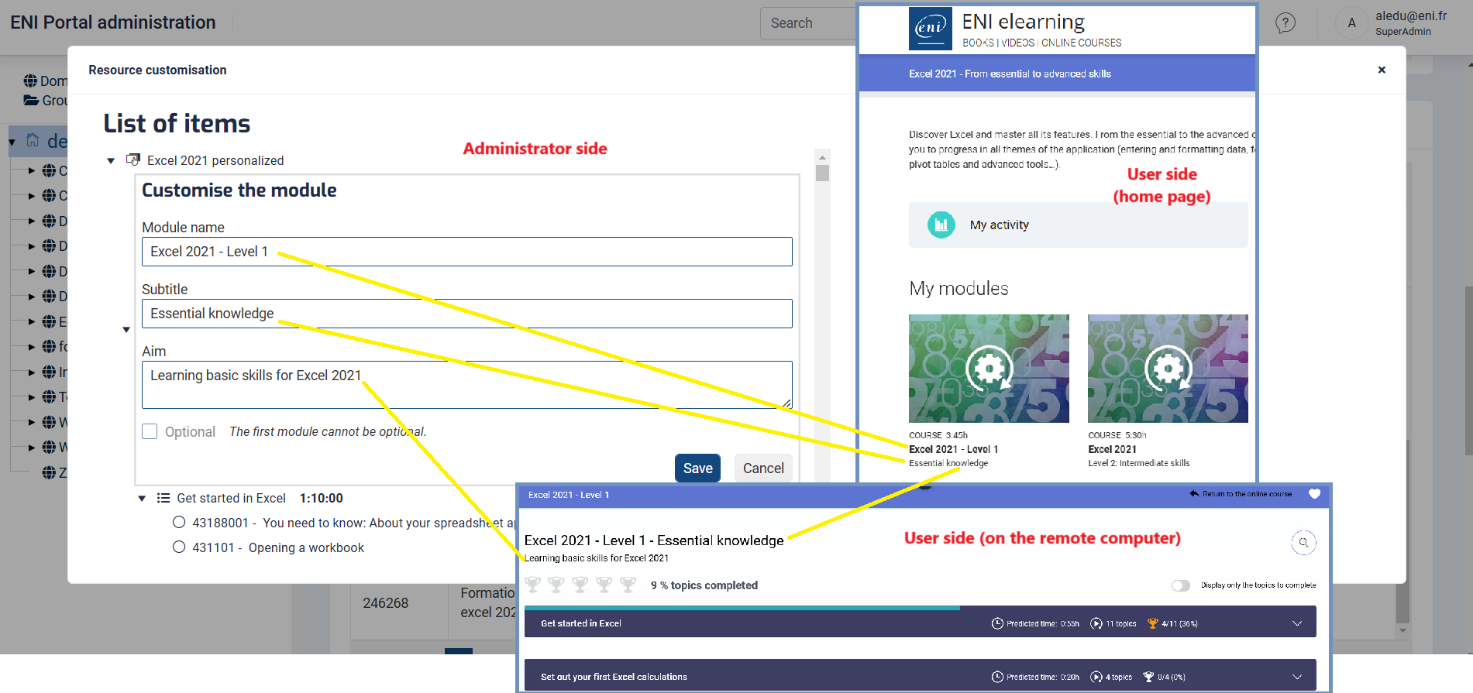
o The e-learning title will not be visible to the user. It corresponds to your e-learning reference.
o The e-learning title, however, is displayed on the user’s portal and corresponds to the e-learning title that appears under the thumbnail.
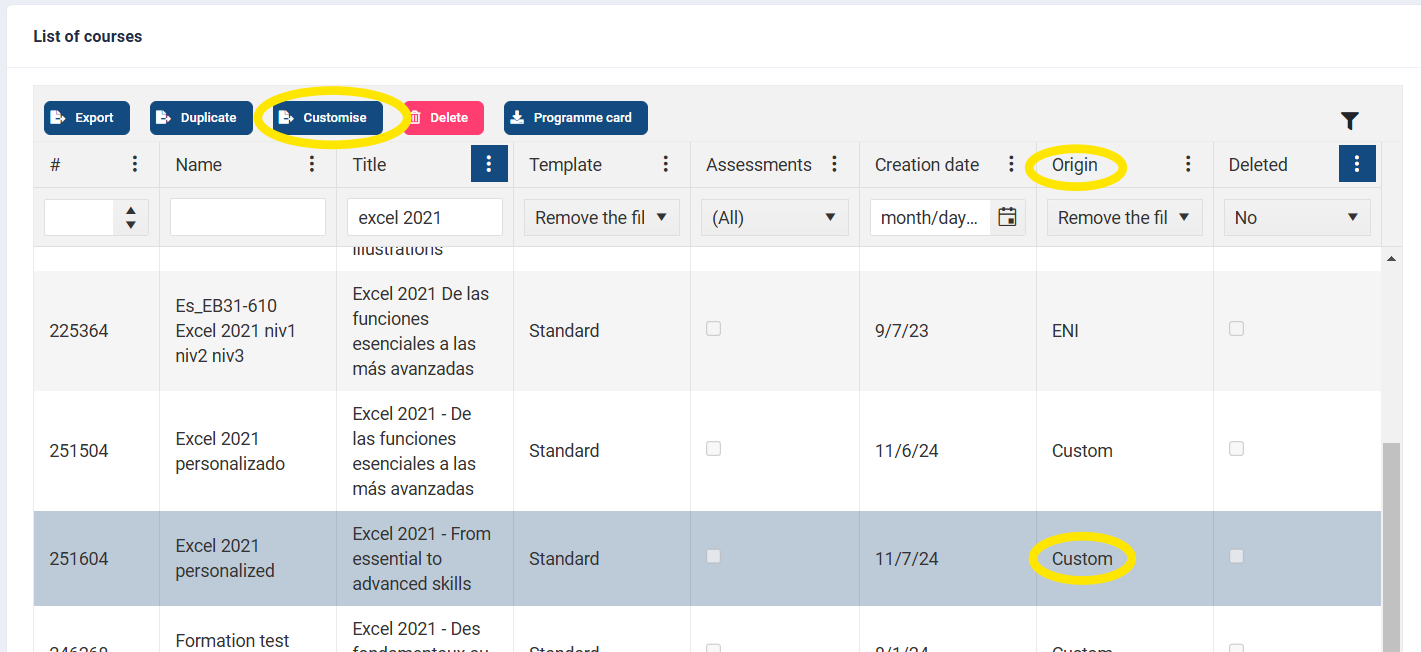
Your duplicated e-learning course is added to the list of available e-learning courses on the Home page of your admin platform and is categorised as "Customised" in the Origin column.
Note: It is possible for elements of HTML code to slip into the description in the form of a "<br />". This small bug is currently being resolved, but you will need to delete these elements from the course description to be able to duplicate it.
• Select your new e-learning course, then click on the Customise button.
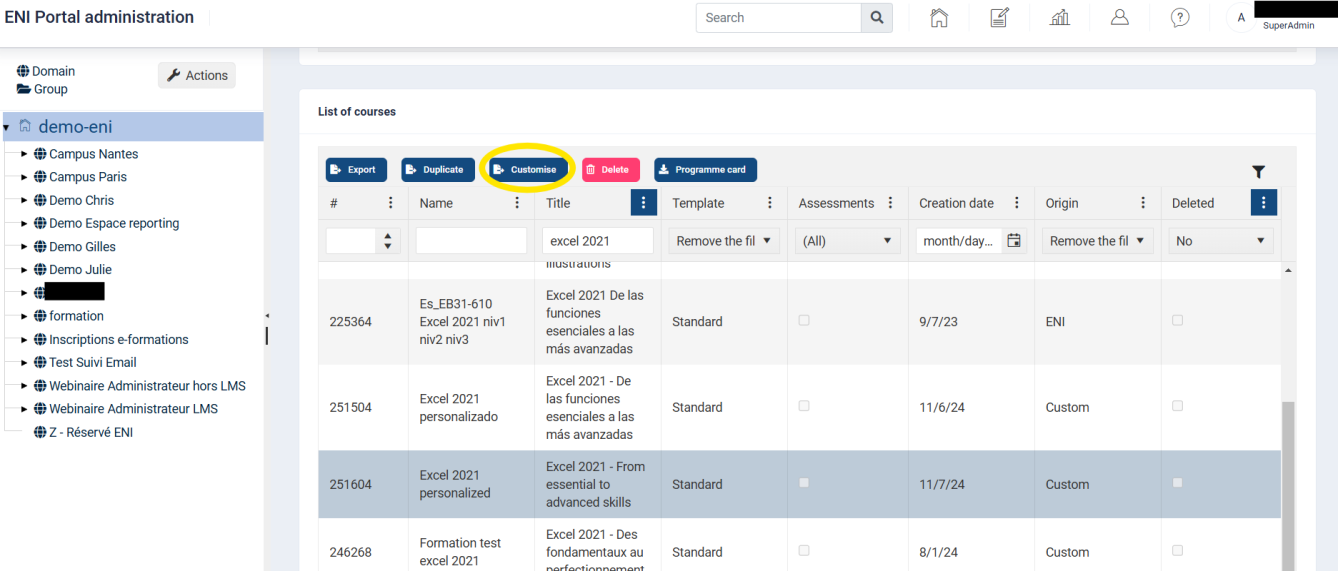
Deleting unwanted items
A new window is displayed with the List of e-learning components.

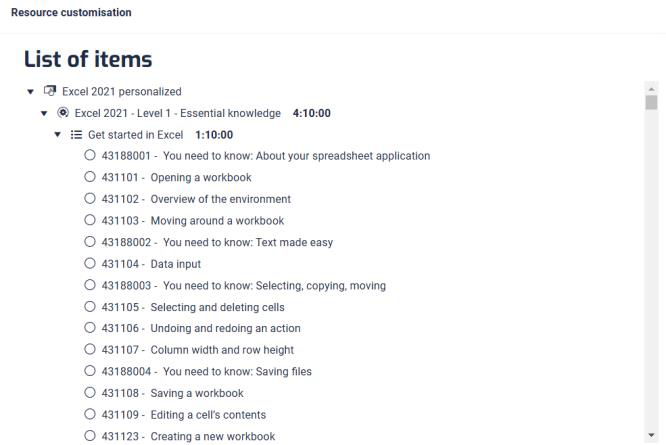
By browsing along the lines, you will see different symbols appear, defined as follows:
 Enables you to expand/collapse the elements that make up the e-learning course (modules and sub-modules)
 Enables you to change the title, heading and/or objective of the e-learning course, module or sub-module.
 Used to duplicate a module.
 Used to delete a module, sub-module or point.
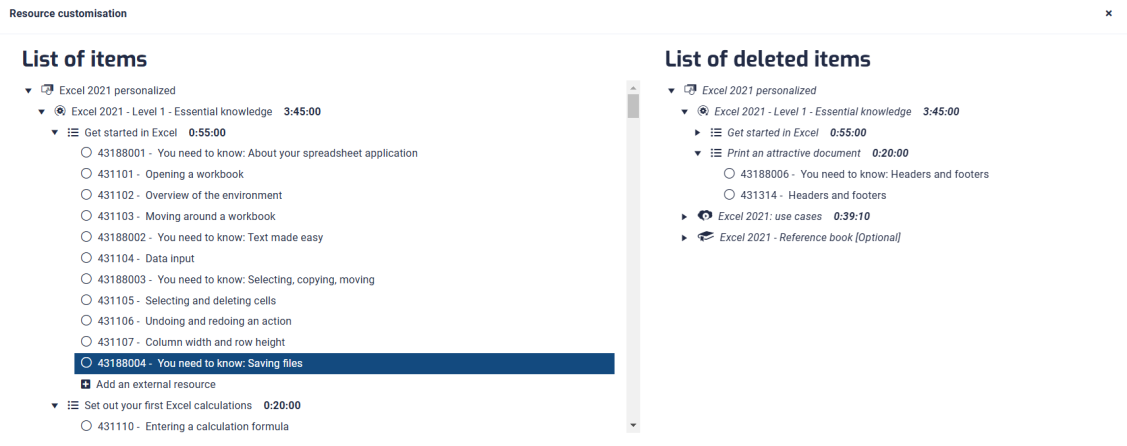
• The customisation principle consists of using the Delete icon in the List of elements column to delete the module(s), sub-module(s) or item(s) that you no longer wish to keep in the customised e-learning course .
• As you delete items, your modules, sub-modules or points move to the list of deleted items on the right-hand side of the screen.
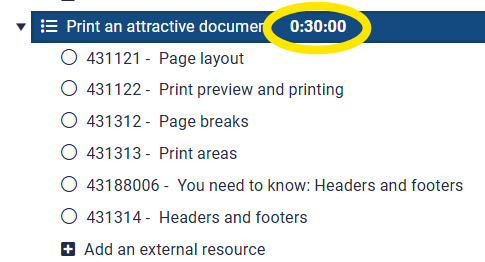
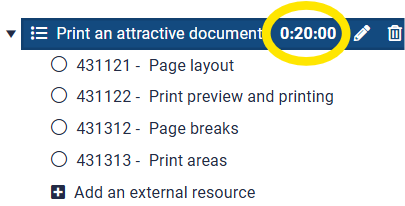
• Module and sub-module duration are automatically recalculated.
• You can cancel your manipulations by clicking on the icon at the far right of the line.  The deleted item will go back to the List of items.
Reorganising elements
You can drag and drop modules, sub-modules and points to reorganise your e-learning content. As you click and drag, a symbol appears (see screenshot below) so that you can define the precise location of the new module.
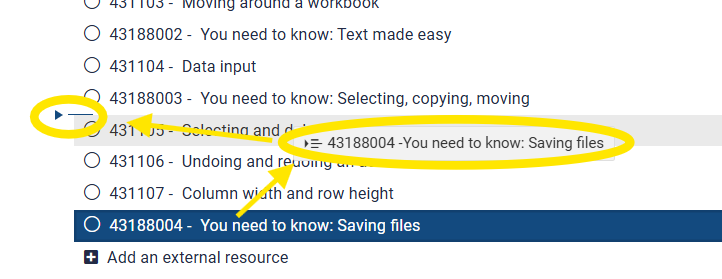 Figure 1: a point is moved here
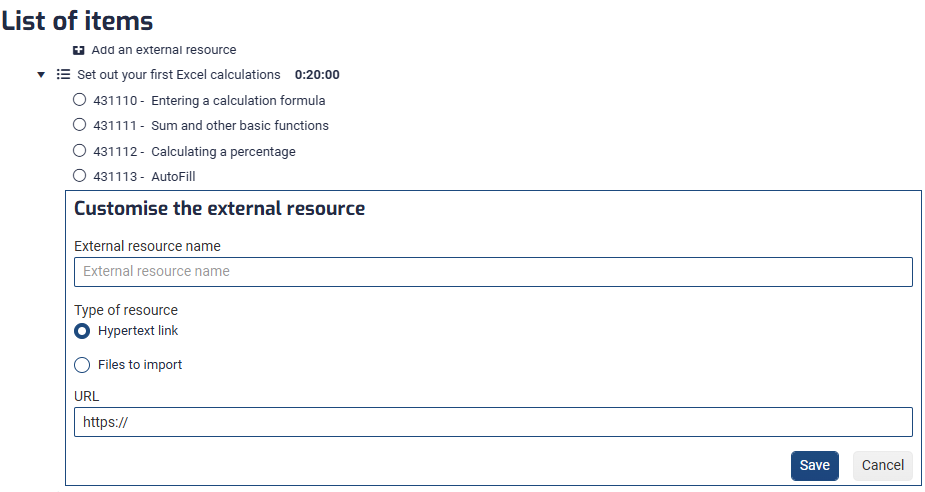
Associating an external resource with a sub-module
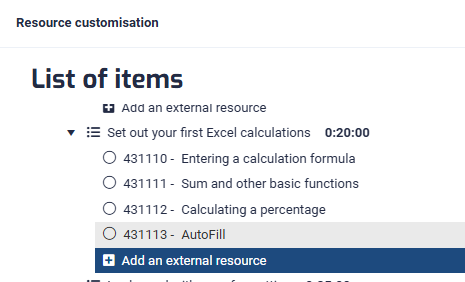
You can link one or more external resources to each sub-module in the form of a hypertext link or a file imported from your computer.
Your resources cannot exceed 10 MB per file and you may not add more than 100 MB in total to a given e-learning course.
Important — opening external resources
External resources cannot be opened directly from Mediaplus, as the training runs in a virtual environment (remote virtual machine).
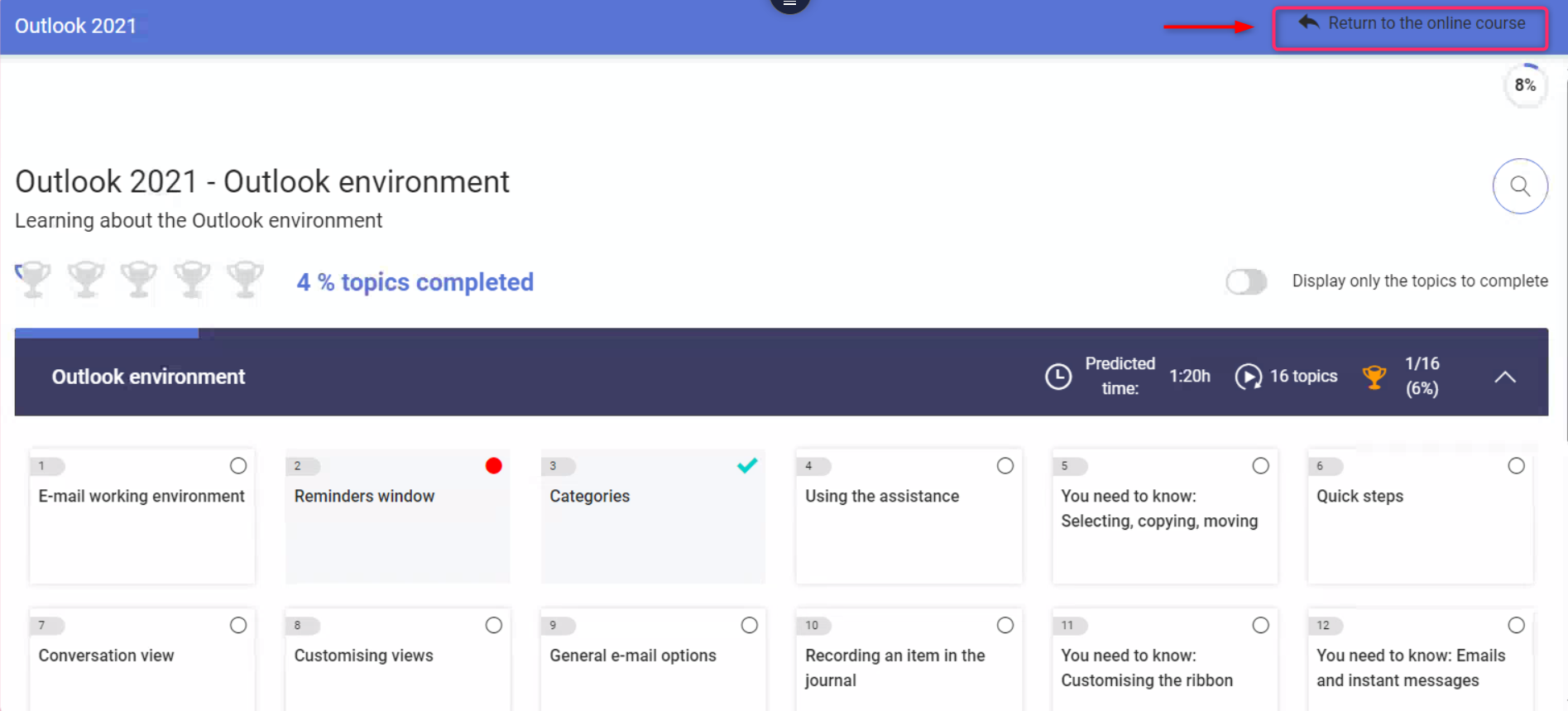
To access an external resource, you must first exit the virtual machine by clicking “Return to the online course”.
Once you have returned to the e-learning course, open the external resource from the table of contents located on the right-hand side of the screen.
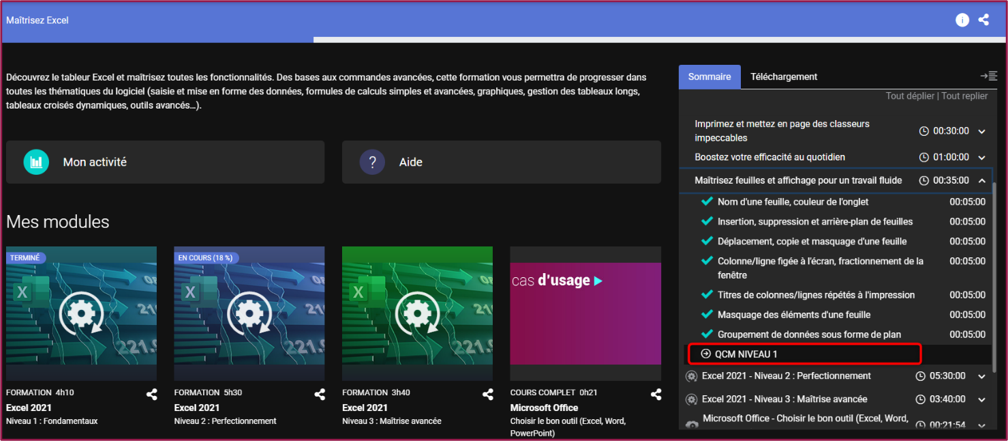
It is also recommended to place external resources at the end of a module rather than in the middle, to avoid learners having to exit the virtual machine, consult the resource, and then reconnect again to resume their training. This helps ensure a smoother learning experience.
Note:
The same changes can be made to our video modules and digital books.
Make sure you are familiar with the content you are modifying so as not to delete a video sequence or chapter to which another chapter or video sequence could refer.
Once you have finished customising, you can close the window using the cross to finalise the creation of your e-learning course.