
This document describes the procedure for duplicating a group from one domain to another within the administration portal.
This functionality saves time by allowing the reuse of an existing group’s configuration, while optionally preserving its e-training associations and email tracking services.
By following the steps detailed below, the administrator will be able to copy an existing group, paste it into another domain, and then configure its properties according to their needs.
***
To save time, it is possible to duplicate a group from one domain to another.
- Go to the home page of your administration portal.
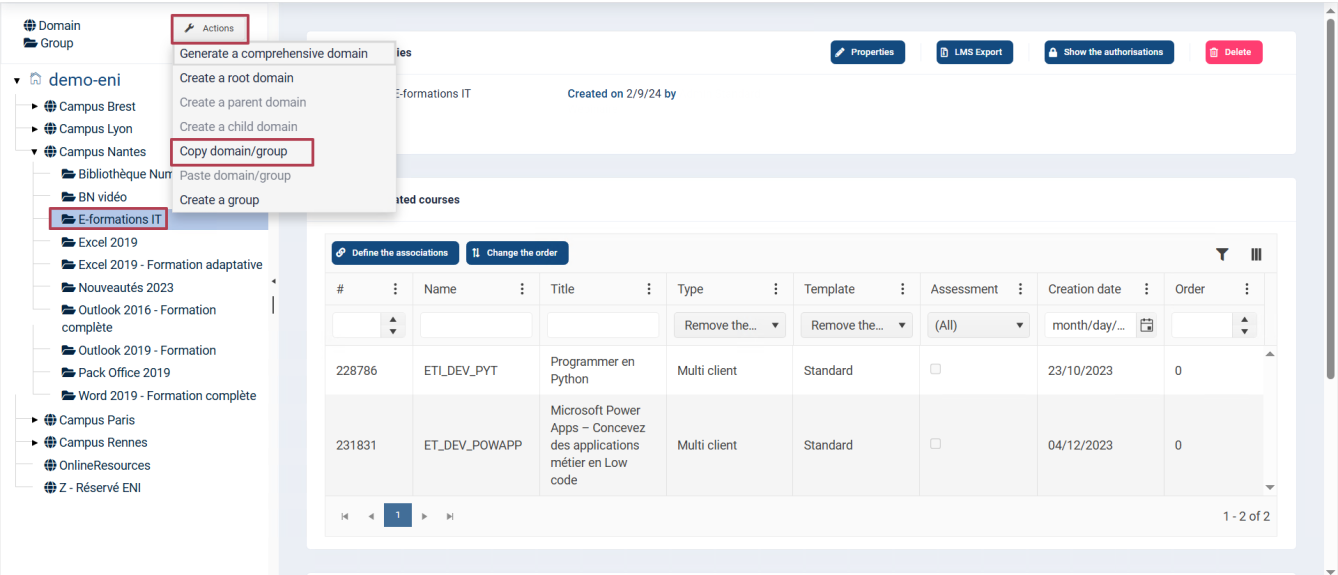
- In the tree structure, select the group you want to duplicate.
- In the top right corner, click the Action button and select Copy domain/group.
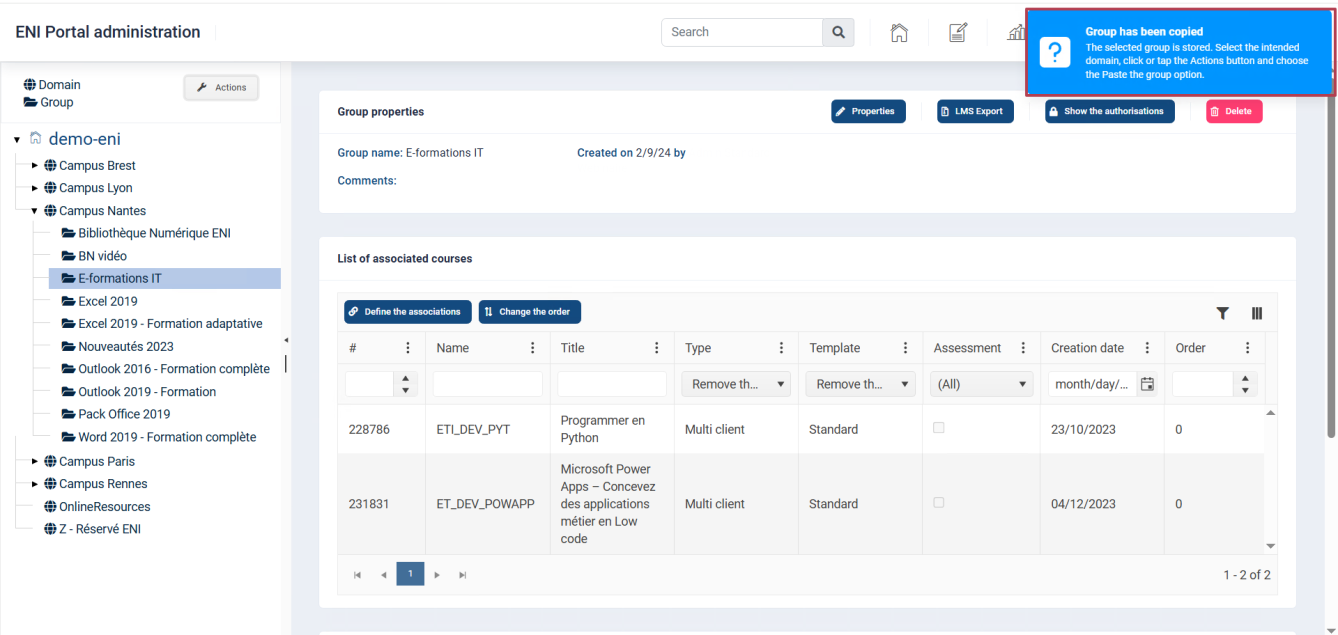
A blue pop-up appears in the top right corner of the screen to confirm that the group
has been successfully copied.
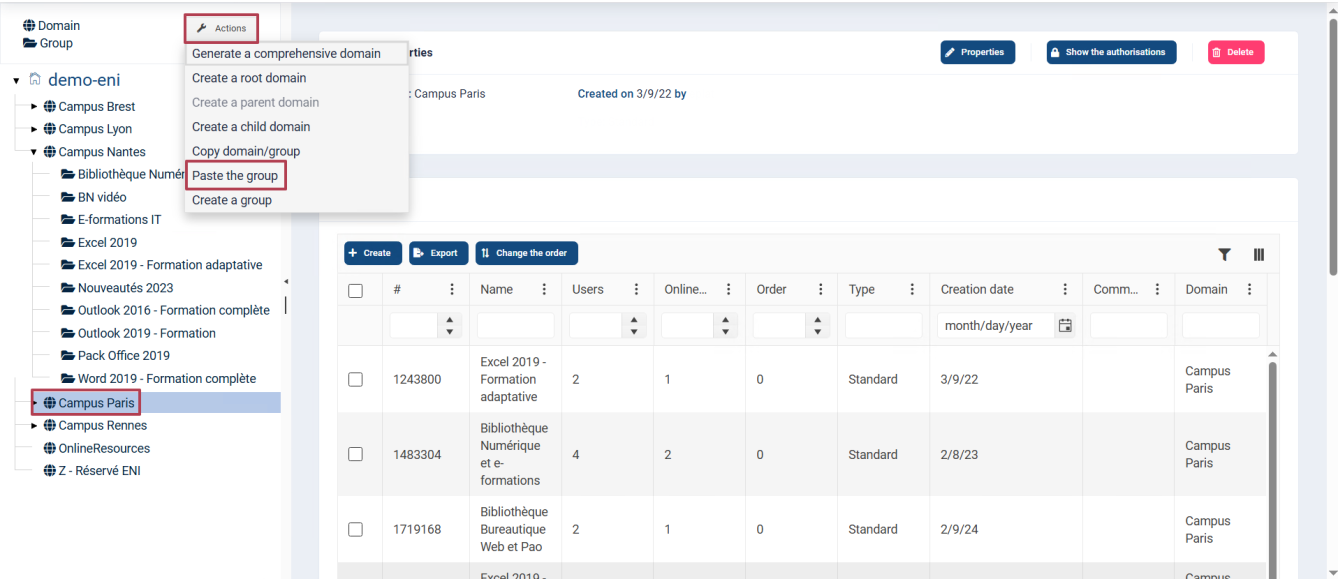
Go to the domain where you want to duplicate the group, click the Action button, and
select Paste group.
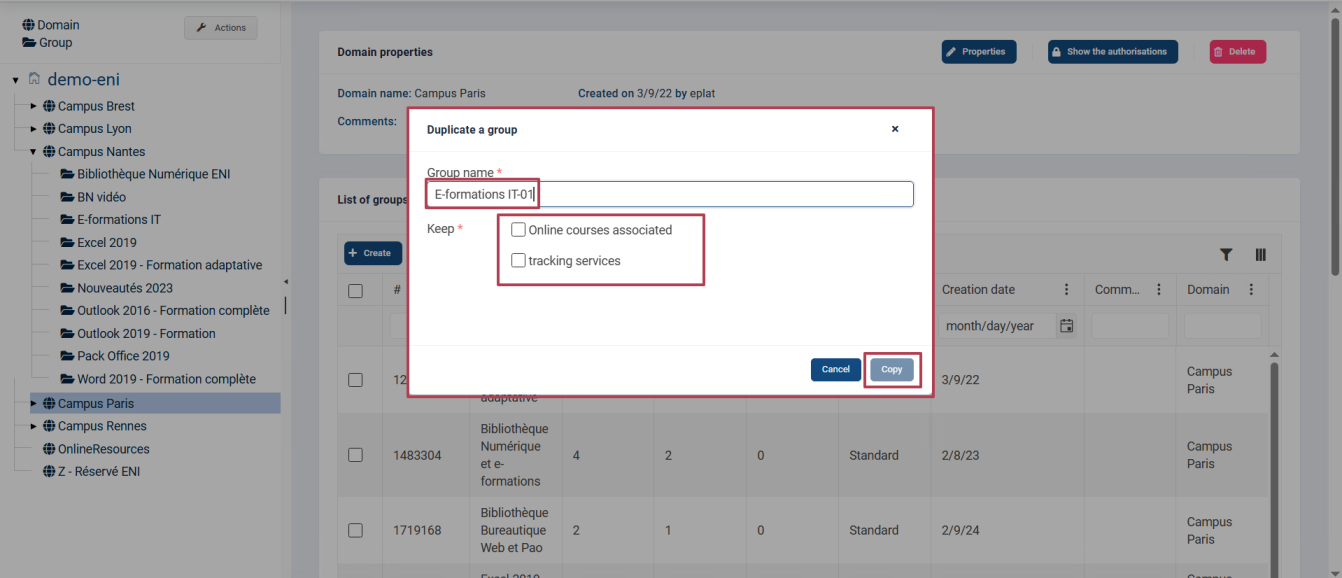
A pop-up window opens, allowing you to enter the name of the new group to be created.
You must also indicate whether you want to keep the group content and the email tracking service.
If you check Keep associations, the e-trainings linked to the copied group will also be duplicated in
the new group.
Otherwise, the pasted group will be empty and you will need to associate the desired content manually.
If you check Keep tracking services, the email tracking configured on the copied group will be
duplicated on the new group (invitations, attendance, and reminders).
Once the group properties are completed, click Copy.
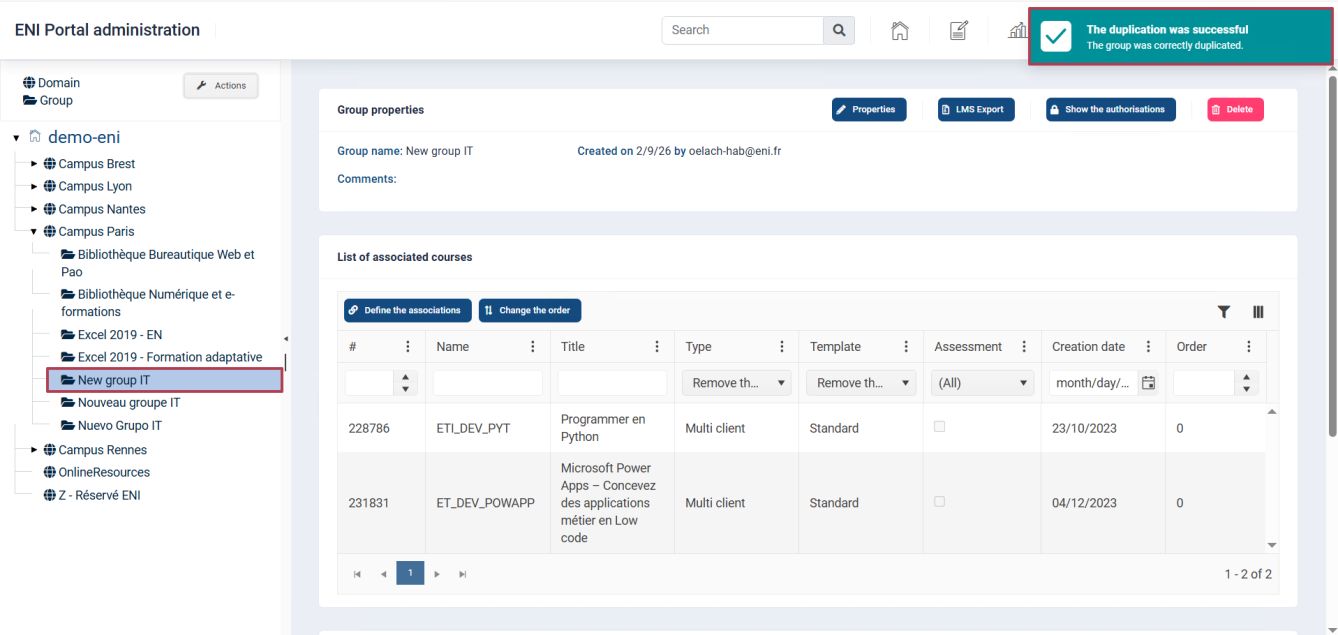
A green pop-up appears in the top-right corner of the screen to confirm that the duplication
was successful, and the main page refreshes to display the new group.
Related articles: