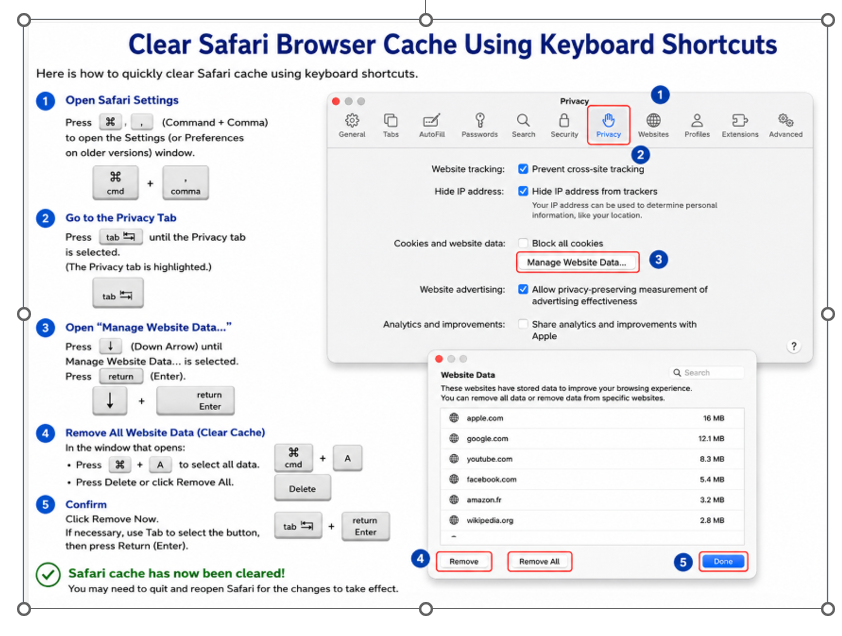
Browsers use a web cache and cookies in order to save online data. This accelerates browsing but can prevent the courses from functioning correctly: It may be necessary to clear the cache in order to solve certain issues, such as buffering or website display problems. This document describes the procedure to carry out for the most common web browsers.
1- Google Chrome
2- Microsoft Edge
3- Mozilla Firefox
4- Safari
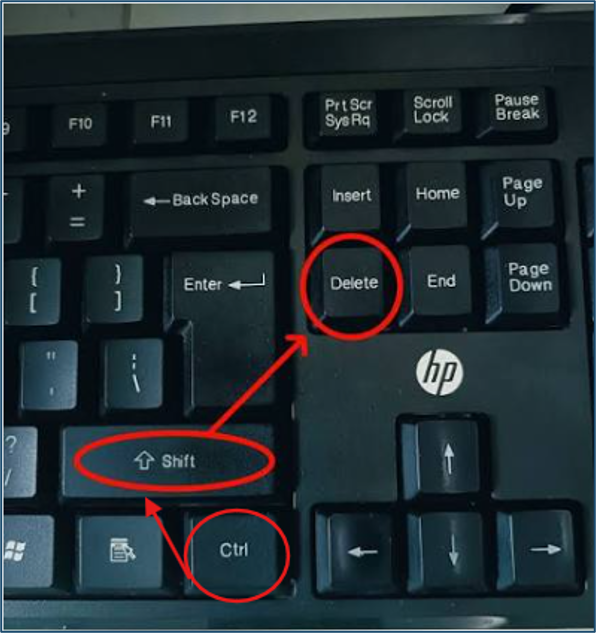
Google Chrome
- Press Ctrl + Shift + Delete
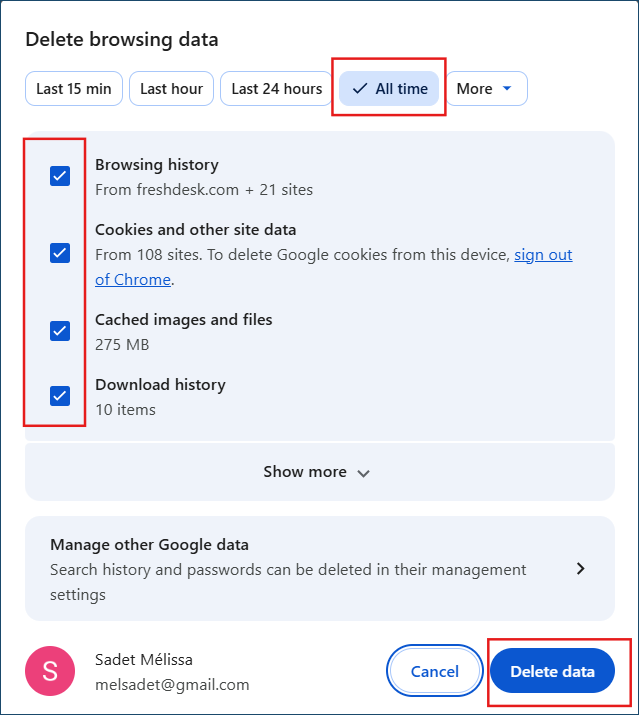
2. A new window will appear on your screen. Select the data you wan and select All time, then click Delete data.
Microsoft Edge
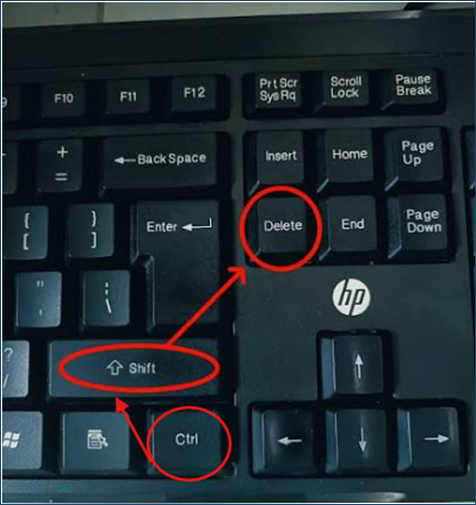
- Press Ctrl + Shift + Delete
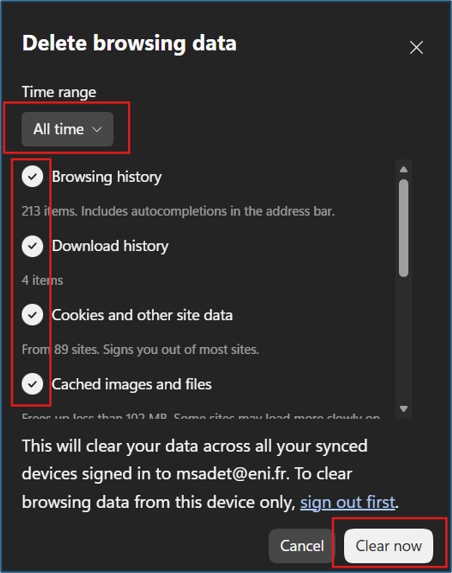
2. A new window will appear on your screen. Select the data you wan and select All time, then click Clear now.
Mozilla Firefox
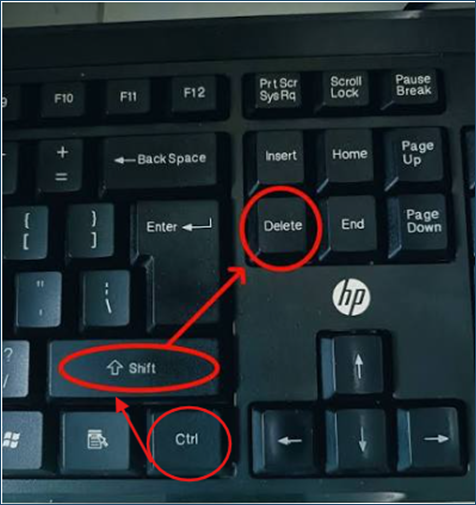
- Press Ctrl + Shift + Delete
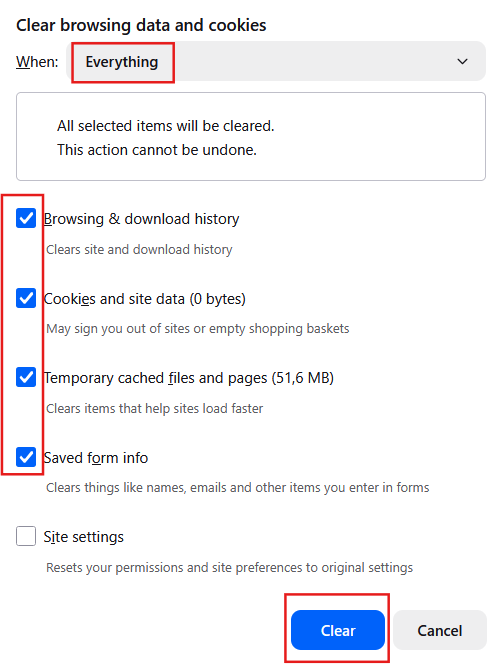
2. A new window will appear on your screen. Select the data you wan and select Everything, then click Clear.
Safari