
The latest update to our MEDIAplus solution improves keyboard compatibility and optimises functionality for an even smoother user experience.
This update resolves issues faced by learners using physical keyboards different from the one pre-configured in the virtual machine. Your keyboard is now automatically detected, and the procedure provided as an attachment is no longer necessary.
If you still encounter any issues (e.g., your keyboard is not recognised or misinterpreted when connecting to MEDIAplus), please contact us at satisfaction.client@eni.fr, providing the following details:
- The e-learning course you are connecting to.
- The type of keyboard you are using.
- Whether you are using a Mac or PC.
- The browser used (Firefox, Edge Chromium, Google Chrome).
- A description of the problem, along with a screenshot if applicable.
Keyboard Language Configuration
Keyboard compatibility issues may occur if the physical keyboard has a different layout than the one used by the virtual machine.
This can be solved by changing the web browser settings: The virtual machine uses the keyboard layout associated with the language set in the learner's web browser.
Hereafter is a description of the configuration to perform in order to align the virtual machine's keyboard with the physical one.
In this example, the physical keyboard has a French layout (AZERTY) but the course is in English and the virtual machine uses an English keyboard layout (QWERTY).
1 – Device configuration
Before changing the web browser settings, the device's language must be adjusted.
Open the device Settings and select Time & Language
Access the language settings and choose the language corresponding to your keyboard. In this example, we will choose the French language as the physical keyboard has an AZERTY layout.
If the required language is not available, it is possible to download additional languages.
2 – Web browser configuration
The web browser must also be configured to the required language. The actions to perform differ from one web browser to another.
a - Google chrome
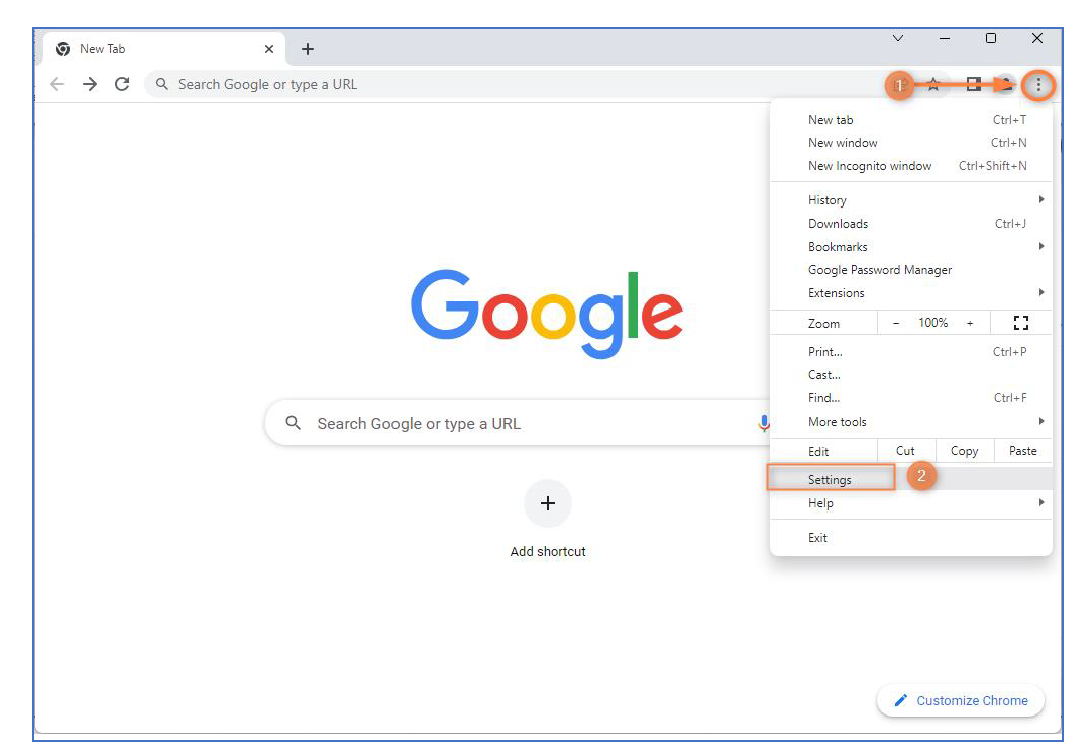
Open the ellipsis list to the right of the navigation bar and choose Settings.
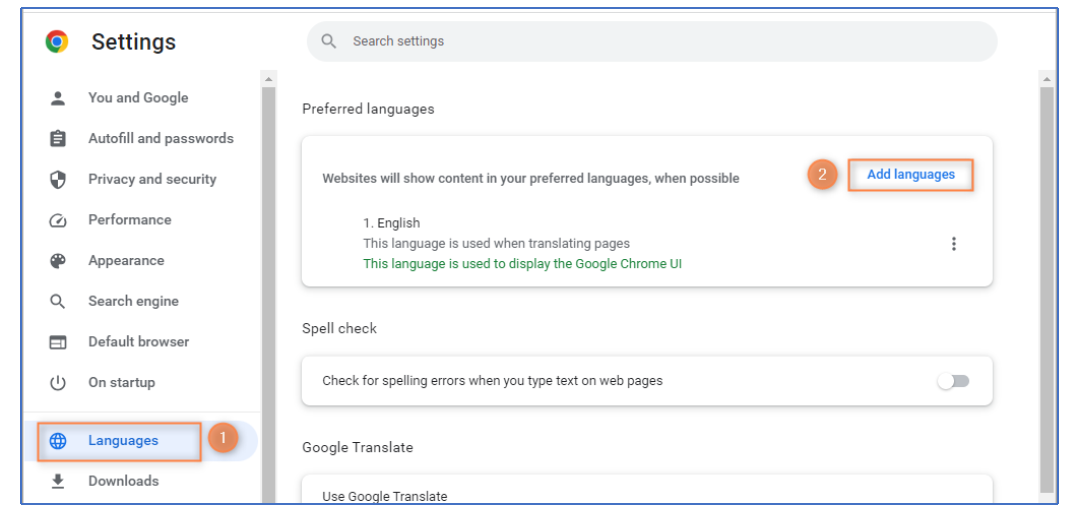
Click the Languages option and the Add languages button.
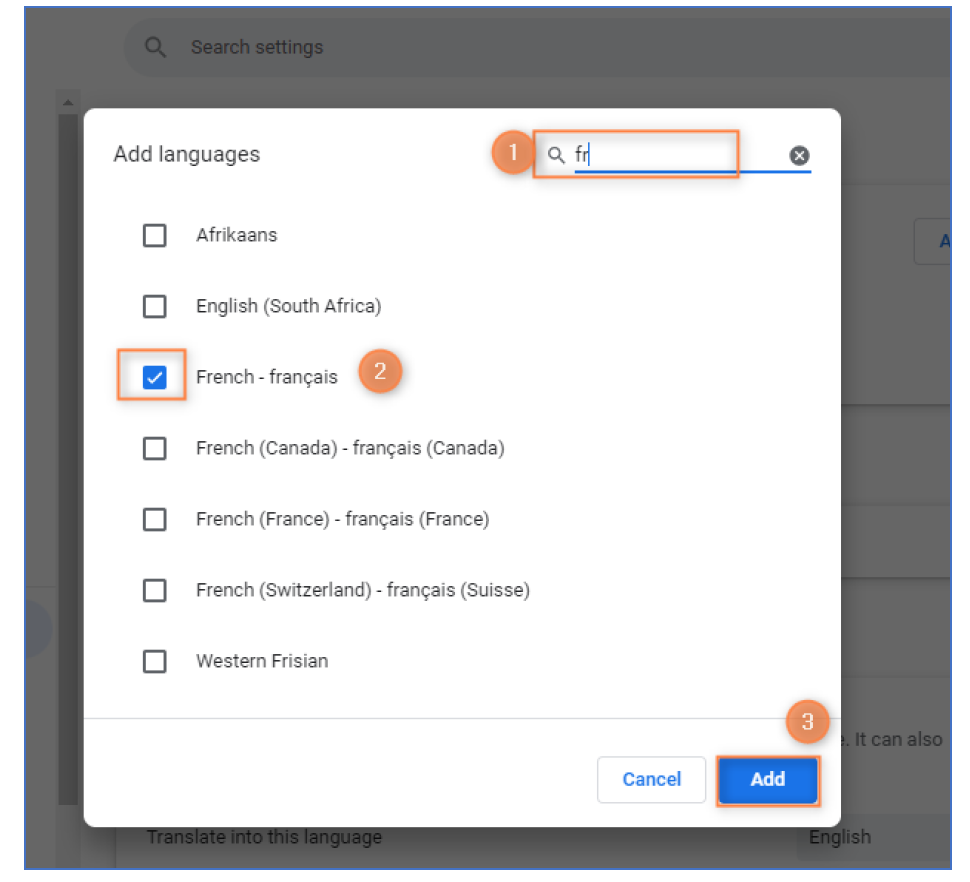
Find the required language. Tick the corresponding box and click Add.
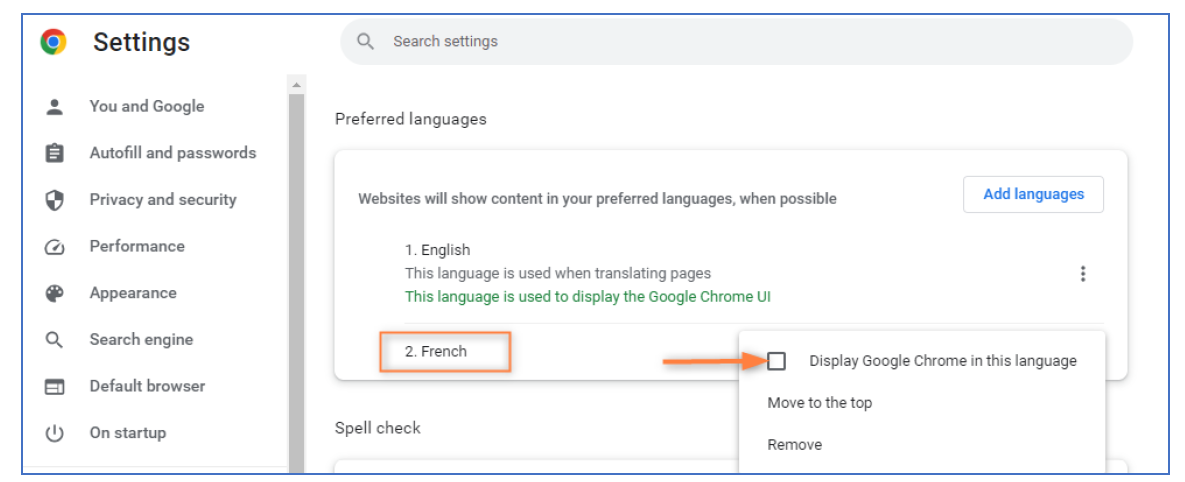
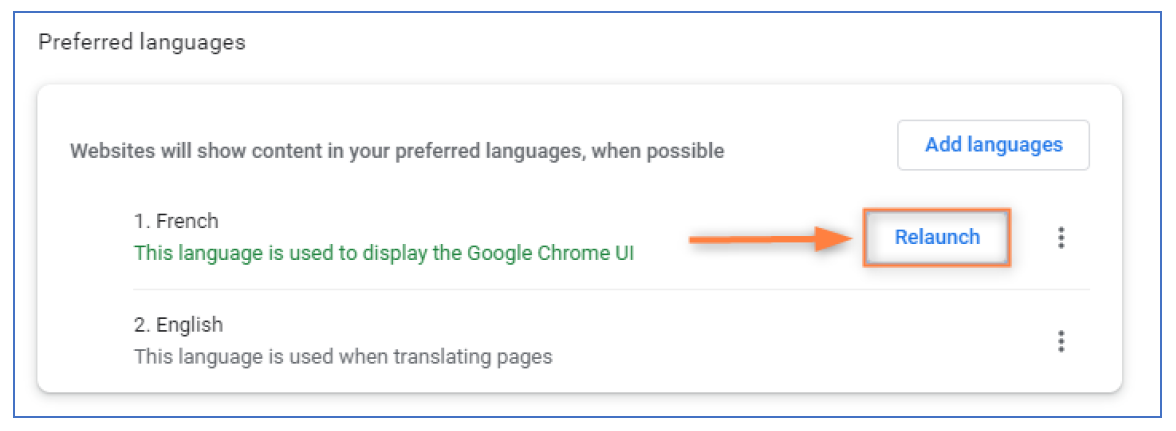
Open the language's ellipsis list and tick the box.
The web browser must be restarted in order to apply the changes.
b - Microsoft Edge
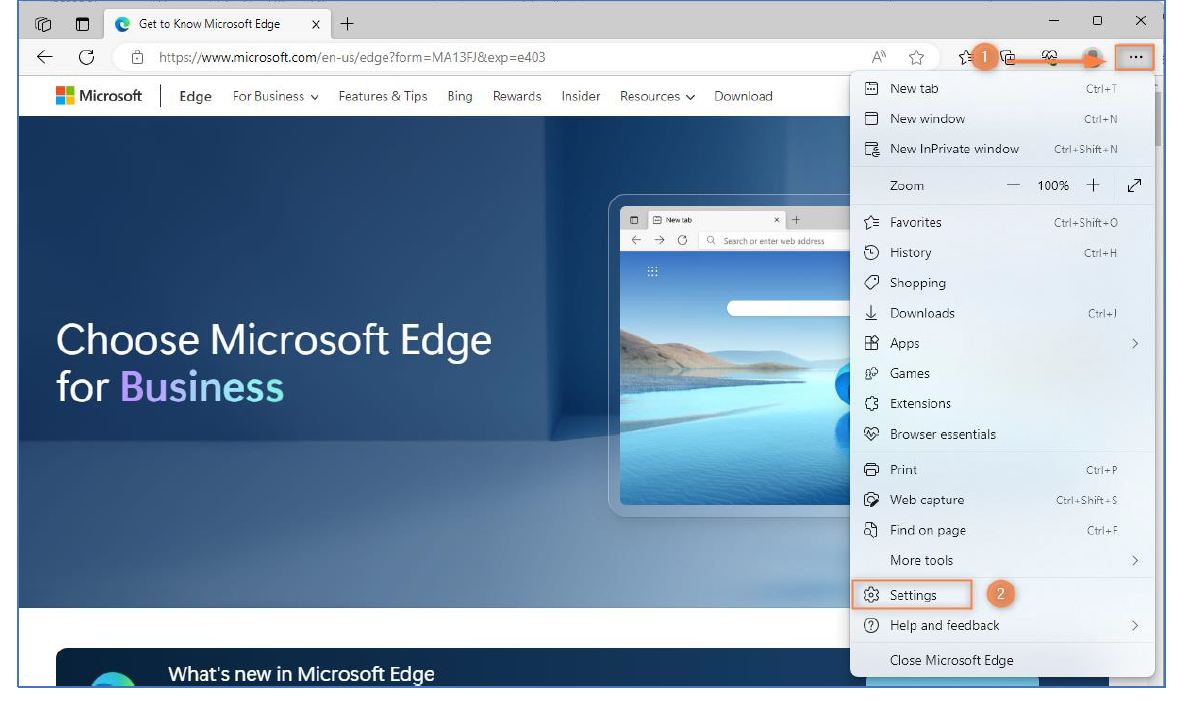
Open the ellipsis list to the right of the navigation bar and choose Settings.
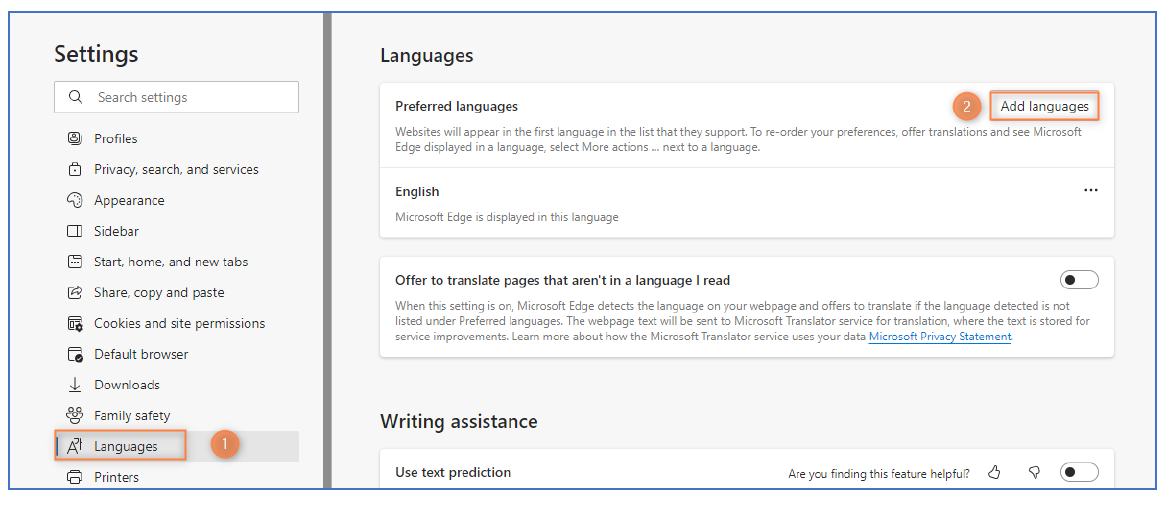
Click the Languages option and the Add languages button.
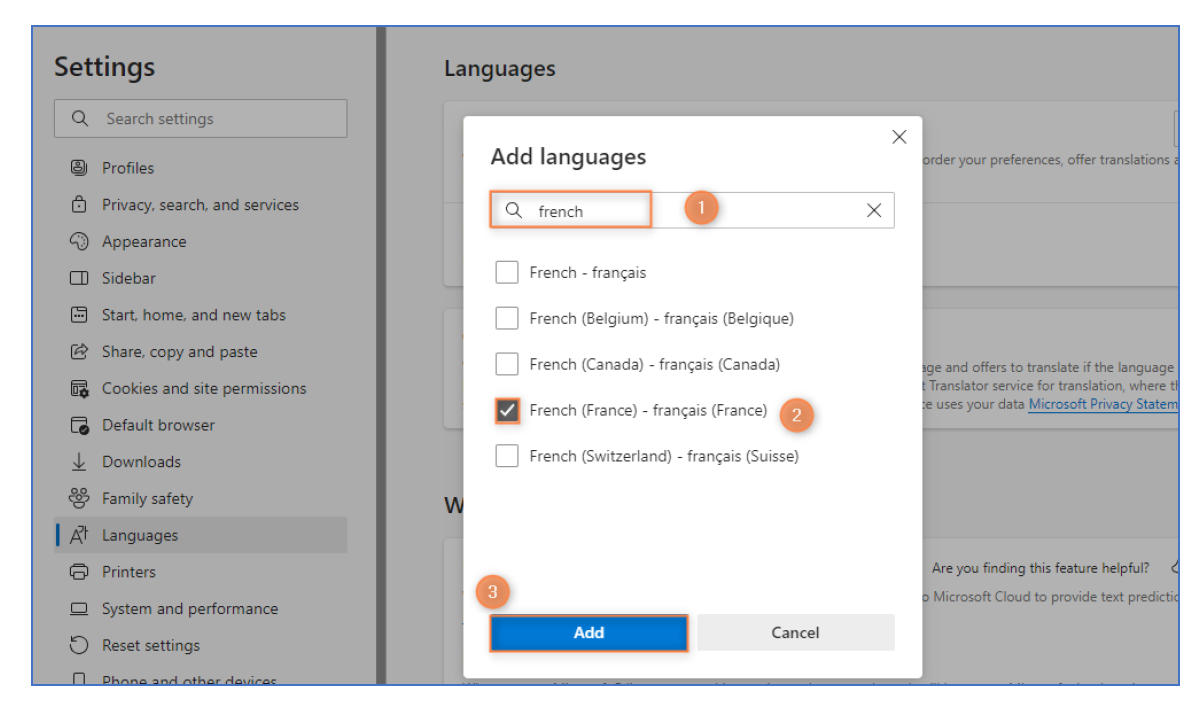
Find the required language. Tick the corresponding box and click Add.
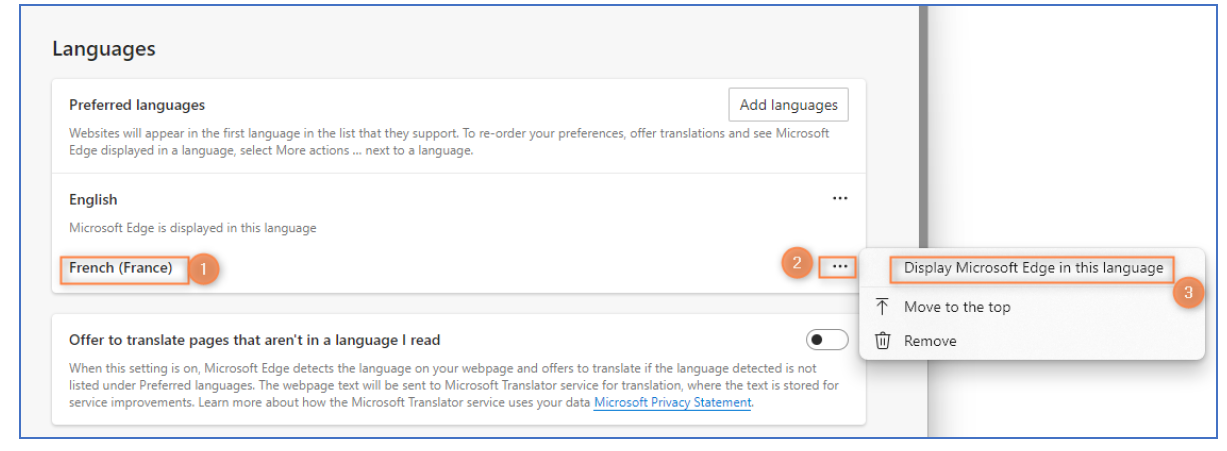
Open the required language's ellipsis list and choose to display Edge in this language.
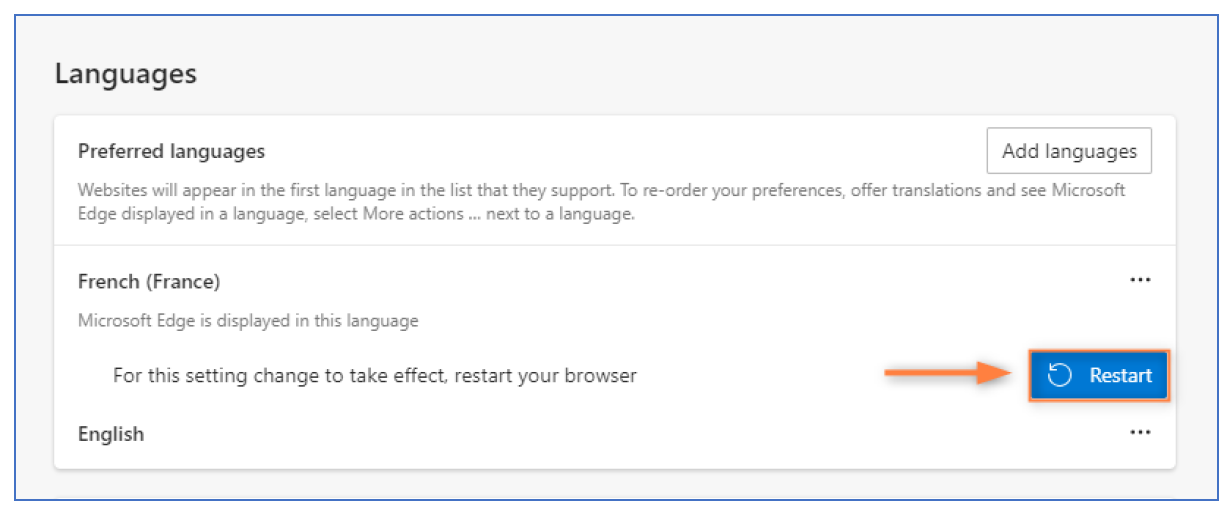
The web browser must be restarted in order to apply the changes.
c - Mozilla Firefox
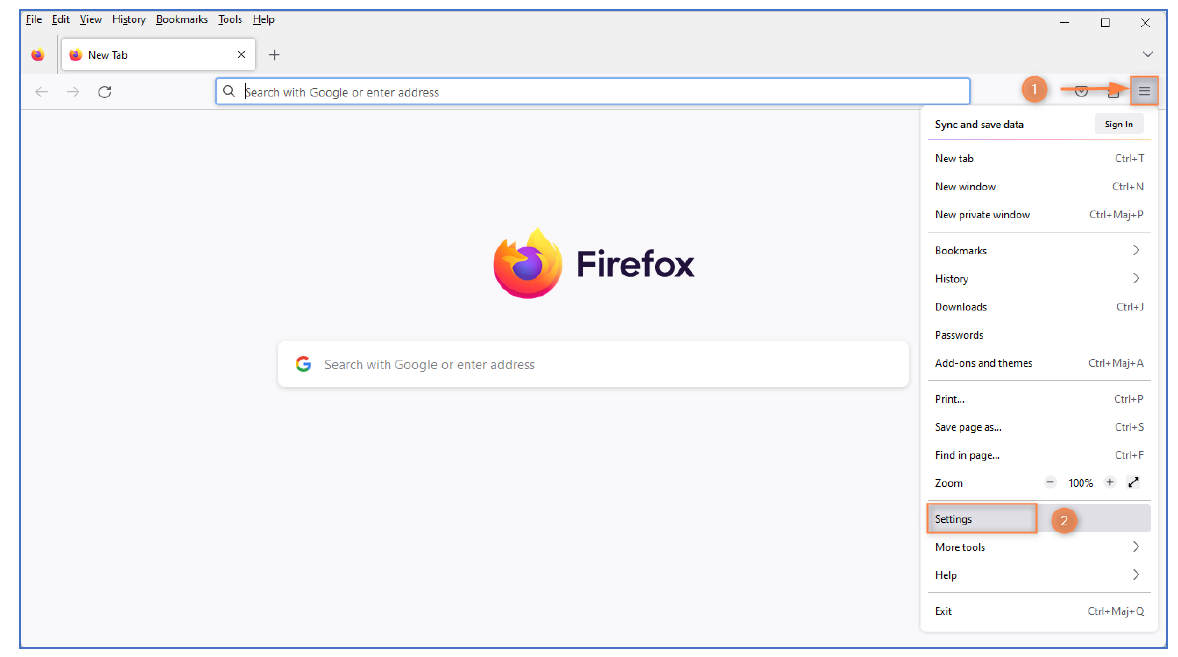
Open the ellipsis list to the right of the navigation bar and choose Settings.
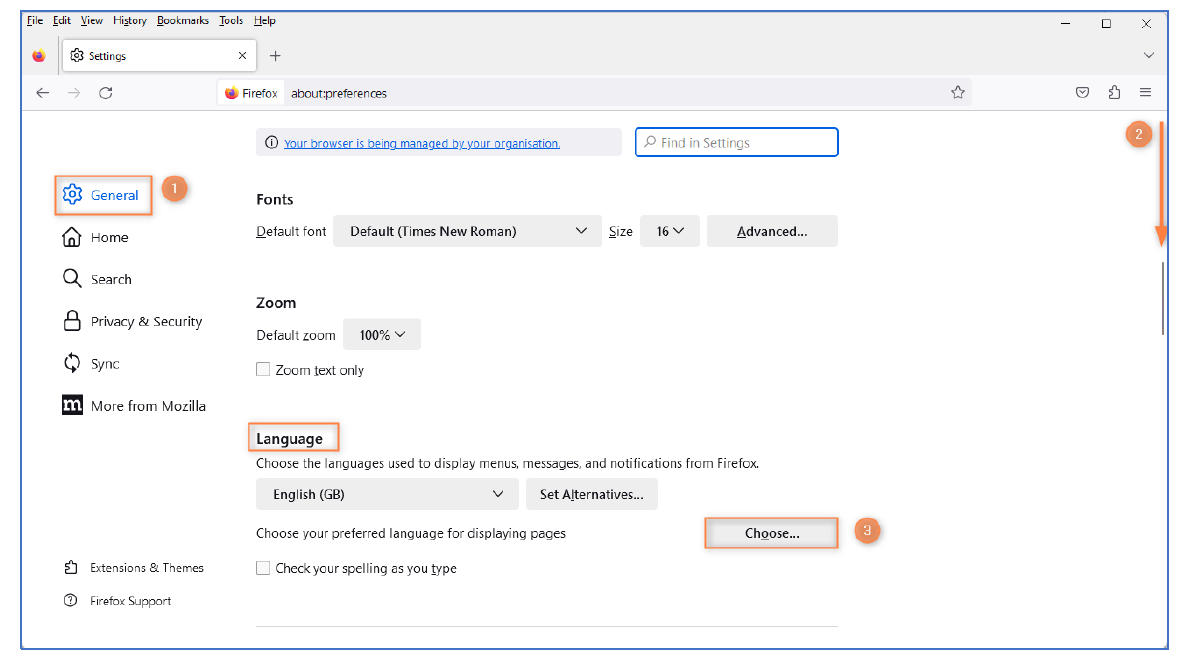
Under General, scroll down to the language section and click the Choose button.
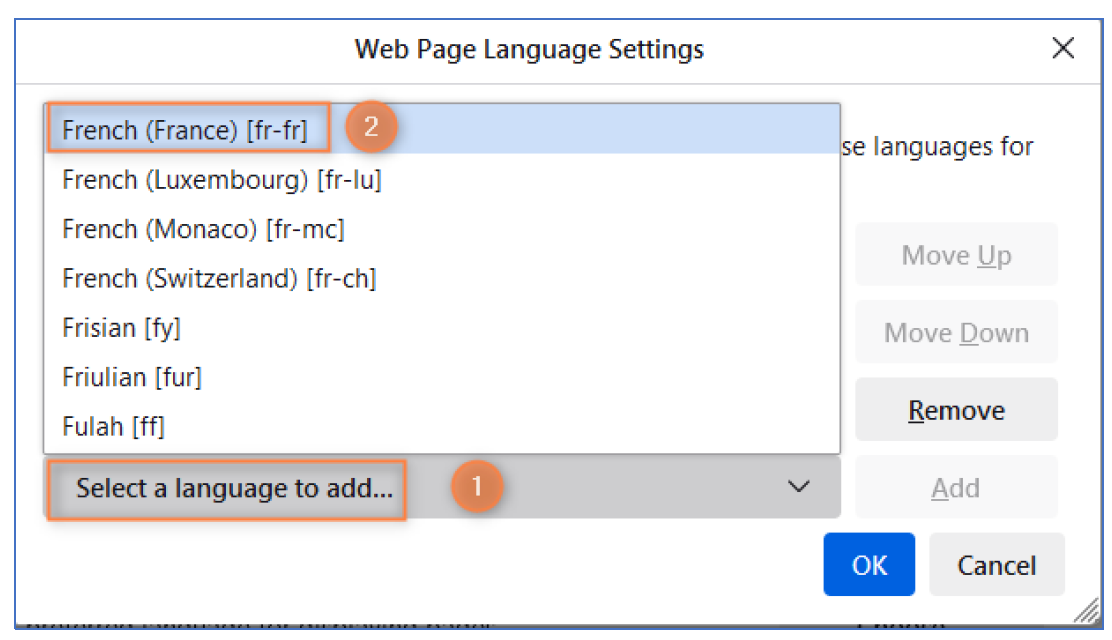
Open the Select a language to add list and select the required language.
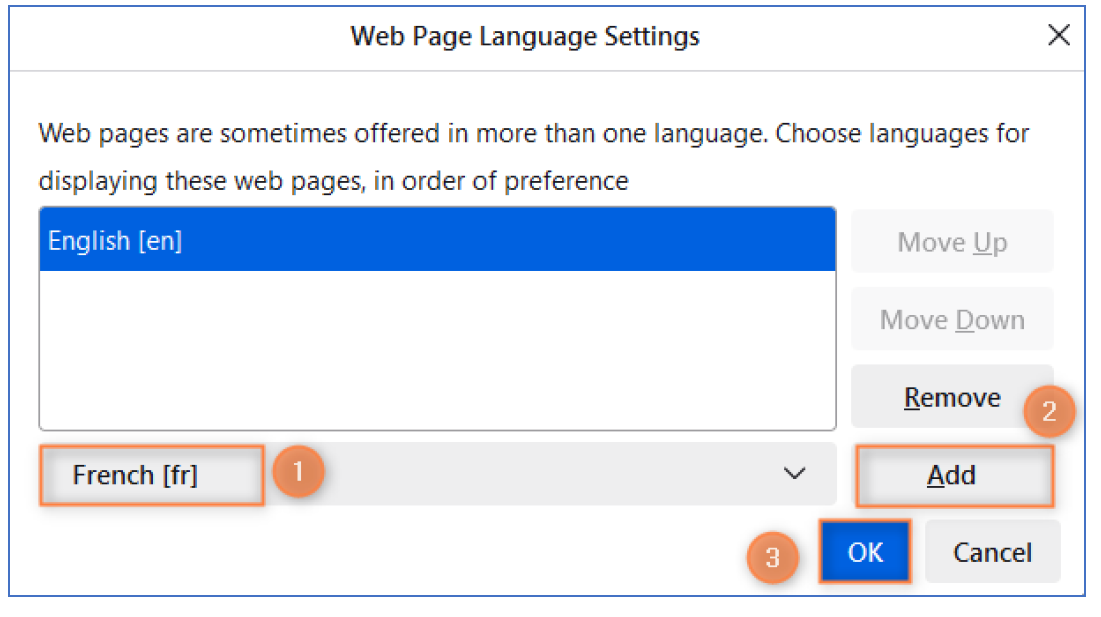
When the required language is selected, click Add.
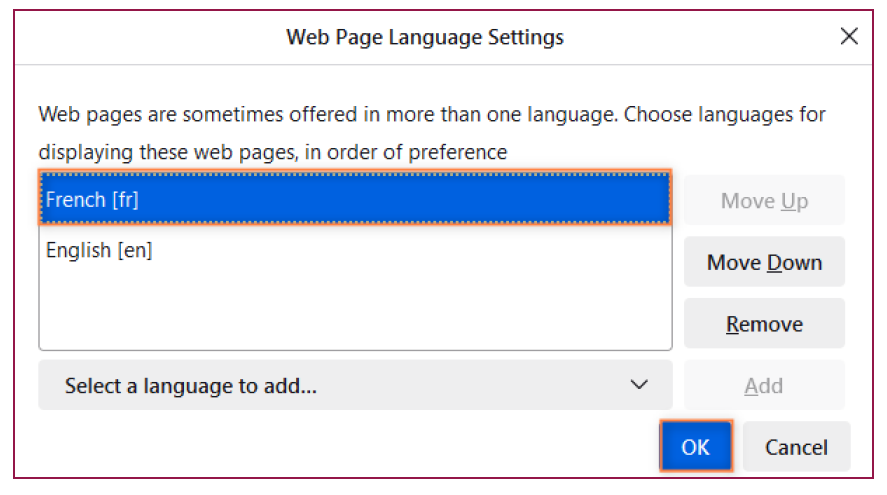
The required language must be at the top of the list: if necessary, use the Move Up and Move Down buttons. When finished, click OK.
Restart the browser to apply the changes.
See the attached PDF.