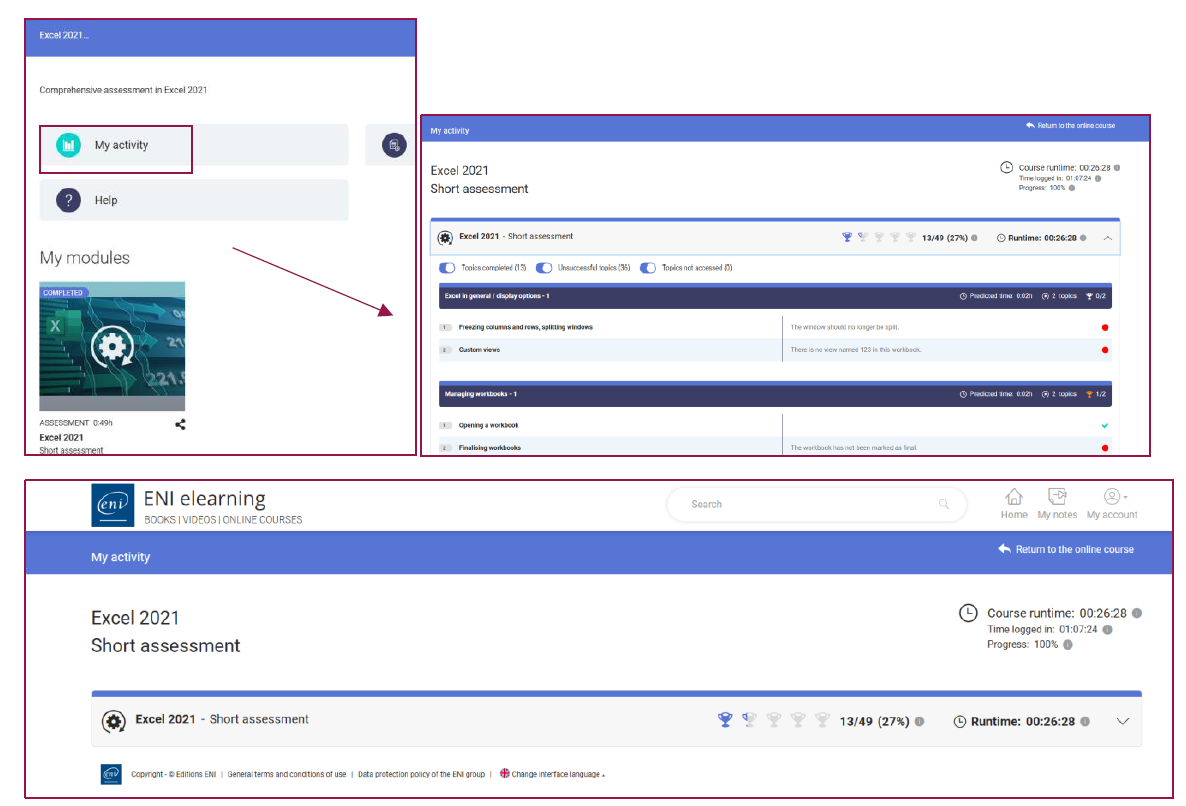
Definition and purpose of a MEDIAplus evaluation
The MEDIAplus assessments (available for Word, Excel, PowerPoint or Outlook) have several objectives:
• To ascertain the level of each learner before starting an online training course;
• To adapt the training content according to the results obtained by the learner in their assessment.
How to recognise an assessment in your administration console
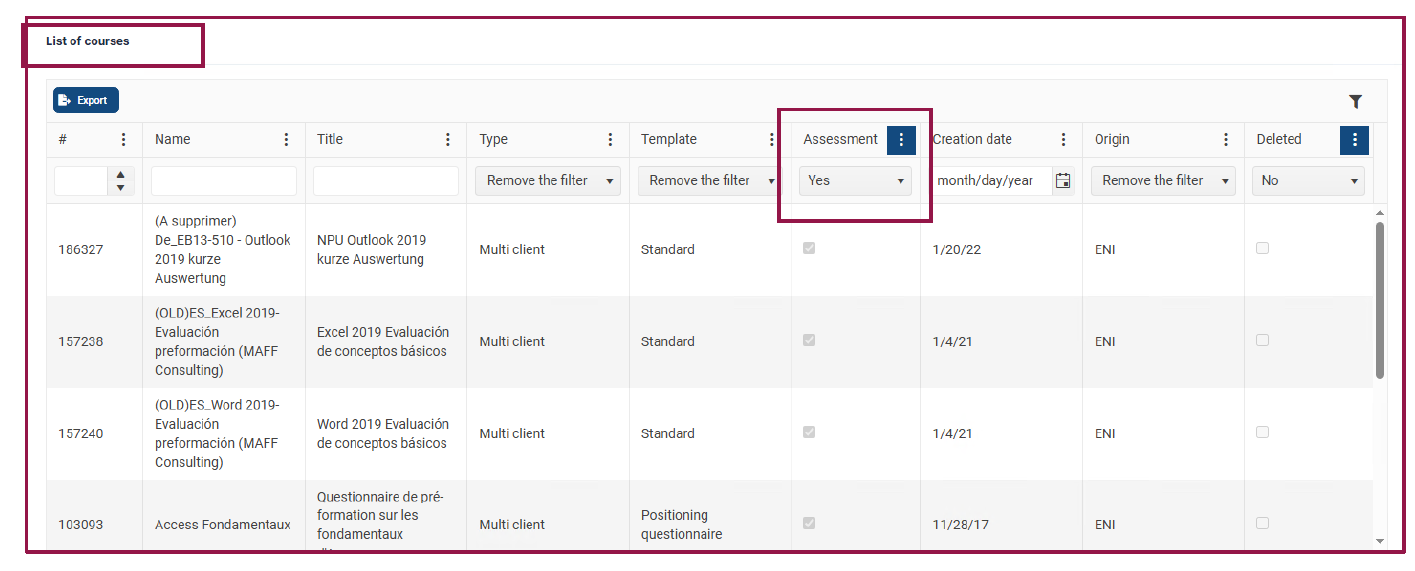
Once you have logged into your administration console, you can view the list of available courses in the central pane on the home page.
In the "Assessment" column, select "Yes". This allows you to easily identify the assessments available to you.
How do you grant access to an assessment?
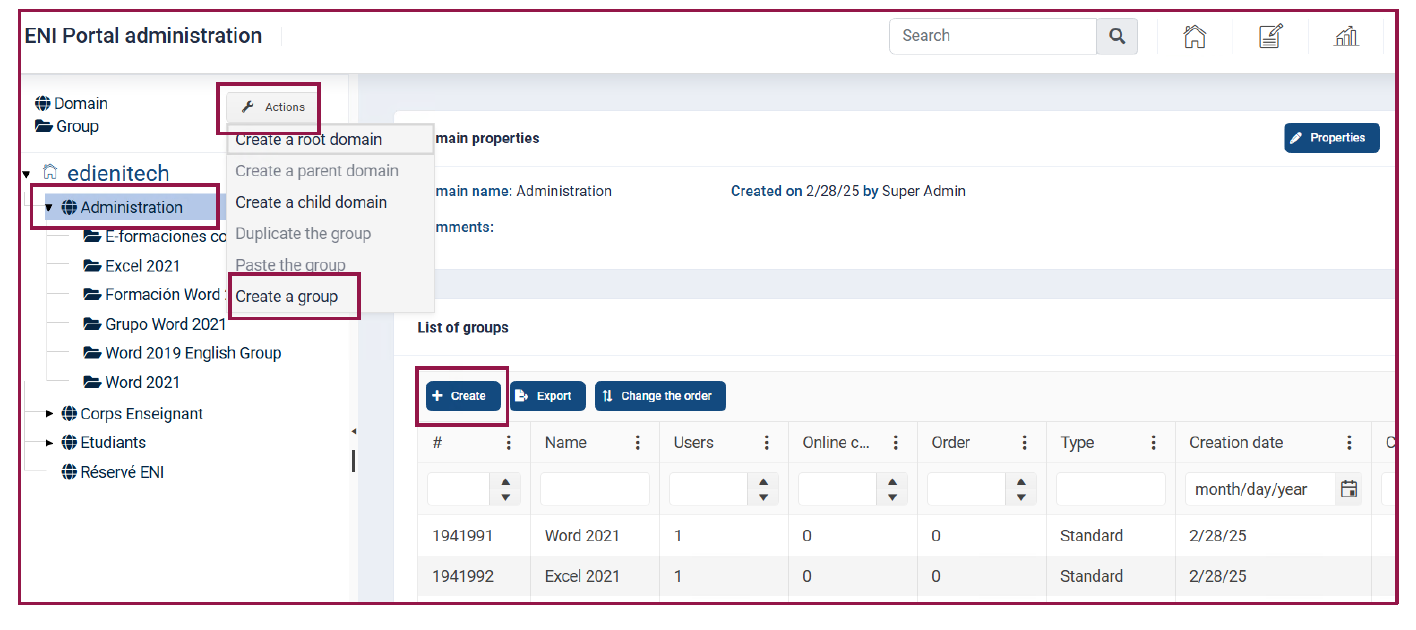
Click on one of your domains on the left-hand side of your tree structure and activate the 'Action' button to create your group.
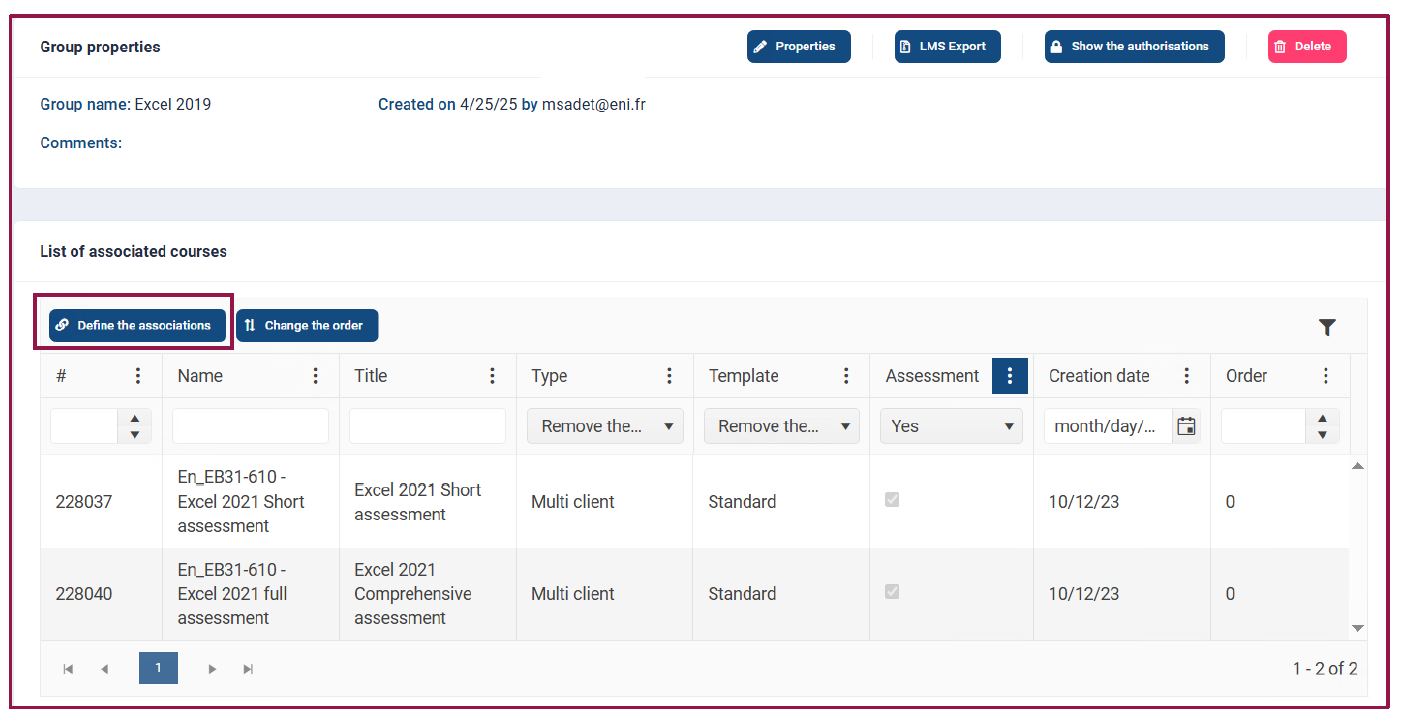
Once your group has been created, associate the assessment to the group by activating the "Define the associations" button and enroll your learners in the group.
What options are available for an assessment?
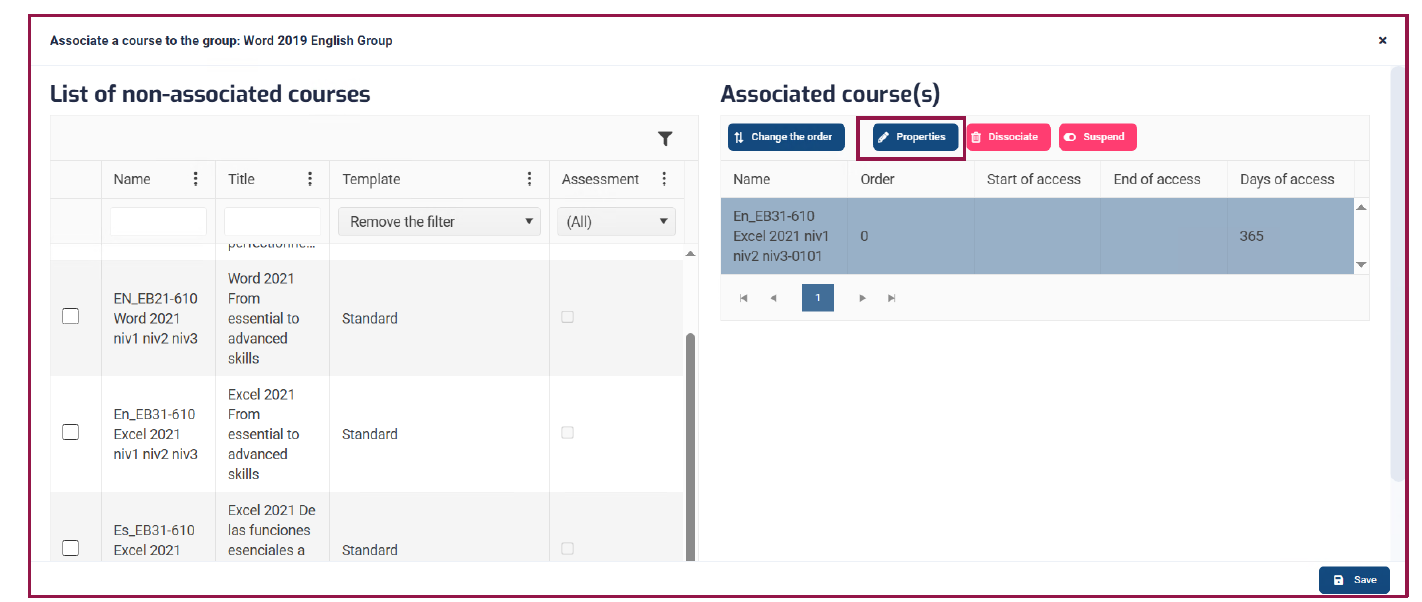
To access the options for an assessment, select the assessment associated to the group and click on the "Properties" button.
The following options are ticked by default:
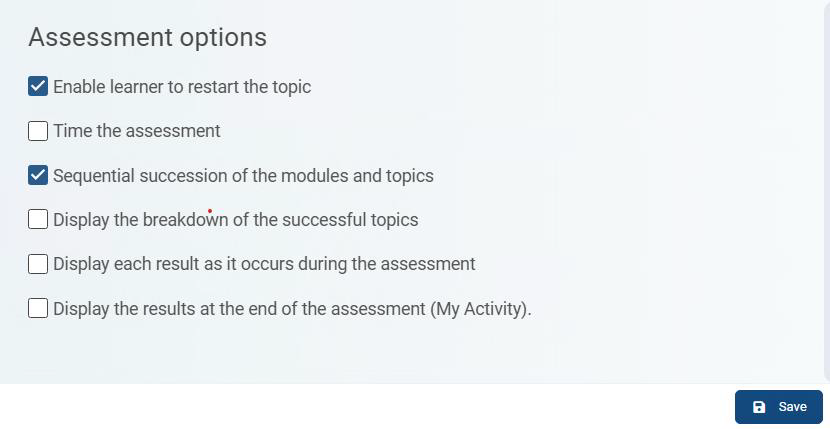
Option "Enable learner to restart the topic"
- If this option is ticked, the learner can select the button to restart a learning topic as long as they have not validated it.
- If the option is unticked, the learner is required to complete the topic without the possibility of restarting, even if they have made a mistake.
Option "Sequential succession of the modules and topics"
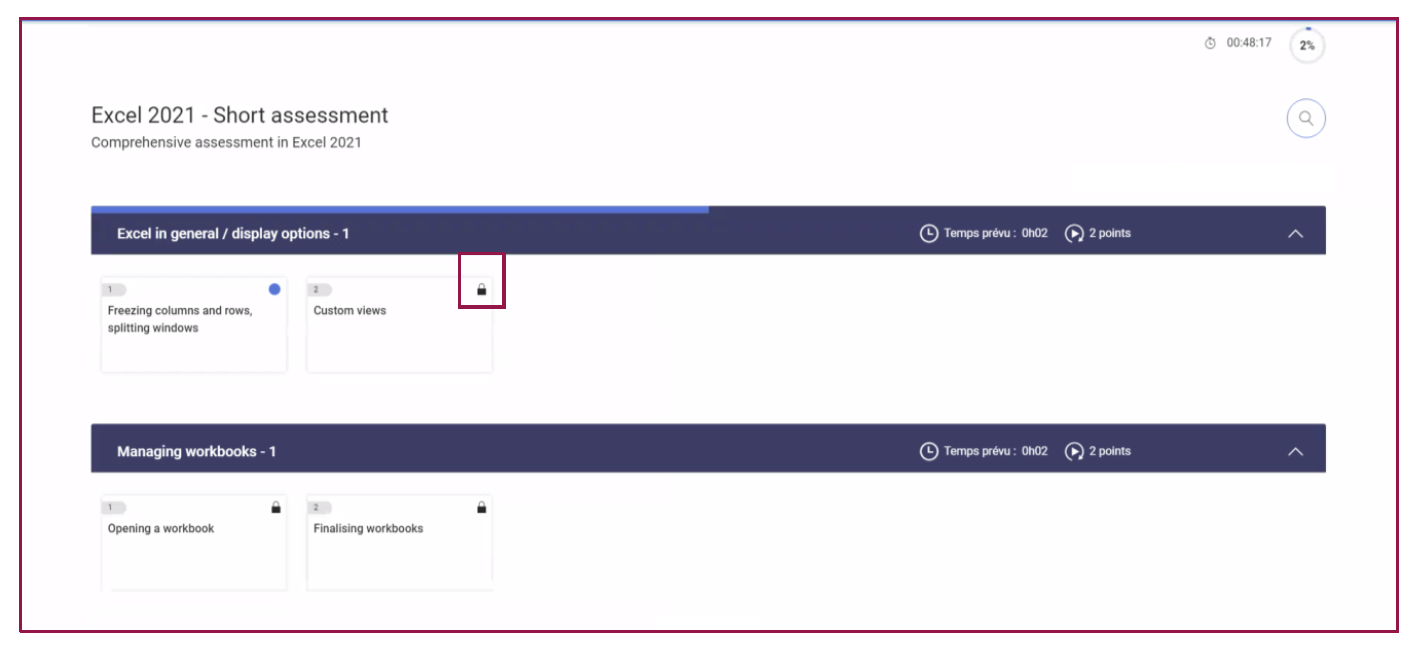
- If this option is ticked, the learner must complete the topics in order.
The following topics are locked with a padlock.
- If the option is unticked, the learner can complete the points in any order they choose.
A padlock is only visible on topics that have already been completed and are therefore no longer accessible.
Other available options:
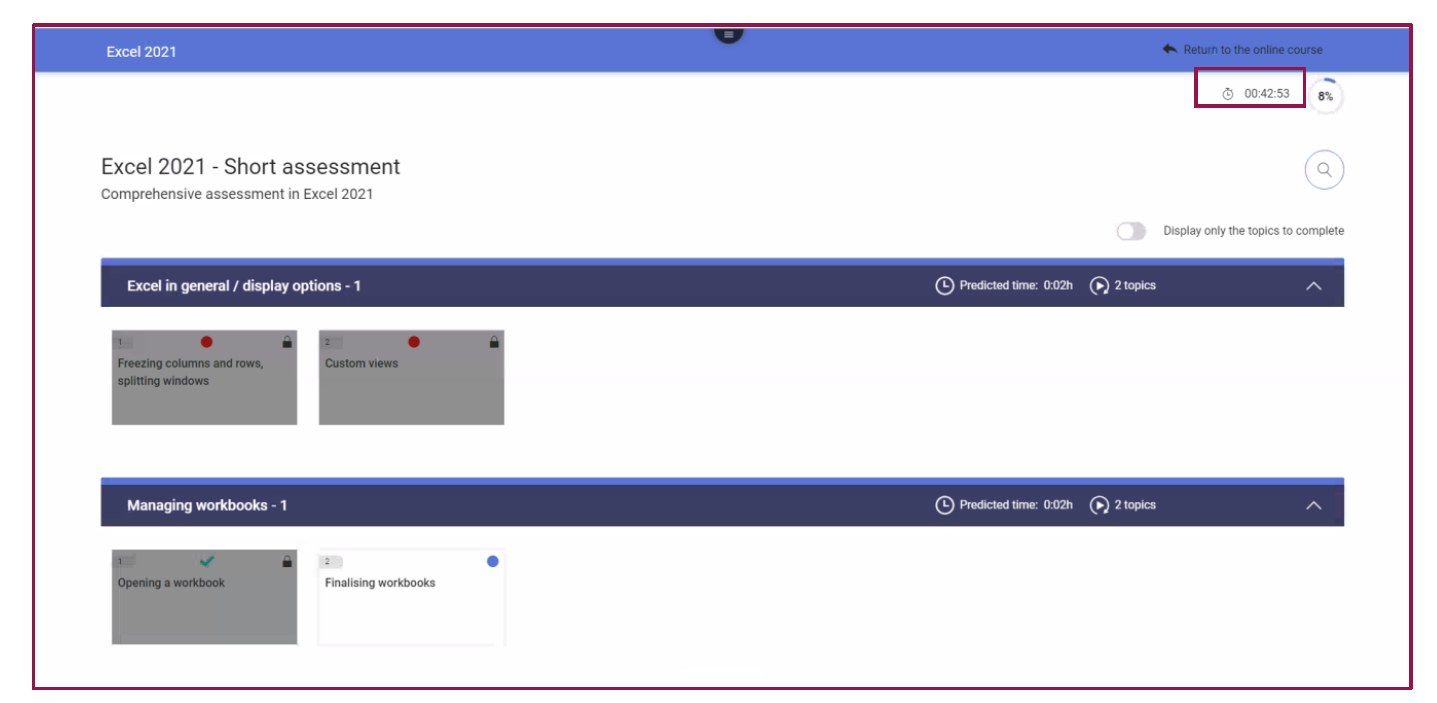
"Time the assessment" option
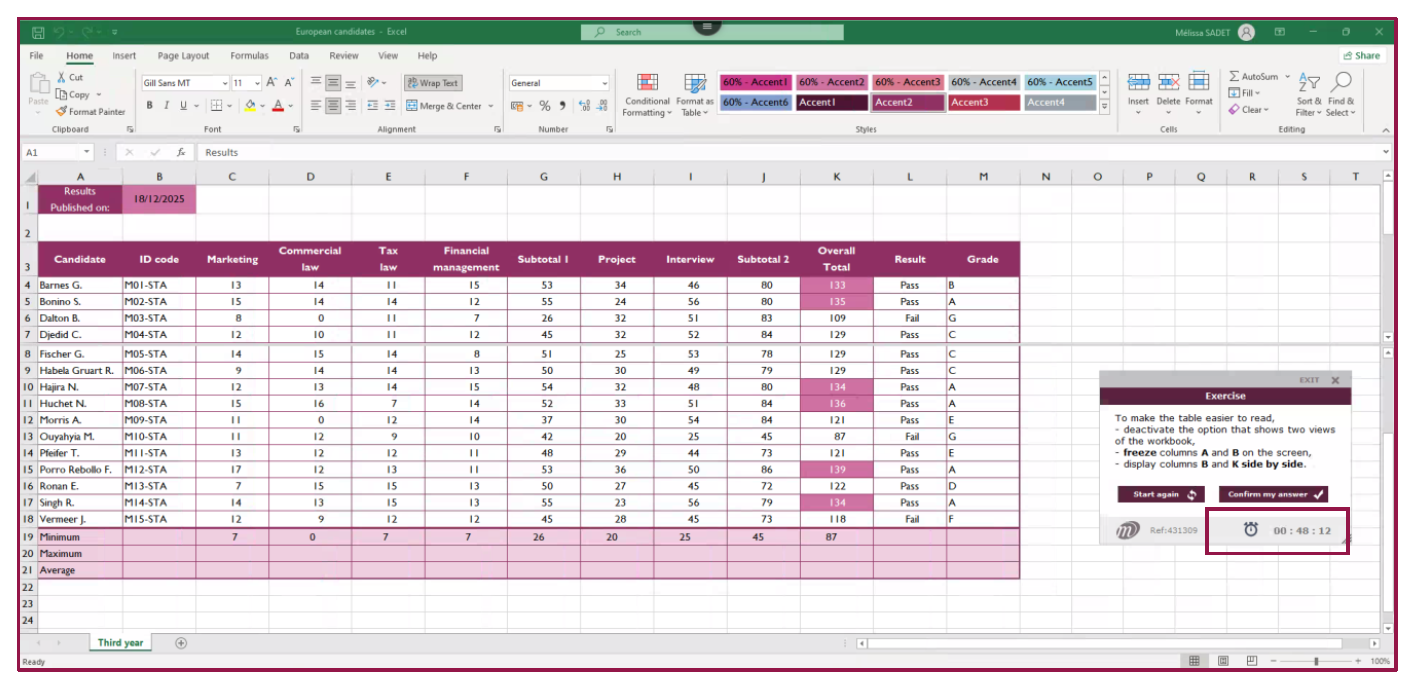
- If this option is ticked, learners have 2 minutes per topic to complete their assessment.
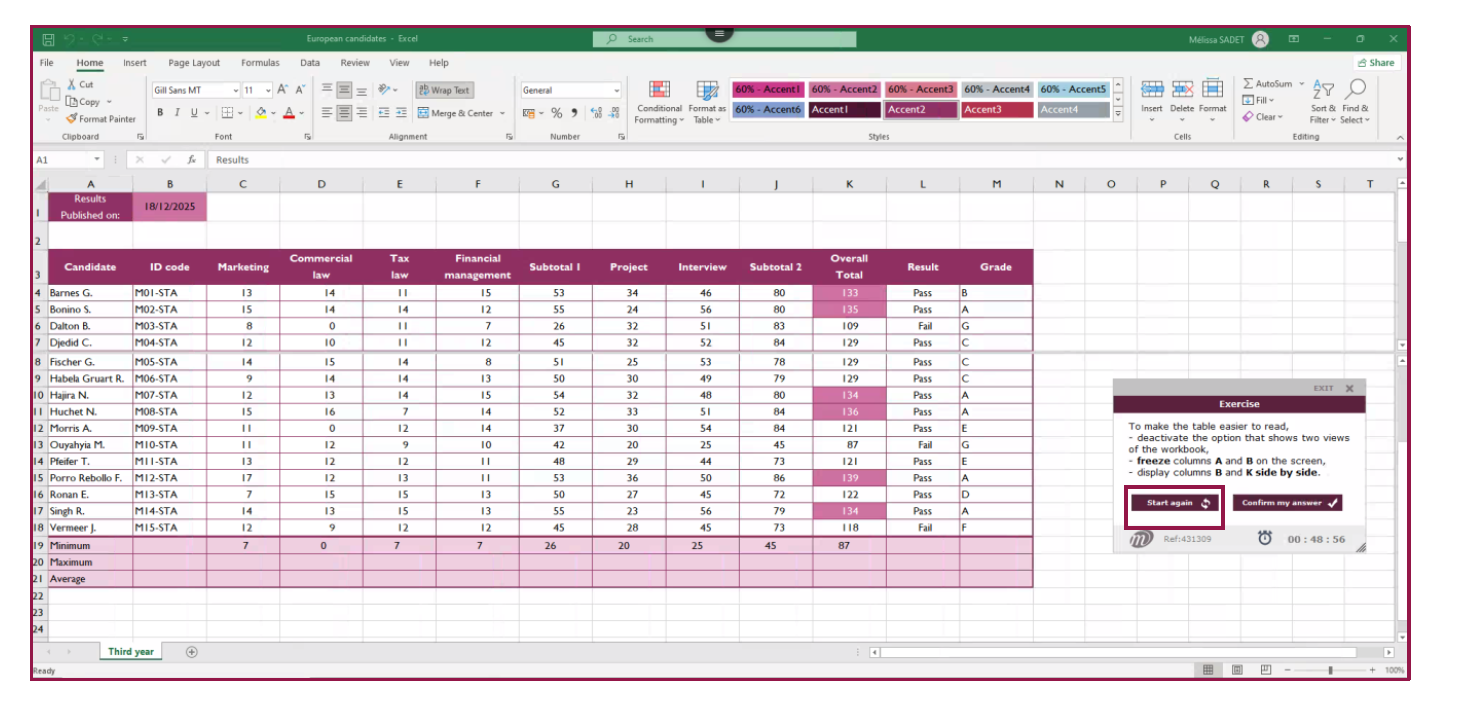
For example, for the short Excel 2021 complete assessment (levels 1, 2 and 3), learners have 49 minutes. A timer is displayed to show them how much time they have left to finish.
Moving from one point to another and the loading time for each topic are not included in the timer. If the assessment is interrupted, the timer is also paused and the countdown resumes the next time the learner logs in.
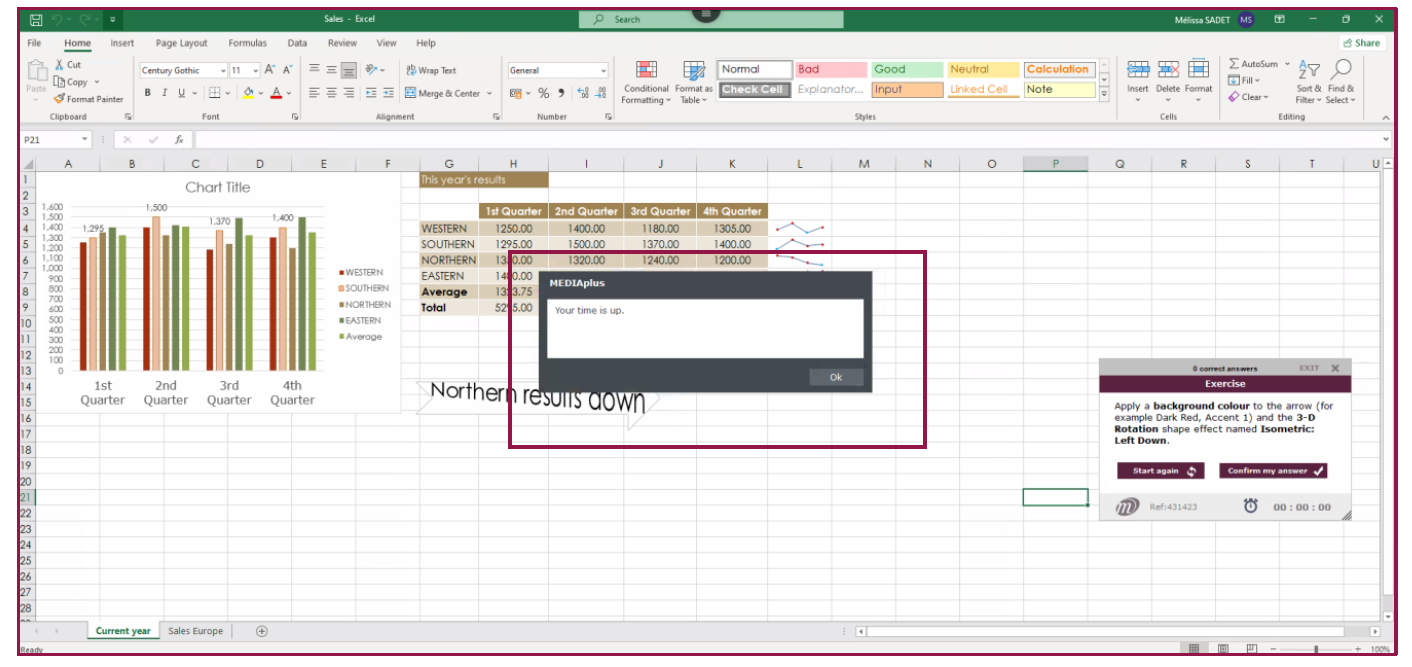
Once the total time has elapsed, the assessment closes even if the learner has not had time to complete all the topics. Topics not covered are counted as failed.
- If the option is unticked, the learner has no time limit to complete the assessment.
Option "Display the breakdown of the successful topics"
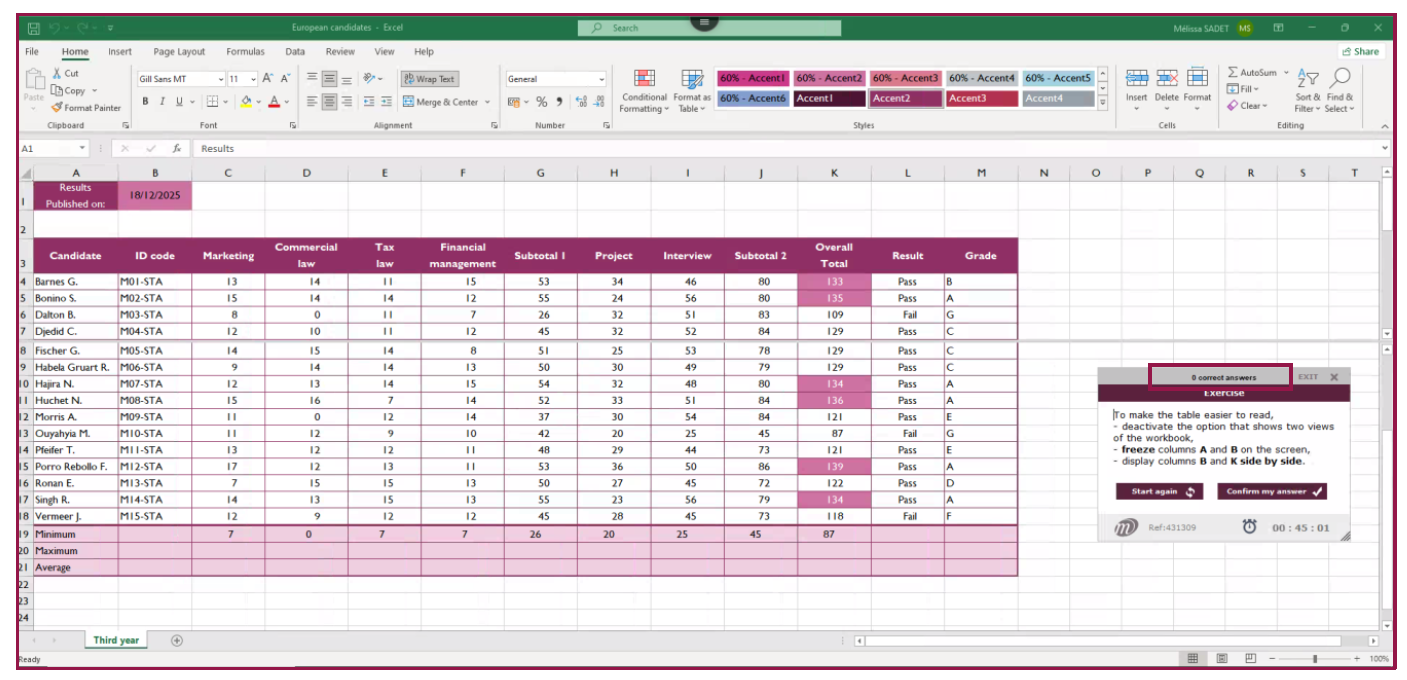
- If this option is ticked, a note in the instructions block displays the number of correct answers.
Option "Display each result as it occurs during the assessment"
- If this option is ticked, a red dot (failed) or a green tick (passed) is visible on each topic achieved in addition to the padlock.
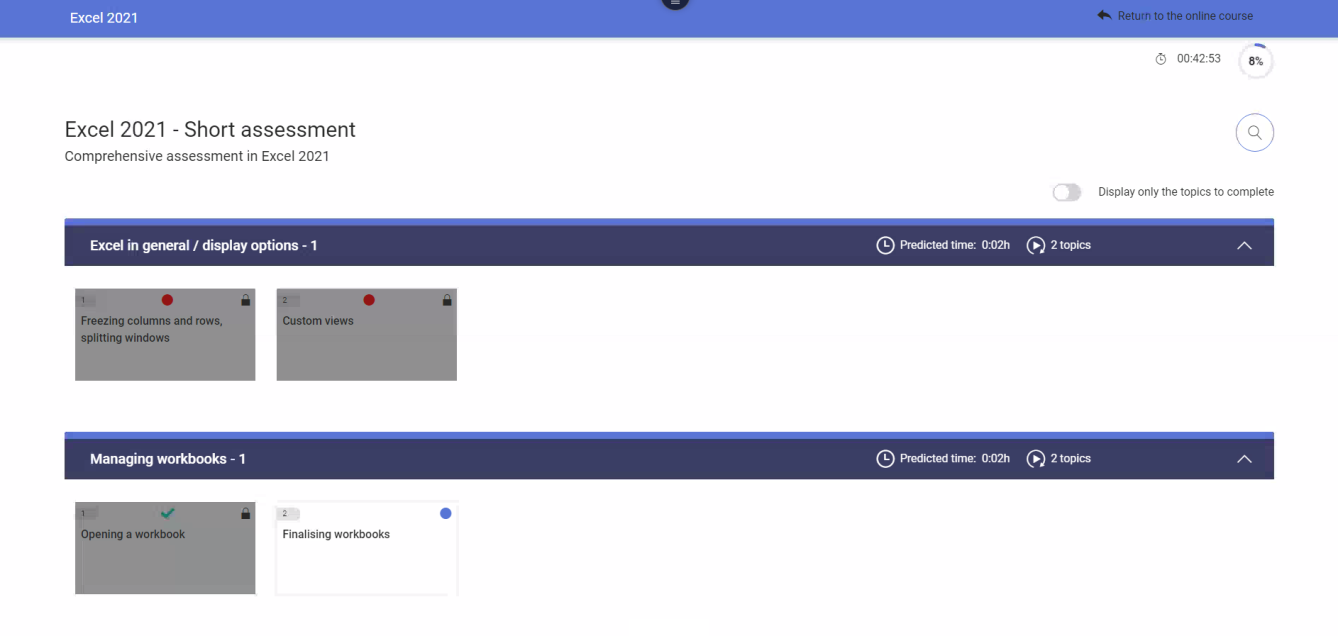
- If the option is unticked, only the padlock is visible and the current point is visible in blue.
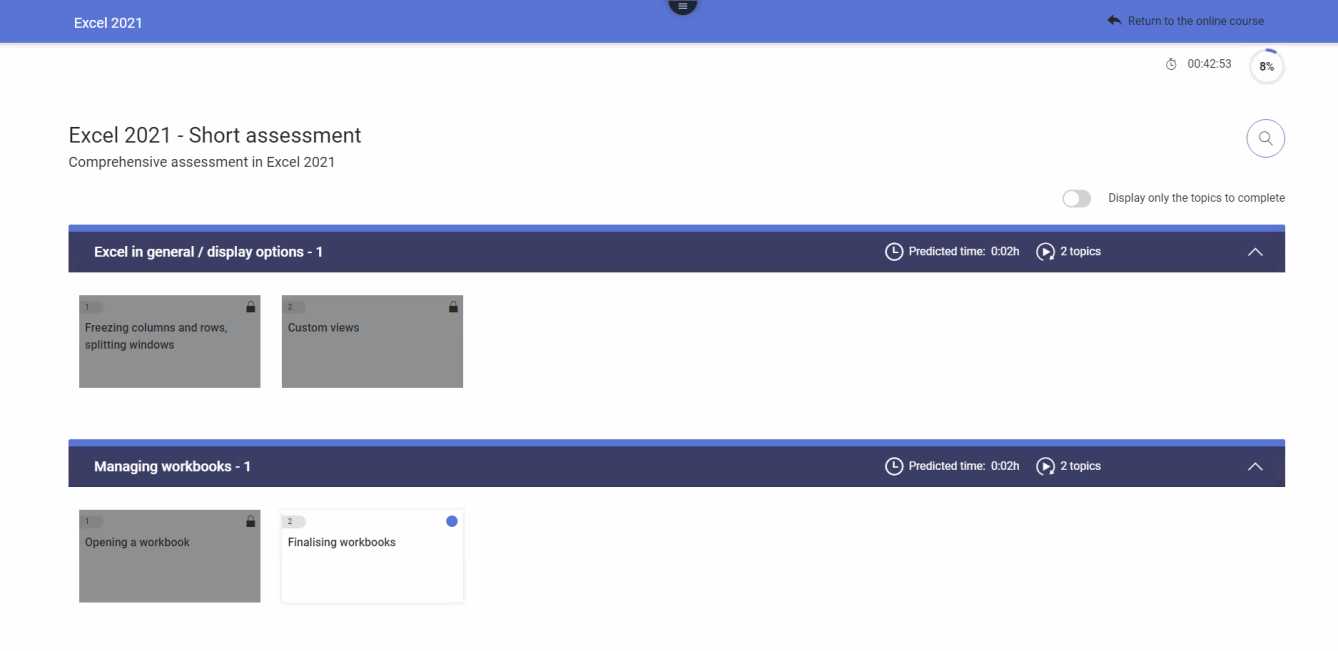
Option "Display the results at the end of the assessment (My activity)"
- If this option is ticked, details of failed topics (red dot) or passed topics (green tick) will be visible to the learner when they view their activity report, but only once the assessment is completed (100% progress).
- If the option is unticked, the learner will not see the results of their assessment even after it has been completed.