
Context
Adaptive training courses (references containing "ADP_") systematically include a placement assessment before the training begins. This assessment identifies the user's initial proficiency level and adapts their learning path accordingly.
Two versions are available:
- ADP_Pre: includes only the assessment completed before the training.
- ADP_PrePost: includes a pre-training assessment and the same assessment again after the training. This enables the user's progress to be measured between the beginning and the end of the learning path.
 Important: there is no version that includes only a final assessment.
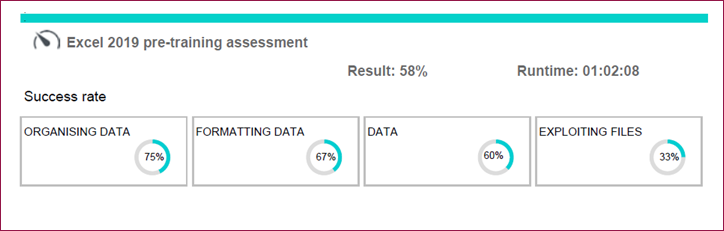
At the end of each assessment, the user receives:
- a total result reflecting their proficiency level;
- a success rate for each of the 4 key competency areas assessed.
These results make it possible to identify the user's strengths and areas for improvement.
How the Adaptive Assessment Works
The adaptive assessment is completed directly within the relevant software application (Word, Excel, PowerPoint, or Microsoft 365 versions 2016 to 2024) using our MEDIAplus technology.
Pre-Training Assessment
The pre-training adaptive assessment (ADP_Pre) is completed before the training begins in order to automatically determine the user's proficiency level.
Based on the assessment results, the online course is automatically updated to immediately assign the learning modules best suited to the user's profile:
- either Levels 1 and 2;
- or Levels 2 and 3.
The level that is not assigned remains available in the Additional Content section, allowing users to deepen their knowledge or review specific topics whenever they wish.
The number of questions presented during the assessment is adaptive and varies according to the user's responses.
How it works:
- the higher the user demonstrates their proficiency in a given competency area;
- the more the assessment explores that area by presenting additional questions with an increasing level of difficulty.
This adaptive approach provides a more accurate evaluation of the user's actual proficiency while delivering a personalized learning path.
Post-Training Assessment
For ADP_PrePost training courses, the same assessment is completed a second time at the end of the training to measure the user's acquired knowledge and evaluate their progress.
The same question bank used for the initial assessment is used again. However:
- the order of the questions is different;
- the assessment may take longer to complete.
As users have acquired new knowledge throughout the training, they generally achieve better results. The adaptive assessment therefore explores certain competency areas in greater depth, which may result in a higher number of questions.
Comparing the results obtained before and after the training provides a clear view of the user's progress.
Viewing Adaptive Assessment Results
In the Administration Console
To view your user’s performance by competency area, simply download their Detailed Activity Report.
The results are displayed in a table, allowing you to quickly view:
- the total result;
- the success rate for each of the four competency areas assessed.
This detailed view makes it easier to analyze results and monitor each user's progress.
In the Reporting Space
Your users' total assessment results can also be viewed and exported from the Reporting Space in your administration console.
To access them:
- Sign in to your administration console.
- From the home page, click the Reporting Space icon.
You can then view your users' results and export the data required for your analysis and training follow-up.

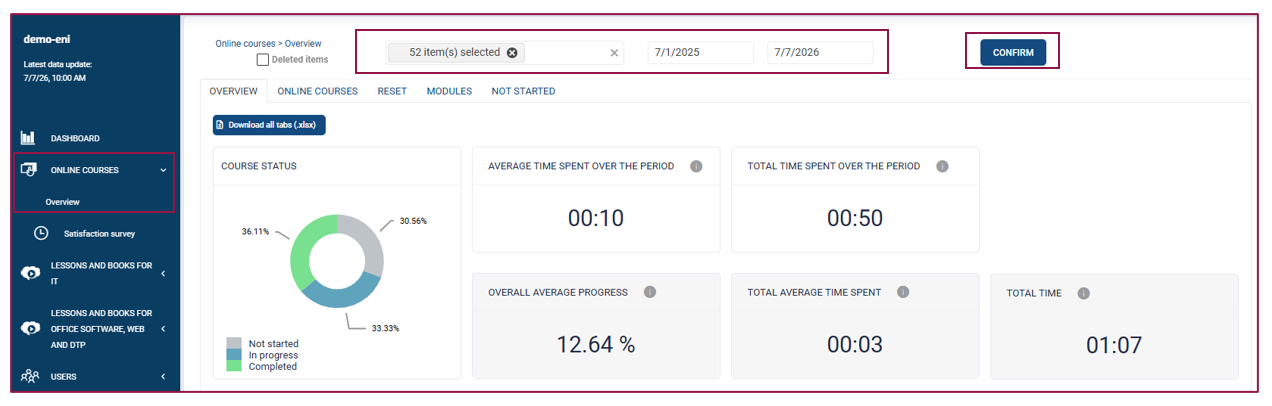
In the navigation pane on the left side of the screen:
- Select Online Courses.
- Click Overview.
- In the appropriate fields, select the domain(s) and/or group(s) you want to analyze.
- Click Confirm to display the corresponding results.
The overview data is then displayed according to the selected criteria.
Open the Modules tab, review the Resource Type column, and select either Post-Training Assessment or Pre-Training Assessment, depending on your needs.
The total result for the corresponding adaptive assessment is displayed in the Total Result column, just like any other module in the adaptive training course.
You can also click the Download button to export the results to Excel.
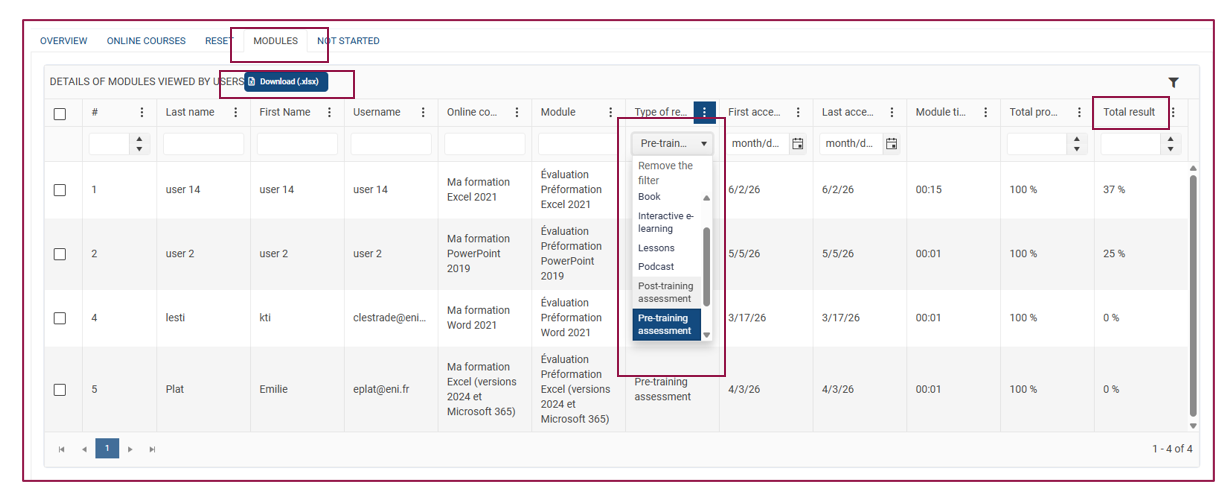
In the Excel file, you can further filter the Resource Type column to display only Pre-Training Assessment or Post-Training Assessment entries.