
To optimise your package for the next subscription period, we recommend reviewing your users before renewal.
This will help you identify which accounts to retain, suspend or delete in preparation for your package renewal and avoid renewing inactive accounts.
How your package works
Your package is based on a maximum number of registered users over a 12-month period.
Once a user is registered, they continue to count towards your package until the end of this period, even if they are no longer active. Unenrolling or suspending a user, or deleting their account, will only be taken into account when your subscription is renewed.
In this guide, suspending a user means adding an end of validity date to their account. The account and its history are retained, but access ends on the specified date.
Important: these actions do not immediately free up places in your current package. They allow you to prepare for renewal by identifying users who should no longer be counted in the next subscription period.
By reviewing your users before the renewal date (e.g. one month beforehand), you can:
- Anticipate the number of places available for the new period.
- Optimise the use of your package.
- Avoid unnecessarily retaining inactive accounts.
- Prepare for your subscription renewal with confidence.
Need help? Our Customer Satisfaction team can carry out this review for you for an additional fee.
1 – Identifying users to remove from your package
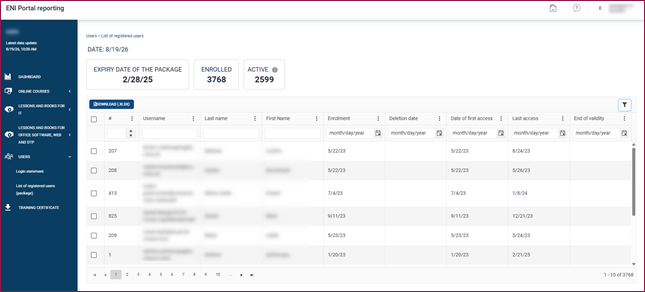
Log in to your administration console, then go to the Reporting space to view or download the List of registered users (package) report.

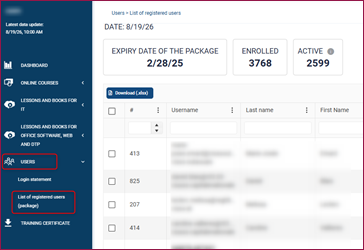
This report provides an overview of your package usage, with one row per user. Key indicators, such as the date the user last accessed the portal or the end of validity date specified on their account, can help you identify which users to retain, suspend or delete.
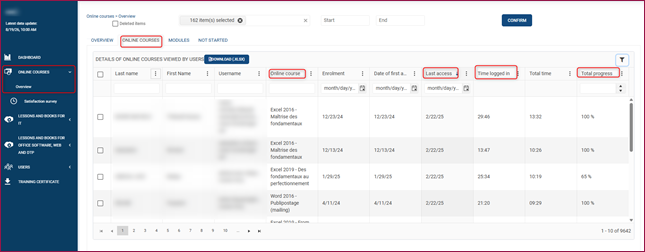
You can also carry out a more detailed analysis of your users’ activity using the Overview report in the Online courses section.
This overview displays one row per user and per online course taken, with key indicators such as the date the online course was last accessed, the progress percentage and the time spent.
For more details about this report and the information it contains, refer to the dedicated documentation.
? Objective: identify which users to retain, suspend or delete.
2 – Removing users from your package
There are two options available to prepare for your package renewal: add an end of validity date or delete the account.
Option 1: Add an end of validity date
Principle: set an end date for the user’s access before your package renewal date.
Result:
- The user’s access is suspended.
- The user’s profile is retained.
- Their training history is retained (progress, results and completion).
- The user can easily be reactivated if necessary by extending the end of validity date.
This operation can be performed in bulk using a CSV file. Simply download the list of users by clicking Export, then select Export to use the user import service.
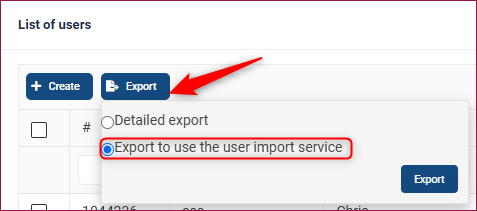
The exported file lists all registered users.
You can specify a start and end of validity date. For example, if your renewal date is 01/01/2027, you can set the end of validity date to 12/31/2026 for users who should not be renewed.
To simplify the process, you can keep only the users you want to update in your import file.
Save the file in CSV format with a semicolon (;) delimiter.
Then use the user import service (the icon in the top-right corner of your administration console) and select the Edit users action.

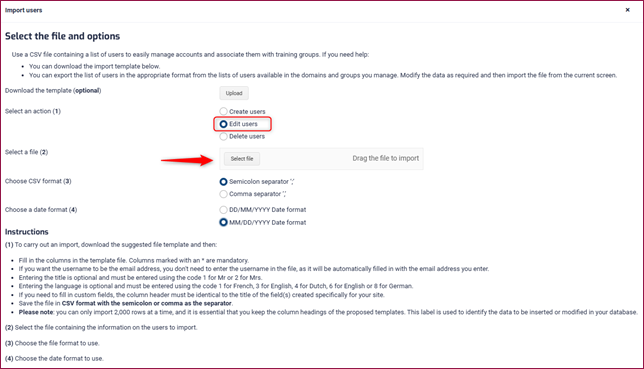
All these steps are explained in detail in our guide: The user import service.
Option 2: Delete the account
Principle: the user account is deleted before the subscription renewal date.
Result:
- A new profile will be created the next time the user logs in.
- A new ENI identifier will be generated.
- The user will not have access to their previous training history (progress, results and completion).
- Activity associated with the deleted account will still be available in the Reporting space.
? Recommended for users who:
- Have no significant activity.
- Will not be returning for further training.
Important: deleting an account is irreversible. If the user is enrolled again at a later date, they will start their training with a new profile and without their previous training history.
You can delete a user from their account properties either:
- by going to their enrolment domain and then the List of users;
- or by using the search bar at the top of the screen.
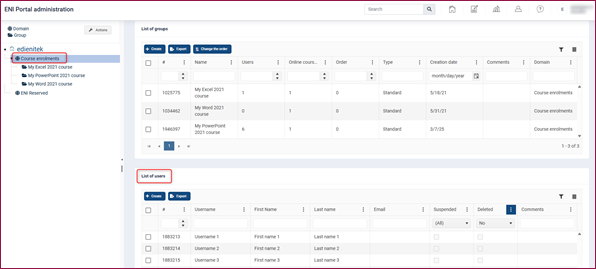
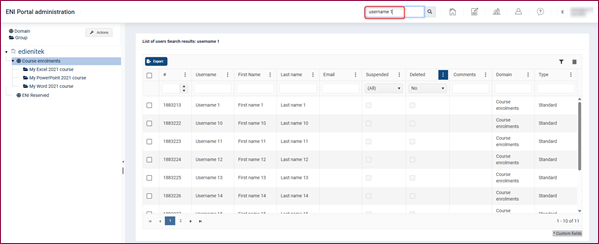
The steps for deleting an account are explained in detail in our guide: Deleting and reactivating user accounts.
Which option should you choose?
If... | Then... |
You want to be able to restore access later and retain the user's training history. | Add an end of validity date. |
You are certain that the user will not return for further training. | Delete the account. |
You are unsure. | Use an end of validity date. |
Special case: access via an LMS platform
When ENI content is accessed through an LMS platform, user accounts are automatically created in the ENI administration console the first time a SCORM module is launched.
In this case, your package must be reviewed at two levels:
- In the customer’s LMS: remove access to ENI content in accordance with your organisation’s rules (suspend or delete the account, remove access to the module, or take any equivalent action).
- In the ENI administration console: an additional action must also be carried out in the ENI console, as account suspension or deletion information from the LMS is not transmitted via SCORM.
The account therefore remains in the ENI administration console and continues to count towards your package until action is taken on the ENI side.
Which option should you choose?
The choice between deleting the account and adding an end of validity date, as described above, depends on two criteria:
- the number of users to remove from the package;
- the likelihood that these users will need to access their training history again at a later date.
Situation | Recommended action in the ENI console | Main consequence |
A large number of users need to be removed from the package. | Delete the ENI accounts. | The accounts will be automatically recreated with a new ENI identifier if users launch content from the LMS again, but their previous training history will not be restored. |
A small number of users need to be removed and may return at a later date. | Set an end of validity date. | Their training history is retained. If a user launches content from the LMS again after their access has expired, an error page will be displayed. The administrator will then need to manually extend the account's validity period in the ENI console to restore access and allow the user to retrieve their training history. |
Important: taking action in the LMS alone is not sufficient to remove users from the ENI package. The user account must also be managed in the ENI administration console, either by deleting it or by adding an end of validity date.