
The ENI administration console makes it possible to export all the training content available in your training portal with the SCORM 1.2 and 2004 norms.
The norm to use depends on the compatibility with your LMS platform and/or the information you need.
The information returned can concern the course’s status (not started, incomplete, completed), the percentage of success and/or the percentage of completion (one or the other for SCORM 1.2; both for SCORM 2004), the Mastery Score (75% by default) and the time spent (updated every minute).
For the online video courses, we suggest using the SCORM 1.2 norm, choosing the percentage of completion option, to return a “completed” status once all the lessons have been watched. There is no percentage of success returned for the watching of videos.
We suggest to only associate one online course per group in the administration console to have more detailed tracking. When associating several online courses to a same group, the SCORM points to the courses as a whole and the percentages are calculated globally rather than for each course.
1 - Exporting several SCORM catalogues:
On your administration portal’s homepage, click the LMS Export icon in the top-right corner:

Select the group(s) concerned and the options:
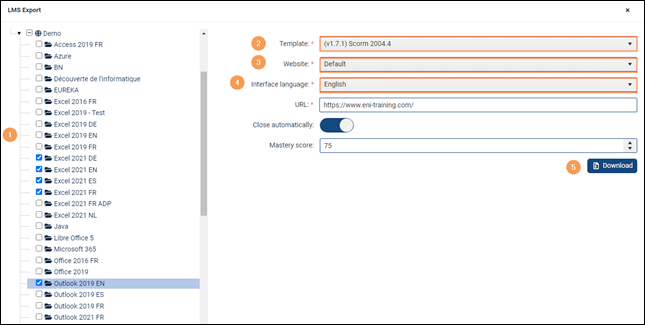
1 - Tick the boxes corresponding to the domain and/or group(s) for which the SCORM should be generated ;
2 - Select the 1.2 or 2004 template according to the compatibility of the LMS ;
3 – In the Site list, select Default ;
4 - Select the interface language (the online course's language is set when associating the course with the group) ;
5 - Click Download.
Do not change the URL.
The Close automatically option is active by default for fluid browsing between the LMS portal and the online course’s portal.
The Mastery Score helps appreciate the learner’s success with their course. Once the online course’s percentage of completion has reached 100%, the course’s status will change to “Passed” if the percentage of success is above or equal to the set Mastery Score, or to “Failed” if it is below.
The downloaded file is a .zip file containing all the SCORMs in the .zip format.
Extract the SCORMs, keeping the .zip format. They are now ready to integrate into the LMS.
2 - Exporting a single SCORM catalogue:
To extract a single SCORM, reach the group concerned and click the LMS Export button.
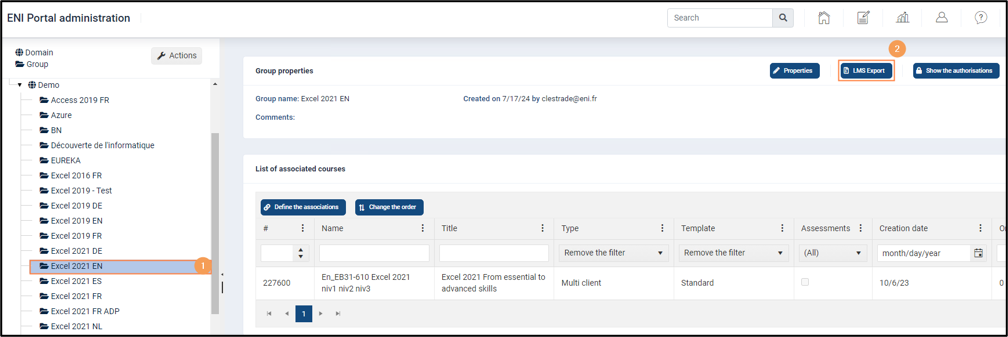
A pop-up window appears. Select the appropriate options:
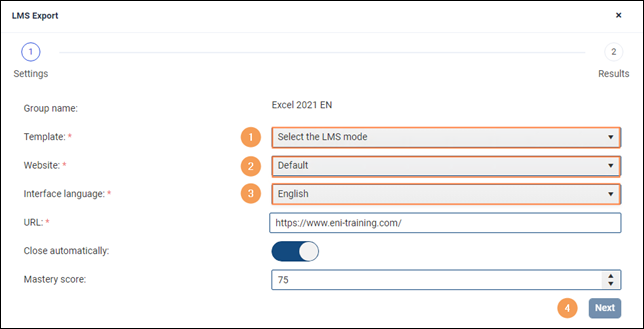
1 - Select the 1.2 or 2004 template according to the compatibility of the LMS ;
2 - Select Default in the following list ;
3 - Select the interface language (the online course's language is set when associating the course with the group) ;
4 - Click Next.
Do not change the URL.
The Close automatically option is active by default for fluid browsing between the LMS portal and the online course’s portal.
The Mastery Score helps appreciate the learner’s success with their course. The course’s status will change to “Passed” if the percentage of success is above or equal to the set Mastery Score, or to “Failed” if it is below.
A window appears allowing you to review the options before downloading the files. If all is in order, click Download.
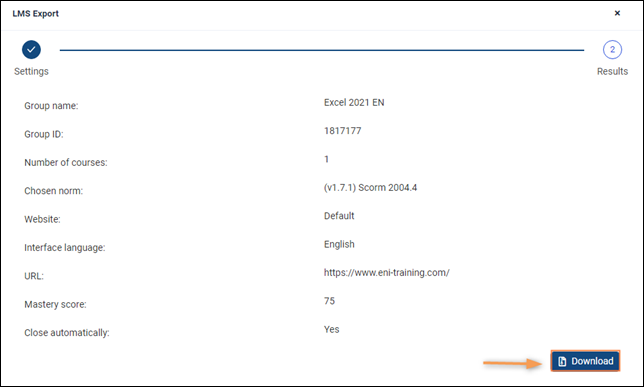
The downloaded file uses the .zip format and is ready to import into the LMS.
3 – Metadata’s file :
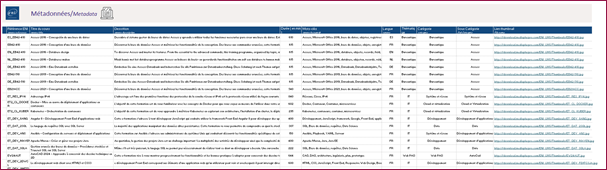
To finalise the creation of your courses on your LMS platform, we provide you with an Excel file that allows you to retrieve a number of details about the characteristics of each course:
- The ENI reference ;
- The course title ;
- A brief description ;
- The duration of the course ;
- Keywords ;
- Language ;
- Theme ;
- Category ;
- Sub-category ;
- Thumbnail download link.
This allows you to apply filters to the file and find the references you use, by reference, language or other criteria, according to your preferences.
You can find this file on our website at this address:
https://www.eni-elearning.com/fr/scorm-metadonnees/
see also: